
Most Chrome users install a productivity extension and never look back. That’s the problem. The tools you rely on daily to write, research, and manage your workflow may be quietly reading your keystrokes, scanning your open tabs, or transmitting your chat history to remote servers. A 2026 study found that 67% of AI Chrome extensions collect user data, and most users have no idea it’s happening. This article breaks down exactly how extensions access your data, which ones carry the highest risk, and the specific steps you can take to lock things down without gutting your productivity.
Table of Contents
- How browser extensions access your data
- What the data shows: Privacy risks in Chrome extensions
- Permission pitfalls: Why productivity tools pose unique risks
- Blocking trackers: Comparing privacy extension performance
- How to audit and optimize extension privacy
- Enhance workflow privacy with trusted solutions
- Frequently asked questions
Key Takeaways
| Point | Details |
|---|---|
| Extension permissions matter | High-risk permissions allow deep access, so review and restrict them carefully. |
| Not all trusted tools are private | Many widely-used productivity extensions collect personal data—even when not in active use. |
| Fewer is safer | Minimize extension count and remove those you don’t regularly use to protect your privacy. |
| Audit and adjust regularly | Use Chrome’s built-in tools to review permissions and extension activity on a routine basis. |
| Privacy tools can help | Top-rated privacy extensions block many trackers but should be used thoughtfully to avoid performance issues. |
How browser extensions access your data
Every Chrome extension you install requests a set of permissions. These aren’t just formalities. They define exactly what the extension can see, read, and do inside your browser.
Chrome permissions fall into three risk tiers. High-risk permissions grant access to all data on every site you visit, plus files on your computer, your webcam, and your microphone. Medium-risk permissions access data on all sites or specific ones you choose. Low-risk permissions cover things like bookmarks, browsing history, tabs, and location. The gap between low and high risk is enormous, yet many users click through install prompts without reading a single line.
Extensions often ask for more access than their core function requires. A grammar checker doesn’t need access to your file system. A tab organizer doesn’t need to read data on every site. Yet many request exactly that, because broader permissions make future feature additions easier for developers.
The Manifest V3 framework, Chrome’s current extension architecture, was designed to reduce some of these risks by limiting background scripts and tightening API access. It helps, but it doesn’t eliminate the problem. Extensions can still collect substantial data within V3 rules.
| Permission type | What it accesses | Risk level |
|---|---|---|
| All sites data | Every page you visit | High |
| Specific site data | Chosen domains only | Medium |
| Tabs and history | URLs, page titles | Medium |
| Bookmarks | Saved links | Low |
| Camera/microphone | Live audio and video | High |
| File system | Local documents | High |

Typical productivity and AI extensions access page content, form inputs, browsing history, and sometimes clipboard data. That’s a wide surface area for any tool sitting inside your browser.
Pro Tip: Before installing any extension, click “Details” on the Chrome Web Store listing and scroll to the permissions section. If a simple utility requests access to all your data on all sites, that’s a red flag worth taking seriously. You can also review active permissions anytime at chrome://extensions.
What the data shows: Privacy risks in Chrome extensions
The numbers from recent research are harder to ignore than most users expect.
Incogni’s 2026 study of 442 AI-powered Chrome extensions found that 52% collect user data and 29% collect personally identifiable information (PII). Programming and math helper extensions ranked as the riskiest category overall. Among widely used tools, Grammarly and Quillbot both scored as high-risk, despite their mainstream adoption and trusted reputations.
“67% of AI Chrome extensions collect data” — Incogni, 2026 analysis of AI-powered Chrome extensions
The risks aren’t just theoretical. In January 2026, a 900,000-user breach was traced to fake AI tools distributed through the Chrome Web Store. These extensions were specifically designed to steal ChatGPT conversation histories. Separately, a VPN extension harvested AI chat data from 7 million users before it was flagged and removed.
Here’s a structured way to evaluate any extension’s risk level before you install it:
- Check the number and type of permissions requested.
- Read the extension data collection practices in the developer’s privacy policy.
- Search the extension name alongside terms like “privacy” or “data collection” to surface any reported incidents.
- Look at the last update date. Abandoned extensions are higher risk.
- Check the developer’s other published extensions and their reputation.
| Extension | Data collected | PII risk | Risk rating |
|---|---|---|---|
| Grammarly | Page content, keystrokes | Yes | High |
| Quillbot | Text input, usage data | Yes | High |
| Generic AI assistant | Browsing history, chats | Yes | High |
| uBlock Origin | Minimal (local only) | No | Low |
| Privacy Badger | Tracker patterns | No | Low |
The pattern is clear: the more an extension interacts with your text and browsing behavior, the more data it tends to collect.
Permission pitfalls: Why productivity tools pose unique risks
Productivity extensions occupy a strange position in the privacy conversation. They’re trusted precisely because they’re useful. But that utility often requires exactly the kind of broad access that creates risk.

A writing assistant needs to read what you type. A tab manager needs to see your open tabs. An AI research tool needs to access page content. These are legitimate functional needs. The problem is that many tools request more than what their core features actually require, and users rarely push back.
The AI and productivity extension category consistently ranks as the riskiest in privacy audits, not because the tools are malicious, but because their design requires deep browser access. That access doesn’t disappear when you’re not actively using the extension.
Here’s what makes this particularly concerning:
- Dormant extensions still run. An extension you installed six months ago and forgot about may still be collecting data in the background.
- Permissions don’t expire. Once granted, access remains until you manually revoke it or uninstall the extension.
- Updates can expand permissions. An extension that was low-risk at install can request additional permissions after an update, sometimes without a clear prompt.
- Privilege inheritance is a real attack vector. CVE-2026-0628, a Chrome vulnerability patched in January 2026, allowed low-privilege extensions to hijack Chrome’s Gemini panel and gain access to camera, microphone, and file system data. The flaw exploited how extensions inherit permissions from trusted browser components.
“Unused extensions are not harmless. They continue to execute, consume resources, and in some cases transmit data even when you haven’t opened them in months.” — Incogni, 2026
The unused extension risks are easy to underestimate because nothing visible happens. But background activity is exactly what makes dormant extensions dangerous.
Pro Tip: Fewer installed extensions means fewer potential attack surfaces. Aim to keep only the extensions you use at least once a week. Everything else should be removed, not just disabled.
Blocking trackers: Comparing privacy extension performance
If extensions create risk, privacy-focused extensions are supposed to be the antidote. But how well do they actually work, and does it matter which browser you’re using?
A benchmarking study comparing privacy tools across browsers found significant performance differences. Ghostery on Firefox blocked the most requests overall, reaching 24,729 total blocked requests in testing. uBlock Origin variants also performed strongly, blocking over 24,000 requests. Chrome versions of the same tools consistently underperformed their Firefox counterparts, which matters if Chrome is your primary work browser.
| Extension | Browser | Requests blocked | Performance impact |
|---|---|---|---|
| Ghostery | Firefox | ~24,729 | Low |
| uBlock Origin | Firefox | ~24,000+ | Low |
| Ghostery | Chrome | Lower than Firefox | Low to medium |
| Privacy Badger | Chrome | Moderate | Minimal |
| uBlock Origin Lite | Chrome | Moderate (MV3 limited) | Minimal |
A few practical takeaways from the data:
- Ghostery and uBlock Origin block roughly 20 to 24% of all browser requests, which is substantial.
- Running multiple blockers simultaneously doesn’t double your protection. It creates redundancy and can noticeably slow page load times.
- uBlock Origin Lite is the Manifest V3 compatible version for Chrome. It’s less powerful than the full version but still effective for most users.
- Privacy Badger learns from your browsing behavior over time, making it more effective the longer you use it.
The practical recommendation: pick one primary privacy extension and stick with it. Stacking Ghostery on top of uBlock on top of Privacy Badger creates performance drag without meaningful additional protection. For Chrome users specifically, uBlock Origin Lite or Ghostery are the strongest starting points.
How to audit and optimize extension privacy
Knowing the risks is only useful if you act on them. Here’s a concrete process for auditing what’s installed and tightening your setup.
Step-by-step extension audit:
- Open chrome://extensions in your browser. Review every installed extension. If you don’t recognize it or haven’t used it recently, remove it.
- Click “Details” on each remaining extension. Under “Site access,” change the setting to “On click” or “On specific sites” rather than “On all sites.”
- Run Chrome’s built-in Safety Check under Settings > Privacy and Security. It flags extensions that have been removed from the Chrome Web Store, which is often a sign of policy violations.
- Review each extension’s permissions list. If an extension you use for a narrow task has high-risk permissions, check whether a lighter alternative exists.
- Check the Chrome extension permissions documentation to understand what each permission actually grants. The language in permission prompts is often vague.
- Set a recurring calendar reminder every 90 days to repeat this audit. Extensions update, your usage changes, and new risks emerge.
For enterprise users, allowlisting specific approved extensions through Chrome’s admin policies is the most robust approach. It prevents employees from installing unapproved tools that could expose company data.
Pro Tip: Aim to keep your active extension count at two or three maximum. One privacy blocker, one productivity tool you genuinely use daily, and nothing else. Every additional extension is a tradeoff between utility and exposure.
The “On click” permission setting is particularly underused. It means an extension only activates when you explicitly click its icon, rather than running passively on every page you visit. For most productivity tools, this is a reasonable restriction that cuts background data collection significantly without breaking core functionality.
Enhance workflow privacy with trusted solutions
Taking control of your extension stack is one of the highest-leverage privacy moves you can make as a Chrome power user. Audit ruthlessly, restrict permissions, and keep your installed count low.
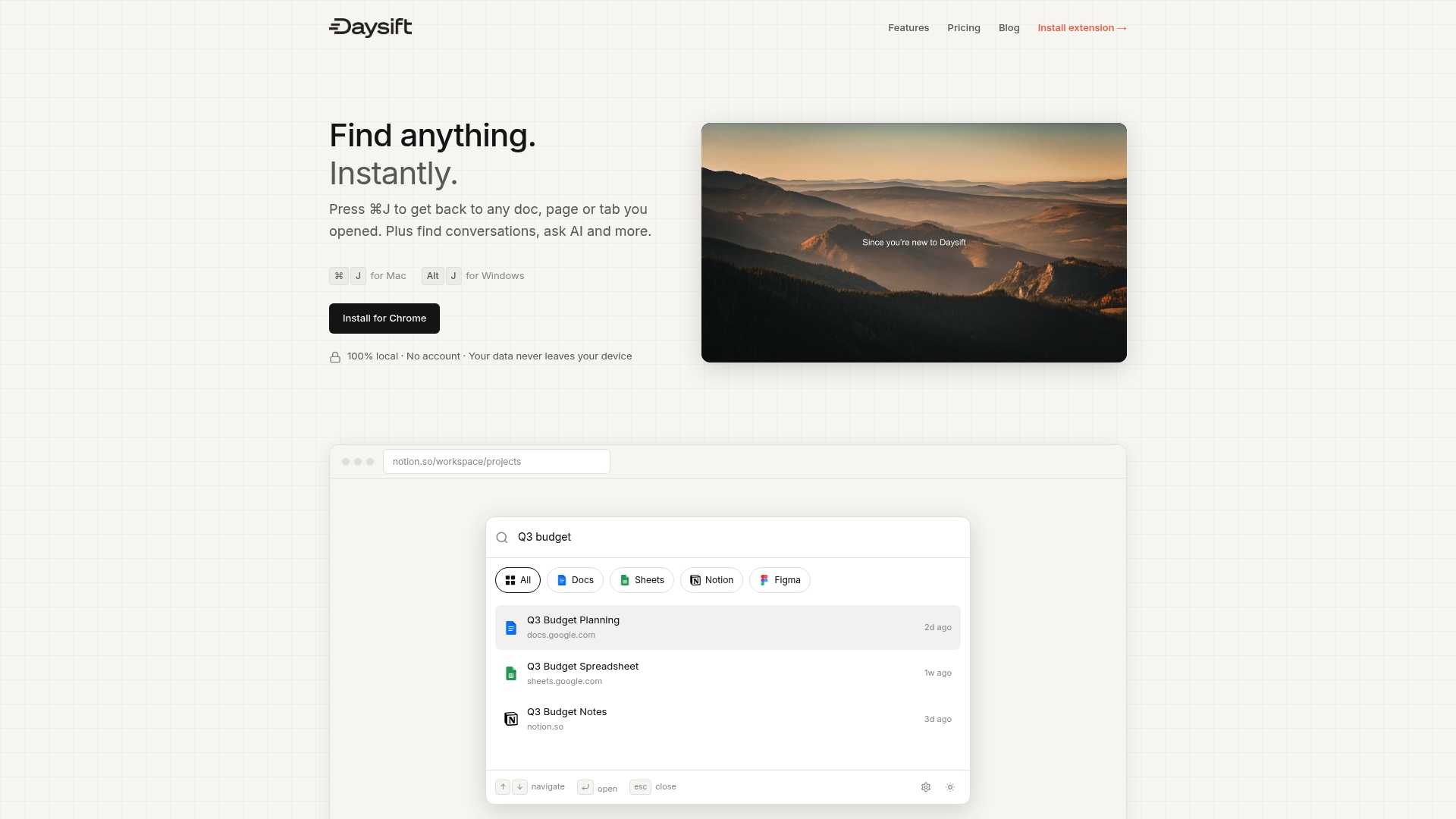
If you’re looking for a productivity tool built with privacy as a foundation, Daysift is worth exploring. Everything Daysift indexes stays on your machine in local storage. No account required, no cloud sync, no data leaving your browser unless you explicitly use an AI feature. You get instant search across everything you’ve opened in Chrome, floating notes, pinned pages, and AI summaries, all without the data exposure that comes with most productivity extensions. Read the full Daysift privacy policy to see exactly how it handles your data, or get started today and see what a privacy-first workflow actually feels like.
Frequently asked questions
How do I know if a Chrome extension is collecting my personal data?
Check the permissions requested during installation and review extension settings under chrome://extensions. Extensions asking for broad site access or personal data access are the ones to scrutinize most carefully.
Which productivity extensions are riskiest for privacy?
AI-powered tools, programming helpers, and popular writing assistants like Grammarly and Quillbot collect the most data according to Incogni’s 2026 analysis of 442 extensions, with 52% collecting user data and 29% collecting PII.
How can I limit an extension’s data access without uninstalling?
Set site access to “On click” or restrict it to specific sites in Chrome extension settings. The Chrome permissions guide explains how to use optional permissions to limit what each extension can reach.
Are privacy-blocking extensions safe to use together?
Using multiple blockers like Ghostery and uBlock Origin together can block more trackers, but stacking blockers creates performance drag without proportional gains. One well-chosen tool performs better than two overlapping ones.