
You have 47 tabs open right now. Half are duplicates you forgot about. The other half are research you swear you’ll read later. Meanwhile, every search takes twice as long because Chrome is crawling under the weight of 23 extensions and a bookmark folder structure that rivals the Library of Congress. This checklist cuts through the chaos with proven strategies to reclaim your browser speed and search precision in 2026.
Table of Contents
- Evaluate Your Chrome Memory And Tab Management Setup
- Organize Tabs And Bookmarks To Minimize Context Switching
- Master Google Search Operators To Refine Results Quickly
- Audit Extensions And Control Tab Quantity To Preserve Speed
- How Daysift Can Streamline Your Search And Tab Management
Key takeaways
| Point | Details |
|---|---|
| Memory Saver cuts resource use | Enabling Chrome’s Memory Saver reduces RAM and CPU usage by up to 68% on inactive tabs. |
| Tab groups reduce switching time | Organizing tabs by project context cuts context switching time by 23%. |
| Search operators filter results | Using operators like site: and filetype: eliminates 63-92% of irrelevant search results. |
| Extension audits preserve speed | Limiting extensions to fewer than 10 saves 120-310ms per page load. |
| Tab limits protect cognition | Keeping 15-25 tabs open prevents a 47% drop in cognitive performance. |
Evaluate your Chrome memory and tab management setup
Before you optimize anything, measure where you stand. Open chrome://memory-internals to see exactly how much RAM each tab consumes. Then check chrome://task-manager to identify which tabs are hogging CPU cycles. You’ll likely discover that three tabs are eating 80% of your resources while the other 44 sit dormant.
Enable Chrome’s Memory Saver and tab discarding to reduce RAM usage by up to 68% and CPU by 68% for inactive tabs. Navigate to chrome://flags, search for “High Efficiency Mode,” and enable it. This automatically suspends tabs you haven’t touched in five minutes, freeing resources without closing them. The catch: closing tabs only saves meaningful battery if those tabs run active scripts like video players or live dashboards. Static pages barely touch your CPU once loaded.

Pro Tip: Screenshot your chrome://task-manager before making changes. Compare it again in a week to quantify your efficiency gains.
Use this baseline to measure every improvement. If you’re running 60 tabs and 15 extensions, you’ll see dramatic gains. If you’re already disciplined with 12 tabs and 3 extensions, your wins will be incremental. Either way, knowing your starting point prevents tab hoarding from sneaking back in.
- Check memory use with chrome://memory-internals
- Monitor CPU with chrome://task-manager
- Enable Memory Saver in chrome://flags
- Document baseline metrics for comparison
Organize tabs and bookmarks to minimize context switching
Your brain treats every tab switch like a tiny context shift. Do it 200 times a day and you’ve burned an hour just reorienting yourself. Tab groups and sessions reduce context switching time by 23% by clustering related work together.
Create tab groups using Chrome’s native feature: right-click any tab, select “Add to new group,” and assign a color and label. Group by project, client, or task type. When you’re done with a project, collapse the group or use an extension like OneTab to archive all tabs into a single list you can reopen later. Toby works similarly but adds visual previews and nested collections.
For bookmarks, prefix each with a descriptive tag and limit folder depth to two levels maximum. Instead of Work > Projects > Client A > Research > Articles, use ClientA_Research. Flat structures search faster and eliminate the “where did I put that?” spiral. Avoid duplicate bookmarks by searching existing ones before saving new ones.
Keep your active tab count between 15 and 25. Research shows cognitive performance drops 47% when you exceed this range. Your working memory can’t track more than that without losing efficiency. If you need more, save them as a session using Session Buddy or the native Chrome profile feature.
- Right-click a tab and select “Add to new group”
- Assign a color and descriptive label like “Client Work” or “Research”
- Collapse groups when not in use to reduce visual clutter
- Archive completed projects with OneTab or Toby
- Prefix bookmarks with tags for faster search
Pro Tip: Create separate Chrome profiles for work and personal browsing. Each profile maintains its own tabs, bookmarks, and extensions, preventing work research from mixing with weekend shopping.
Sessions let you save sets of tabs and reopen them instantly. When you finish a project, save the session, close the tabs, and move on. Need it again next week? Reopen the session and pick up exactly where you left off. This prevents the “I’ll keep it open just in case” trap that leads to finding tabs becoming a full-time job.
Master Google search operators to refine results quickly
Google returns millions of results for most queries. You need the top three. Search operators let you filter out the noise before you even see it. Using operators like site:, filetype:, and intitle: cuts irrelevant results by 63-92% and saves 4.1 seconds per search iteration.
The site: operator limits results to a specific domain. Searching “site:nytimes.com climate policy” returns only New York Times articles about climate policy. The filetype: operator narrows to document types: “filetype:pdf user research methods” finds only PDF guides. The intitle: operator searches page titles: “intitle:beginner guide python” surfaces tutorials with “beginner guide” in the title.
Combine operators for laser precision. Try “site:edu filetype:pdf intitle:machine learning” to find academic PDFs about machine learning. Use quotes for exact phrases: ““content marketing strategy”” returns only pages with that exact phrase, not pages mentioning content, marketing, and strategy separately.
These operators outperform most search extensions because they require zero CPU or memory overhead. They’re built into Google’s engine, so they’re faster and more reliable than third-party tools. Practice constructing complex queries to stack multiple operators. The more specific your query, the fewer irrelevant results you’ll wade through.
- site: limits to a specific domain
- filetype: specifies document types like PDF or DOCX
- intitle: searches for keywords in page titles
- “exact phrase” returns only pages with the exact phrase
- Combine operators for precision filtering
“Mastering search operators is like learning keyboard shortcuts. It feels awkward for a week, then you can’t imagine working without them.”
Pair these operators with Daysift’s search features to filter both your open tabs and the broader web. When you know a page is already open somewhere, Daysift finds it instantly. When you need fresh research, operators narrow Google results to exactly what matters. Together, they eliminate the “search, scroll, refine, repeat” cycle that wastes 20 minutes per research task. Stay current with Google’s 2026 algorithm updates to understand how search ranking changes affect your results.
Audit extensions and control tab quantity to preserve speed
Every extension you install adds overhead. Some are lightweight and well-coded. Others are bloated and slow your browser to a crawl. Audit your extensions and limit them to fewer than 10 to save 120-310ms per page load.
Open chrome://extensions and disable anything you haven’t used in a month. Check each extension’s permissions. If a grammar checker needs access to every site you visit, that’s a red flag. Look for extensions that run only when activated, not constantly in the background. Grammarly, for example, runs on every text field by default. Configure it to activate only on specific sites.
Disable Chrome’s New Tab Page suggestions to cut load time by 120-310ms. Navigate to chrome://flags, search for “NTP,” and disable suggestions. This removes the clutter of recommended articles and shortcuts you never click, speeding up every new tab.
Set a hard limit of 15-25 tabs. Beyond that, your cognitive performance drops 47% because your brain can’t track context across that many items. Use profiling to segment work: one profile for client projects, another for personal research, a third for admin tasks. Each profile maintains separate tabs, so you’re never juggling 60 tabs in one window.
- Disable unused extensions in chrome://extensions
- Review extension permissions for security
- Turn off New Tab Page suggestions in chrome://flags
- Set a tab limit between 15 and 25
- Use Chrome profiles to segment work contexts
Pro Tip: Test your browser speed with and without extensions using chrome://task-manager. Disable half your extensions, browse for a day, and compare resource use. You’ll identify the worst offenders instantly.
| Extension Type | Load Time Impact | RAM Usage | Recommendation |
|---|---|---|---|
| Ad blockers | +50-80ms | Low | Keep one well-coded option like uBlock Origin |
| Password managers | +30-60ms | Low | Essential, minimal impact |
| Grammar checkers | +100-200ms | Medium | Configure to run only on specific sites |
| Tab managers | +20-40ms | Low | Use if managing 20+ tabs regularly |
| Productivity dashboards | +150-310ms | High | Disable or replace with native bookmarks |
Understand how tab hoarding affects your workflow and why keeping fewer tabs improves focus. For broader performance tips, review website optimization strategies that apply to both browsing and site management.
How Daysift can streamline your search and tab management
You’ve optimized Chrome’s settings, organized your tabs, and mastered search operators. Now take it further with Daysift, a tool built specifically for people drowning in tabs and research. Press ⌘J (Mac) or Alt+J (Windows) and a search palette appears. Type a few words from any page you’ve opened in the past month. Results appear instantly.
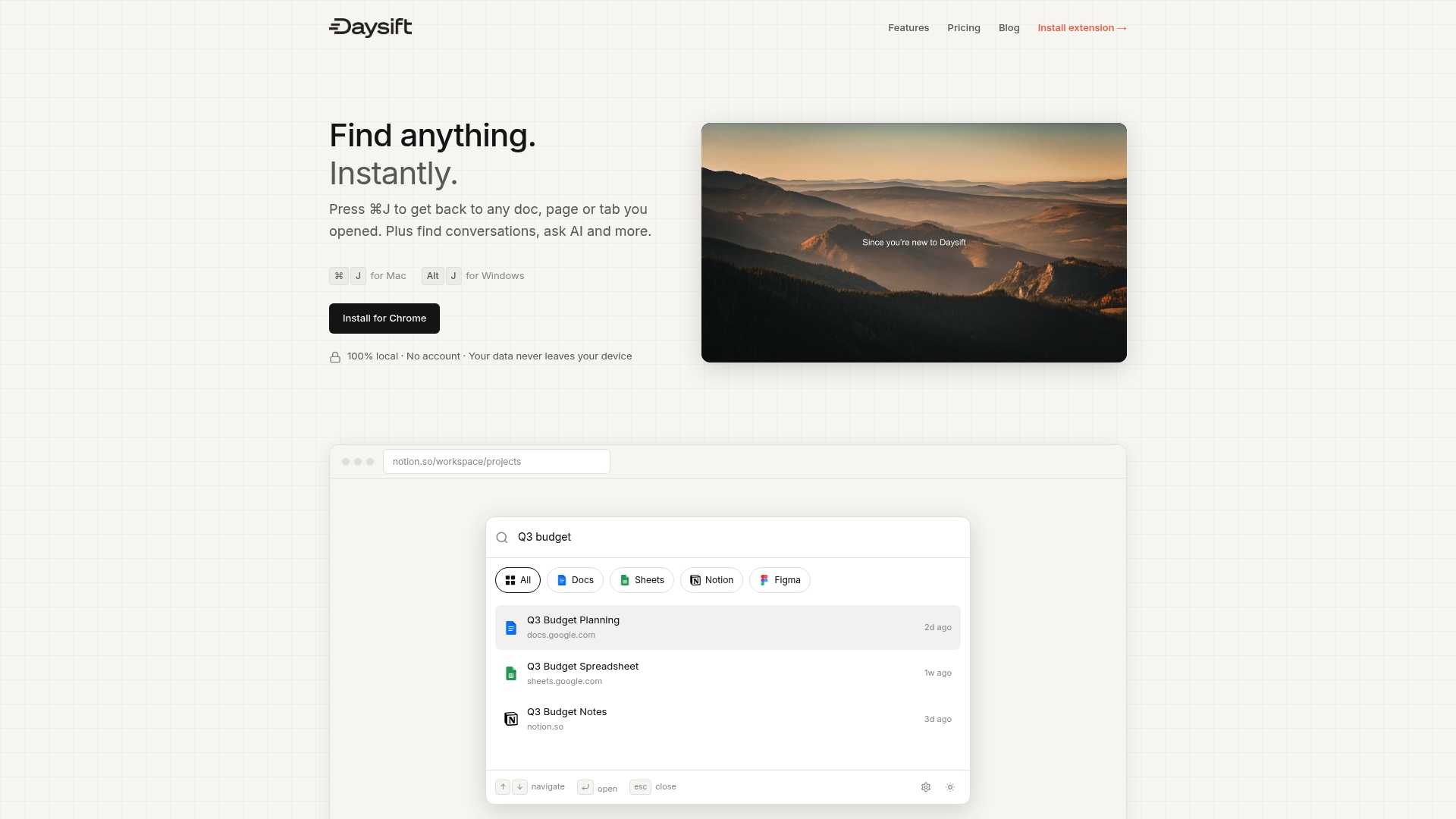
Daysift indexes every work-relevant page you visit locally on your machine. No cloud sync, no account required. It skips shopping sites and social media, keeping results focused on docs, tools, and research. When you need that article you read last week but can’t remember the title, Daysift finds it in seconds. It complements the checklist strategies here by eliminating the manual search and scroll process entirely.
Get started with Daysift free to experience instant tab search and AI-powered summaries. The free tier includes 30 days of history and 30 AI credits per month. Pro and Unlimited plans unlock infinite history and notes for serious researchers and multi-project workers.
FAQ
How can I quickly find a specific tab among many?
Use Chrome’s built-in tab search by clicking the dropdown arrow next to the minimize button or pressing Ctrl+Shift+A (Windows) or ⌘+Shift+A (Mac). For more powerful search, try Daysift, which indexes every page you’ve opened and lets you search by keyword, domain, or even fuzzy memory of the content. It’s faster than scrolling through 40 tabs hoping to spot the right title.
What are the best Google search operators to save time?
The most useful operators are site: to limit results to a specific domain, filetype: to find PDFs or other document types, intitle: to search page titles, and quotes for exact phrases. Combine them for precision: “site:edu filetype:pdf intitle:research methods” finds academic PDFs about research methods. These operators work directly in Google’s search box and require no extensions, making them faster and more reliable than third-party tools. Pair them with Daysift’s search to filter both your tabs and the web.
How many tabs should I keep open for best performance?
Keep between 15 and 25 tabs open to balance accessibility and cognitive load. Research shows performance drops 47% when you exceed this range because your working memory can’t track more items efficiently. If you need more tabs for different projects, use Chrome profiles or session managers to segment them by context. Close tabs you haven’t touched in a week or archive them with extensions like OneTab. For deeper insights on why we hoard tabs and how to stop, read about tab hoarding.
Does disabling extensions really speed up Chrome?
Yes. Each extension adds processing overhead, and poorly coded ones can slow page loads by 150-310ms. Audit your extensions in chrome://extensions and disable anything you haven’t used recently. Keep fewer than 10 well-coded extensions to minimize impact. Use chrome://task-manager to identify which extensions consume the most CPU and memory, then decide if their value justifies the performance cost.
How do I prevent tabs from using too much memory?
Enable Chrome’s Memory Saver feature in chrome://flags by searching for “High Efficiency Mode.” This automatically suspends inactive tabs after five minutes, reducing RAM and CPU use by up to 68%. You can also manually suspend tabs with extensions like The Great Suspender or Auto Tab Discard. Keep in mind that closing tabs only saves significant resources if those tabs run active scripts like video or live dashboards. Static pages use minimal CPU once loaded.