
You already know browser history exists. What you probably don’t realize is how much time you’re bleeding by ignoring it as a productivity tool. Switching between tabs, retracing research steps, hunting for that article you read three days ago — it adds up fast. In fact, smarter history retrieval can cut average page-finding time from 28 seconds to 11 seconds, saving knowledge workers over 11 hours per year. This guide breaks down exactly how browser history works under the hood, how to search it like a pro, what privacy limits you need to know, and which workflows will actually change how you work.
Table of Contents
- What exactly is browser history and how does it work?
- Behind the scenes: Every event that enters your browser history
- The power of built-in history search: Features and productivity impacts
- Privacy, limits, and syncing: What isn’t saved or recoverable?
- Extensions vs. native: Should you use advanced history tools?
- Expert search workflows: Tips to recover what matters, faster
- Supercharge your browser search with Daysift
- Frequently asked questions
Key Takeaways
| Point | Details |
|---|---|
| History is powerful data | Your browser history logs rich, searchable details beyond basic URLs, helping you recall important information quickly. |
| Native search saves hours | Built-in filters and search features can save more than 11 hours per year for knowledge workers. |
| Privacy has limits | Incognito mode, sync, and retention settings impact what’s saved or exposed—know your boundaries. |
| Extensions vs. native tools | Native history search is usually sufficient, but advanced workflows benefit from specialized extensions. |
| Expert workflow matters | Bookmark filters, use Boolean queries, and combine date and site searches for instant recall. |
What exactly is browser history and how does it work?
Most people think of browser history as a simple scrollable list of websites. It’s actually a structured database running quietly in the background of your browser. Every time you navigate somewhere, your browser writes a new record to a local file on your machine.
Browser history is stored in SQLite databases across all major browsers. Chrome and Edge use a file called "History, while Firefox uses places.sqlite`. Each record in that database contains far more than just a URL.
Here’s what a typical history entry captures:
- URL: The full web address of the page
- Title: The page title as rendered in the browser tab
- Visit count: How many times you’ve visited that URL
- Timestamp: The exact date and time of each visit
- Transition type: How you got there (typed, clicked a link, redirect, etc.)
| Field | What it stores | Why it matters |
|---|---|---|
| URL | Full page address | Enables exact or partial matching |
| Title | Page tab title | Searchable even if URL is forgotten |
| Visit count | Number of visits | Surfaces frequently used pages |
| Timestamp | Date and time | Enables date-range filtering |
| Transition type | Navigation method | Distinguishes typed vs. clicked |

Knowing this structure matters because it tells you exactly what you can search for and what you can recover. If you want to find any tab in seconds, understanding what data exists is the first step toward using it effectively.
Behind the scenes: Every event that enters your browser history
Not every page load is created equal. Your browser distinguishes between different types of navigation events, and each one gets logged differently. History records navigation events like typing URLs directly, clicking links, redirects, form submissions, and even programmatic changes triggered by JavaScript via the History API.
That last one surprises most people. Single-page apps (web apps that update content without a full page reload) can push new entries into your history without you ever clicking a traditional link. This means your history may contain far more granular data than you expect.
Here’s how the three major browsers compare on history behavior:
| Feature | Chrome | Firefox | Edge |
|---|---|---|---|
| Default retention | ~90 days | Unlimited (local) | ~90 days |
| Storage format | SQLite (History) |
SQLite (places.sqlite) |
SQLite (History) |
| Sync support | Yes (Google account) | Yes (Firefox account) | Yes (Microsoft account) |
| Private mode logging | No | No | No |
| Visit type tracking | Yes | Yes | Yes |
You can also explore a website history viewer to see how external tools interpret this data. The key takeaway: your browser is logging richer context than you think, and that context is exactly what makes advanced search possible.
The power of built-in history search: Features and productivity impacts
Here’s something most knowledge workers skip entirely: the built-in history search in Chrome and Edge is genuinely powerful. Press Ctrl+H (or Cmd+Y on Mac) to open your history panel, then look for the filter icon. You’re not stuck with a plain chronological list.

Enhanced history filters in Chrome and Edge support date range selection, domain filtering, keyword search with Boolean operators, and visit type filtering. That’s a lot of precision available without installing anything.
Here’s a step-by-step workflow to get the most out of native search:
- Open history with
Ctrl+Hand click the filter icon - Set a date range to narrow results to the relevant week or day
- Type a keyword or partial phrase you remember from the page title
- Add a domain name if you know which site it was on
- Scan results by visit count to surface pages you returned to repeatedly
“The fastest way to find a past page isn’t to scroll — it’s to filter. Date plus keyword plus domain is almost always enough to pinpoint any visit within seconds.”
Pro Tip: Bookmark a filtered history search URL. After applying your filters in Chrome, copy the URL from the address bar and save it as a bookmark. Next time you need the same search, one click opens it pre-filtered.
Native search handles the majority of everyday recall tasks well. Where it falls short is semantic search — finding a page when you only remember the concept, not the exact words. That’s when tools like Daysift become genuinely useful. For more workflows and tips, the Daysift blog covers practical setups for remote professionals.
Privacy, limits, and syncing: What isn’t saved or recoverable?
Browser history has real boundaries, and knowing them protects both your productivity and your privacy. Here’s what every remote worker should understand before relying on history as a knowledge base.
What doesn’t get stored:
- Incognito or private mode sessions: These are never written to your history file
- Manually deleted records: Once you clear history, it’s gone from the browser’s database
- Pages visited before the browser was installed: No retroactive logging
- Some redirect chains: Intermediate redirect URLs may not appear
Deleted history may be recoverable via forensic tools if the storage blocks haven’t been overwritten, but for practical purposes, treat deletion as permanent. Chrome’s default retention window sits at roughly 90 days, after which older entries are pruned automatically. Firefox, by contrast, keeps local history indefinitely unless you set a limit manually.
Sync is the other major variable. When you’re signed into Chrome with a Google account, your history syncs across every device where you’re signed in. Convenient for continuity, but a privacy consideration if you share accounts or work on personal and professional devices interchangeably.
Pro Tip: If you work across a personal laptop and a work machine, disable history sync on your personal device. Go to browser sync settings and toggle off history specifically, without disabling sync for passwords or bookmarks. For a deeper look at how Daysift handles your data locally, check the privacy policy.
For anyone concerned about their broader digital footprint, protecting your digital footprint goes beyond just browser history and covers IP-level exposure too.
Extensions vs. native: Should you use advanced history tools?
The honest answer is: it depends on your workflow. Native browser history search is fast, requires no installation, and carries zero privacy risk from third parties. For most day-to-day retrieval tasks, it’s enough.
But native search has a hard ceiling. It matches on URL and page title only. If you remember the idea of a page but not its title or domain, you’re stuck. That’s where extensions earn their place.
Chromium-based browsers like Chrome and Edge offer superior extension compatibility and performance benchmarks compared to Firefox and Safari, which matters when you’re running a history indexing extension alongside other productivity tools.
Here’s a quick breakdown of the trade-offs:
- Native search: Zero install, fast, private, limited to URL and title matching
- Semantic extensions (like TraceMind): Context-aware search, finds pages by concept, but may read page content
- Command palette tools (like Daysift): Keyboard-first, local indexing, AI-powered recall without cloud exposure
“The smartest setup isn’t choosing one or the other — it’s using native filters for quick keyword recall and a semantic layer for concept-based retrieval.”
Privacy is the real differentiator. Some extensions send page content to external servers for indexing. Always read the permissions and privacy policy before installing any history tool. You can also search browsing history directly in Chrome without any extension for most common use cases. And if you want a deeper comparison of tab and history tools, find any tab in seconds walks through the options.
Expert search workflows: Tips to recover what matters, faster
Knowing the tools is one thing. Having a repeatable system is what separates power users from everyone else. Here’s a practical framework for recovering browser data fast, no matter what you’re looking for.
Step-by-step workflow for rapid history recall:
- Start with
Ctrl+Hand immediately apply a date range (narrow to the week you think you visited) - Add the most distinctive keyword you remember from the page title or content
- If you know the domain, filter by it to cut noise immediately
- Sort by visit count if you’re looking for a page you returned to multiple times
- If native search fails, switch to a semantic tool and describe the concept instead of the keyword
For multi-dimensional recall, combining date range, domain, and Boolean keywords together is consistently faster than any single filter alone. Think of it as triangulation: each filter eliminates a large chunk of irrelevant results.
Pro Tip: Use quotation marks around exact phrases in Chrome’s history search bar. Searching "pricing model" returns only entries where that exact phrase appears in the title, cutting results dramatically compared to a loose keyword search.
For complex knowledge domains — legal research, technical documentation, multi-client agency work — native filters will eventually hit their limit. That’s when Daysift fills the gap, letting you search by intent rather than exact wording. You can also bookmark filtered history searches for recurring research needs, so your most-used filters are always one click away. And for a deeper look at tab and history retrieval techniques, find any tab in seconds is worth bookmarking itself.
Supercharge your browser search with Daysift
Everything covered in this guide — the database structure, the filter techniques, the privacy trade-offs — points toward one conclusion: your browser history is a powerful knowledge base, but the native tools only get you so far. For knowledge workers and remote professionals who need instant recall without building a system, there’s a better way.
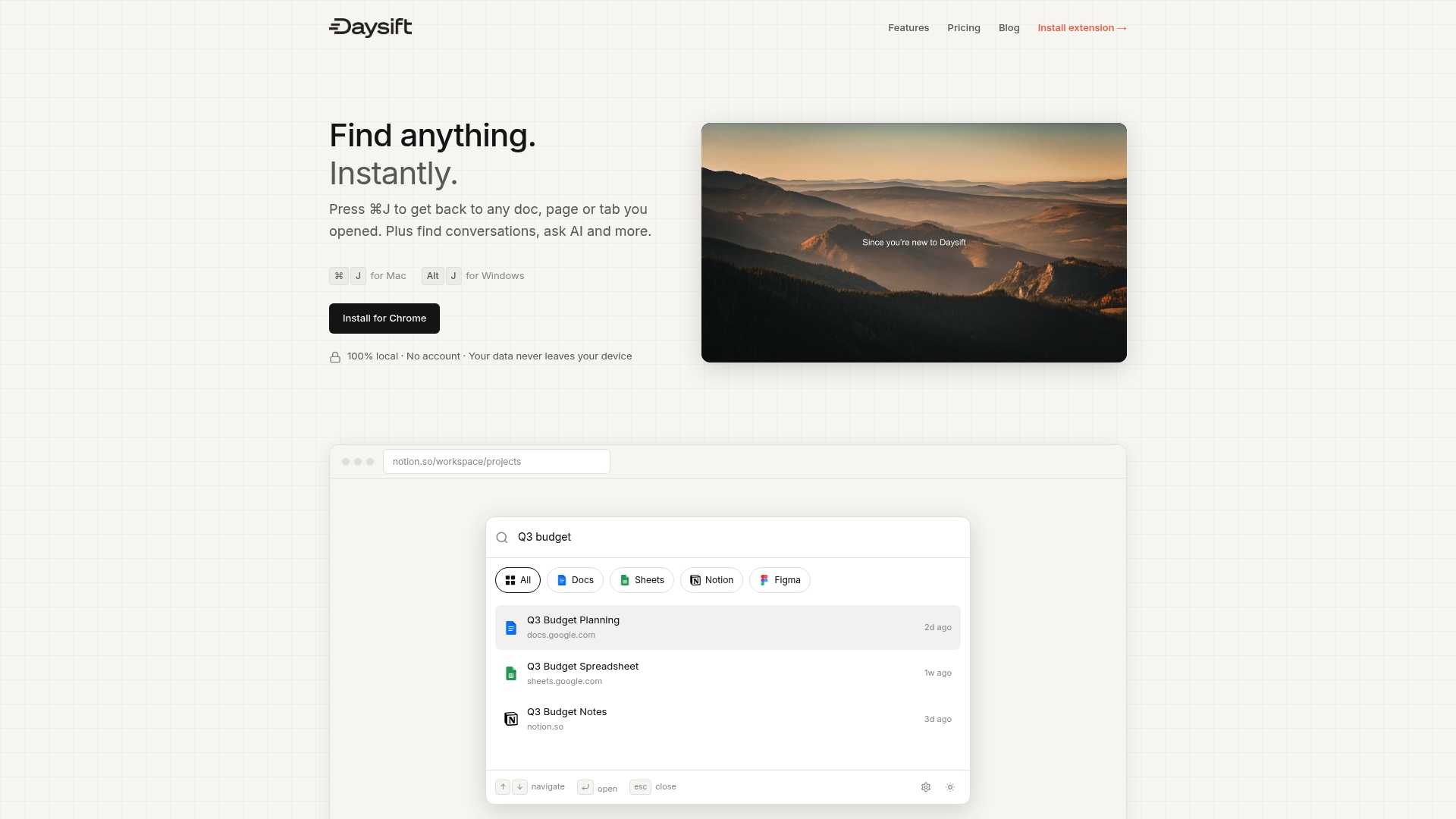
Daysift is a Chrome extension that acts as a command palette for your entire browsing history. Press ⌘J on Mac or Alt+J on Windows, type what you remember (a phrase, a concept, a domain), and results appear instantly from your locally indexed history. No cloud sync, no account required, no organization needed. It skips social media and shopping noise automatically, so your results stay focused on work. AI-powered intent search means you can describe what you’re looking for in plain language and still find it. If you’re ready to stop hunting and start finding, get started with Daysift and see how fast browser recall can actually be.
Frequently asked questions
How far back can browser history be recovered in Chrome or Firefox?
Chrome retains roughly 90 days of history by default, though third-party extensions can bypass this limit. Deleted history may be recoverable via forensic tools if the storage space hasn’t been overwritten.
Does private or Incognito mode prevent any record of sites visited?
Yes. Sites visited in Incognito or private mode are never written to your browser history file and are not synced across devices.
Can you search your browser history by page content or just title and URL?
Most browsers search by URL and page title only. Advanced semantic extensions like TraceMind enable full-text and concept-based search across page content.
How does syncing affect my browser history privacy?
When sync is enabled, your history is accessible on every signed-in device. Disabling sync for history specifically keeps your browsing data local without affecting other synced items like passwords.
What’s the fastest way to find a specific site I visited last week?
Use date and keyword filters in Chrome or Edge by pressing Ctrl+H and applying the filter icon. Combining a date range with a keyword or domain almost always pinpoints the result within seconds.