
TL;DR:
- Browser note-taking offers fast, contextual capture directly on web pages, reducing workflow friction.
- Combining browser extensions for quick capture and desktop apps for organization creates a hybrid research system.
- Privacy and performance depend on using local storage tools and being cautious with permissions and data sharing.
You don’t need a complicated system to take great research notes. The most effective knowledge workers aren’t running three apps simultaneously or maintaining elaborate folder hierarchies. They’re capturing ideas the moment they appear, right inside the browser, without ever breaking their reading flow. Browser note-taking removes the gap between “I should save this” and actually saving it. That gap is where insights go to die. This article walks you through how browser notes work under the hood, where they genuinely outperform traditional tools, where they fall short, and how to build a workflow that uses the best of both worlds.
Table of Contents
- How browser note-taking works
- Speed and accessibility: Benchmarks and real-world workflow gains
- Integration and context: Staying in your workflow
- Tradeoffs and privacy: What you need to watch out for
- Our take: The hybrid approach is the true game-changer
- Take your browser note-taking further with Daysift
- Frequently asked questions
Key Takeaways
| Point | Details |
|---|---|
| Instant capture speed | Browser note-takers let you record ideas and research without breaking your workflow. |
| Context preservation | Notes stay tied to the exact page or resource, making information recall faster and smarter. |
| Workflow integration | You avoid app-switching, keeping your research seamless and productive. |
| Tradeoffs to consider | Performance, privacy, and offline limits require careful management and pairing with desktop tools. |
| Hybrid best practices | Combining browser and desktop notes delivers both speed and advanced organization for serious work. |
How browser note-taking works
Most people picture note-taking as a two-step process: read something, then switch to a separate app to write it down. Browser note tools collapse those two steps into one. You stay on the page, capture what matters, and keep reading. The note lives right where you found the information.
The mechanics vary by tool, but the core actions are consistent across the best browser note tools for research:
- Clipping: Save an entire page or a selected section as a note with one click
- Highlighting: Mark text directly on the page so it’s visible every time you return
- Quick annotation: Add your own comments to a specific passage without leaving the tab
- URL-linked notes: Attach a note to a specific web address so it reappears automatically on your next visit
That last feature is the one most people underestimate. When a note is tied to a URL, you don’t have to remember where you saved it. Open the page, and the note is already there. One-click clipping, highlighting, annotation, and URL-linked notes preserve context and eliminate manual copying entirely.
The difference between browser notes and app-based notes comes down to where the friction lives. With a standalone app like Notion or Evernote, you have to context-switch, find the right notebook, format your entry, and then navigate back to the source. With browser tools, the note is created in context and stored locally or in the extension’s own storage layer. You never leave the research environment.
The best browser note extensions also tend to be lightweight by design. They don’t need to load a full editor interface. They just need to intercept your intent and store a small piece of data.
Pro Tip: Set up a one-click capture shortcut in your browser note extension on day one. The moment capture requires more than two keystrokes, you’ll start skipping it, and that’s when the friction creeps back in.
Speed and accessibility: Benchmarks and real-world workflow gains
Speed is where browser notes genuinely surprise people. Not just in how fast you can capture something, but in how fast you can get back to it.

Local browser extensions are tiny by design. Instant access under 50KB with local storage means desktop and local tools reduce capture latency to 1 to 2 seconds, compared to 4 to 9 seconds for cloud-heavy apps that need to sync before saving. That difference sounds small until you’re in a deep research session and you’ve captured 40 notes in an hour. Those seconds add up to minutes of lost focus.
Here’s a side-by-side look at how the workflows compare:
| Workflow step | Browser note tool | Desktop app | Cloud app |
|---|---|---|---|
| Open capture interface | Keyboard shortcut | Alt+Tab, open app | Alt+Tab, wait for sync |
| Save a note | 1 to 2 seconds | 3 to 5 seconds | 4 to 9 seconds |
| Return to source page | Already there | Manual navigation | Manual navigation |
| Access note offline | Yes (local storage) | Yes | No (requires connection) |
| Install complexity | One-click extension | Download, install, configure | Account, download, configure |
The practical workflow for a browser note looks like this:
- You’re reading an article and spot a key statistic
- You press your capture shortcut
- A small note panel appears over the page
- You type your thought or clip the text
- You press Enter and keep reading
With a traditional desktop app, steps 2 through 4 involve switching windows, finding the right document, and then navigating back. That’s not a minor inconvenience. It’s a genuine browser note workflow killer for anyone doing sustained research.
For knowledge workers who spend hours inside a browser every day, the cumulative time saved by local, instant capture is significant. Less switching means more time in the actual thinking state where good research happens.
Integration and context: Staying in your workflow
Speed is only half the story, so let’s see how integration keeps your research contextual and fluid.
The biggest hidden cost of app-based note-taking isn’t the time it takes to switch. It’s the context you lose when you do. You were mid-thought, mid-paragraph, mid-connection between two ideas. You switch apps, and that thread starts to fray. By the time you’re back on the source page, you’ve lost the mental state that made the insight feel important.

Browser note tools solve this because they never ask you to leave. The note appears as a floating layer on top of the content you’re reading. You write, you close it, you keep going. The research context in browser workflows stays intact because you never actually left the research environment.
URL-tied notes take this further. When you return to a page you’ve annotated, your notes reappear automatically. You don’t have to remember which notebook you filed them in or search through a list of unrelated entries. The page itself becomes the retrieval cue.
“Millions of users rely on browser clipper tools precisely because they eliminate app-switching and keep notes tied directly to the source content.”
Here’s where browser tools clearly win over desktop alternatives:
- Active research sessions: When you’re moving between 10 tabs, you need capture that doesn’t break your rhythm
- Source verification: Notes tied to URLs let you re-check the original source instantly
- Collaborative review: Sharing a URL with an annotation is faster than exporting a note document
- Skimming for relevance: Highlight first, decide later, without committing to a full note entry
| Feature | Browser note tool | Desktop app |
|---|---|---|
| Context preservation | High (stays on page) | Low (requires switching) |
| URL-linked recall | Yes | Rarely |
| Offline access | Depends on tool | Usually yes |
| Advanced organization | Limited | Strong |
| Privacy control | Varies | Usually stronger |
The integration benefits of browser tools are most obvious during the research phase of any project. Once you move into synthesis and writing, desktop apps tend to take over. That’s not a flaw. That’s the natural handoff point in a well-designed workflow.
Tradeoffs and privacy: What you need to watch out for
Browser note-taking isn’t all upside. Here’s what knowledge workers need to know about the risks and privacy implications before installing anything.
The most common issue is performance. Every extension you add to Chrome consumes memory and processing power. Add enough of them and you’ll notice slower page loads, laggy scrolling, and a browser that takes longer to start. Performance risks, broad permissions, and limited offline features are real concerns for browser extensions, and security risks increase significantly when extensions request access to all your browsing data.
Before installing any browser note tool, check these things:
- Permissions requested: Does it need access to “all websites” or just the ones you specify? Broad access is a red flag.
- Storage model: Is your data stored locally or synced to a third-party cloud? Local is safer for sensitive research.
- Update history: An extension that hasn’t been updated in over a year may have unpatched security vulnerabilities.
- Developer reputation: Check reviews, the developer’s website, and whether the extension has a clear privacy policy.
- Data deletion: Can you actually delete your notes and have them removed from all storage? Some cloud tools make this surprisingly difficult.
The browser extension performance impact is real, but manageable if you’re selective. Running two or three well-maintained extensions is very different from running twelve.
Privacy is the more nuanced concern. Local storage extensions keep everything on your machine, which is ideal. Cloud-syncing tools may send your notes, highlights, and even full page content to external servers. For researchers working with proprietary or sensitive information, that’s a meaningful risk.
Pro Tip: Pair your browser note tool with a local-first desktop app like Obsidian or Joplin for anything sensitive or long-term. Use the browser tool for rapid capture during research, then move important notes to your local app at the end of the day. You get the speed of browser capture without the privacy exposure of cloud storage.
Our take: The hybrid approach is the true game-changer
Most guides on browser note-taking treat it as an either/or choice. Either you use browser extensions or you use a proper note app. That framing misses the point entirely.
The real insight is that browser tools and desktop apps serve different phases of knowledge work. Browser extensions are built for the capture phase: fast, contextual, frictionless. Desktop apps are built for the synthesis phase: organized, searchable, powerful. Trying to use one tool for both phases is where most people’s systems break down.
The best hybrid note strategies treat browser extensions as the front door and local apps as the filing system. You capture everything in the browser because that’s where the information lives. You organize and develop ideas in a local-first app because that’s where the thinking happens.
Pairing browser extensions with local-first backends like Joplin or Obsidian clippers gives you web-speed capture combined with desktop-level organization and privacy. That combination is genuinely hard to beat.
One thing we’d caution against: don’t store sensitive client data, proprietary research, or anything personally identifiable in a cloud-syncing browser extension. The convenience isn’t worth the exposure. Use local storage tools or move sensitive notes to a desktop app immediately after capture.
Take your browser note-taking further with Daysift
Browser notes solve the capture problem. But finding those notes later, especially across dozens of research sessions, is where most workflows quietly fall apart.
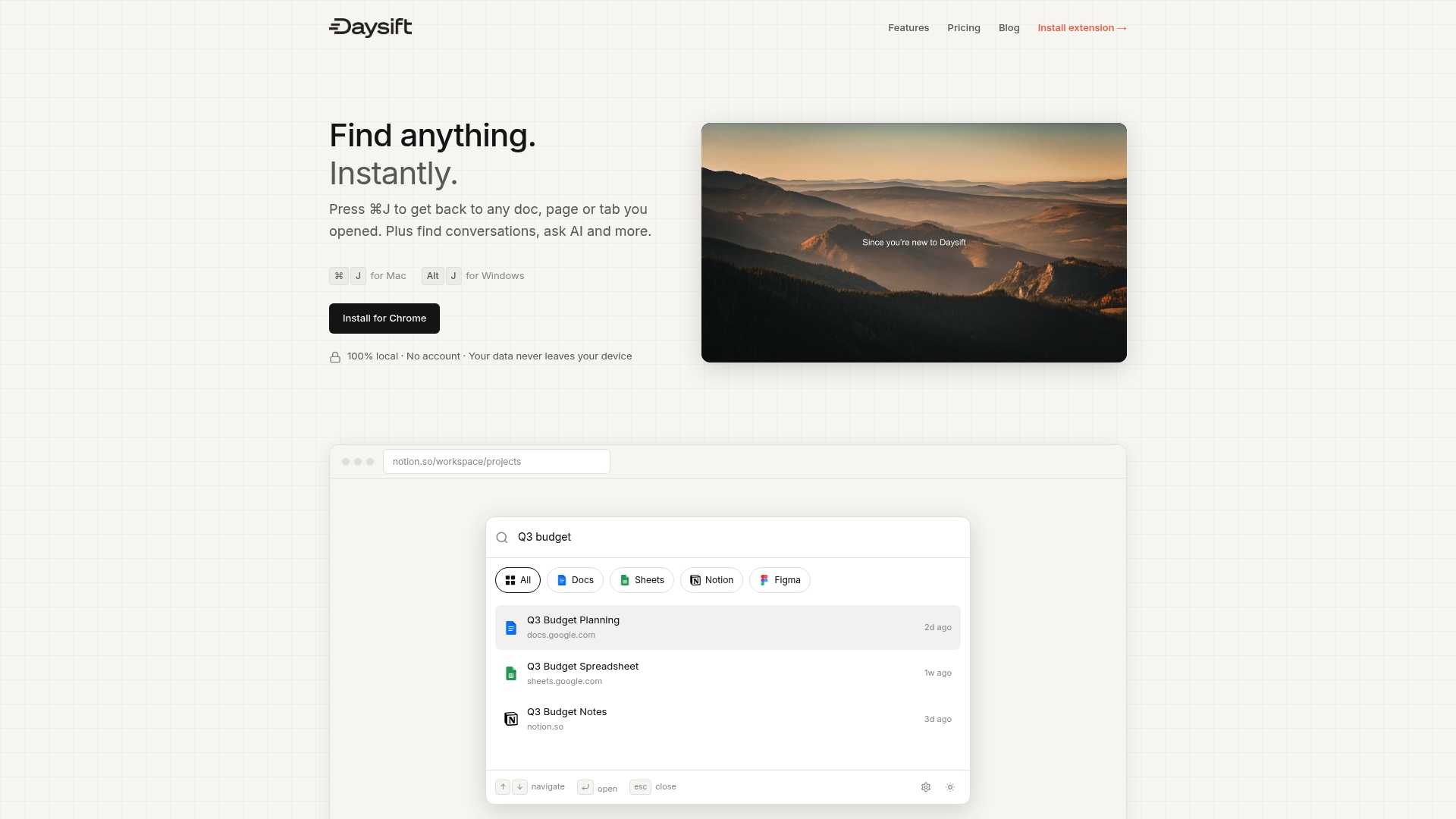
Daysift is built for exactly this moment. It indexes every work-relevant page you visit in Chrome and makes it all searchable with one keyboard shortcut. Your URL-linked notes, your highlighted pages, your research tabs from last week — all of it becomes instantly retrievable. No folders, no tagging, no maintenance. Daysift stores everything locally, so your note privacy and security stay intact. If you’re ready to turn browser note-taking from a capture habit into a fully searchable research system, get started with Daysift today.
Frequently asked questions
What are the main advantages of browser note-taking?
Browser note-taking enables instant capture with context by keeping notes tied directly to the web page where you found the information, which speeds up research and removes the friction of switching apps.
Are browser note-taking tools secure and private?
Privacy depends heavily on the storage model. Local storage extensions are generally safer, but many extensions request broad permissions and may be less secure than dedicated desktop apps, especially for sensitive research.
Can browser note-taking replace traditional note apps?
For web research, browser tools excel at quick capture and keeping notes in context, but desktop apps outperform them for organizing complex notes, long-term storage, and handling sensitive data.
What are common pitfalls in browser note-taking?
Installing too many extensions at once is the most common mistake. Multiple extensions increase memory usage, slow down your browser, and compound security risks. Always review permissions carefully and favor tools with local storage over cloud-syncing alternatives.