
You open Chrome to start your workday. Within an hour, you have 20 tabs spread across three windows, and you can’t remember which one had that pricing doc you needed. Sound familiar? Tab overload starts at just 5 to 8 tabs per Mozilla research, and a Stanford HCI 2024 study found that color-coding tabs reduces task-switching time measurably. This guide breaks down the cognitive science behind browser disorganization, explains what modern browser organization tools actually do, and gives you practical workflows you can apply today.
Table of Contents
- Why browser organization matters: Beyond visual clutter
- What is browser organization? Key features and workflows
- The science of tab overload: Cognitive limits and expert insights
- Practical techniques: How to master your browser without losing your workflow
- Next-level browser organization with Daysift
- Frequently asked questions
Key Takeaways
| Point | Details |
|---|---|
| Tab overload hurts performance | Opening too many tabs leads to lost focus, mental fatigue, and slower browsing. |
| Group tabs for better workflow | Using tab groups, color-coding, and naming helps manage projects and switch contexts efficiently. |
| Minimalism or grouping works | You can use a few focused tabs or many well-organized groups—either approach beats a scattered tab bar. |
| Practical tools boost results | Native features and extensions together can make browser sessions faster and less overwhelming. |
Why browser organization matters: Beyond visual clutter
Tab overload is not just an aesthetic problem. Every time you switch between unrelated tabs, your brain pays a tax. CMU research found that each tab switch leaves 23 seconds of attention residue, meaning your focus does not fully return to the new task for nearly half a minute. Multiply that by dozens of switches per hour and you lose significant chunks of productive time without even noticing.
The hardware cost is real too. Chrome burns through roughly 4.2GB of RAM at 50 open tabs, while Firefox sits closer to 3.0GB for the same count. Beyond memory, tab switch latency increases 310% beyond 7 open tabs, meaning your browser physically slows down as your mental load climbs. And as any researcher or freelancer knows, a sluggish browser compounds frustration fast.
The honest truth is that tab hoarding isn’t your fault. Modern work demands constant context switching across tools, docs, and references. The problem is not willpower. It’s that browsers were never designed to manage the volume of information professionals now handle daily.
“Visual clutter in the browser tab bar is one of the most underestimated sources of cognitive friction in knowledge work.”
Signs you need better browser organization:
- You regularly lose tabs and spend minutes hunting for them
- Your browser slows noticeably when you have many tabs open
- You open duplicate tabs because you forgot you already had one open
- You feel anxious closing tabs because you might need them later
- You can’t tell what a tab contains just by glancing at the favicon
- Context confusion kicks in when switching between projects mid-session
What is browser organization? Key features and workflows
Browser organization means grouping, naming, and color-coding your tabs so related content stays together and your working context is always visible at a glance. It is not about having fewer tabs. It is about making the tabs you have navigable.
Tab groups are a native feature in Chrome, Edge, Firefox, and Safari, letting you color-code, name, and collapse related tabs to reduce visual clutter. Here is how the major browsers compare on native organization features:
| Browser | Tab groups | Color-coding | Collapsible groups | Sync across devices |
|---|---|---|---|---|
| Chrome | Yes | Yes | Yes | Yes |
| Firefox | Yes (since 2024) | Yes | Yes | Partial |
| Edge | Yes | Yes | Yes | Yes |
| Safari | Yes (Tab Groups) | Limited | Yes | Yes (iCloud) |
Third-party extensions fill the gaps where native tools fall short. Tab Session Manager, for example, lets you save and restore entire browser sessions, which is invaluable if your machine restarts mid-project. Extensions are worth adding when you need session persistence, cross-device sync, or more granular control than your browser offers natively.
How to set up basic tab groups in Chrome:
- Right-click any tab and select “Add tab to new group.”
- Name the group after your current project or workflow (e.g., “Client A Research”).
- Pick a color that maps to a category, such as blue for research and green for active work.
- Drag related tabs into the group by dropping them onto the group label.
- Collapse the group when you switch contexts to clear visual space instantly.
Pro Tip: Group tabs by project or workflow, not by app or topic. A group called “Q3 Report” that contains your spreadsheet, your source articles, and your Slack thread is far more useful than separate groups for “Google Docs,” “Articles,” and “Slack.”
Once you have groups set up, you can find any tab in seconds instead of scanning a wall of favicons. That shift alone changes how you experience a busy browser session.

Native Firefox Tab Groups launched with strong adoption in 2024, bringing Firefox in line with Chrome and Edge for professionals who prefer its privacy defaults.
The science of tab overload: Cognitive limits and expert insights
Working memory, the mental workspace you use to hold and manipulate information, tops out at roughly 4 to 7 items for most people. When your tab bar exceeds that range without structure, your brain starts treating each tab as an unresolved task. That creates a persistent low-level anxiety that drains focus even when you are not actively switching tabs.

Some researchers advocate minimalism, recommending 3 to 7 tabs maximum for deep focus work. Others argue that more than 9 tabs is fine if they are well-organized, because cognitive load depends on structure, not raw count. Both camps agree on one thing: unstructured tab sprawl is the real enemy.
| Tab count | Cognitive load | Task-switch time | Recommended approach |
|---|---|---|---|
| 1 to 4 | Low | Baseline | No grouping needed |
| 5 to 8 | Moderate | +40% vs. baseline | Light grouping helps |
| 9 to 15 | High | +150% vs. baseline | Active grouping required |
| 16 and above | Very high | +310% vs. baseline | Triage and session tools essential |
The most practical expert framework is tab triage, which sorts every open tab into one of four buckets: Active (working on it now), Pending (waiting for input), Reference (need it later), and Transient (opened by accident or already read). Tab triage cuts context-switch errors by 39% according to browser productivity research, making it one of the highest-leverage habits you can build.
“Tab triage is not about closing tabs. It’s about knowing exactly why each tab is open, so your brain stops treating every tab as an unfinished task.”
Which approach fits your work style:
- Minimalist: You do deep, single-focus work. Keep 3 to 7 tabs. Close aggressively. Use bookmarks for reference.
- Controlled sprawl: You juggle multiple projects. Use named groups per project. Collapse inactive groups.
- Tab triage: You work reactively across many contexts. Sort tabs into Active, Pending, Reference, and Transient buckets daily.
For a deeper look at why accumulating tabs feels so hard to stop, the tab hoarding isn’t your fault piece explains the behavioral patterns behind it. And if you want to speed up your workflow further, keyboard shortcuts for tab management are worth learning alongside any organizational system.
You can also check your browser’s built-in task manager (Shift+Esc in Chrome) to spot resource-heavy tabs that are quietly draining your RAM and slowing everything down. This pairs well with multi-tab browsing tips that help you set intentional limits before sessions spiral. Combining browser hygiene with productivity apps that reduce context switching can compound your gains significantly.
Practical techniques: How to master your browser without losing your workflow
Knowing the theory is one thing. Building a system that survives a real workday is another. The key is making organization automatic rather than effortful.
Start with tab group recipes, preset configurations you return to for recurring workflows. A researcher might always open a group called “Sources” with their database, a notes doc, and a citation tool. A freelancer might keep a “Client X” group with the brief, the project tracker, and the communication thread. These recipes mean you spend zero mental energy deciding how to organize. You just open the recipe.
Setting up a streamlined tab group routine:
- At the start of each work session, identify your top two or three active projects.
- Create a named, color-coded group for each project before opening any tabs.
- Open only the tabs each project actually needs right now, not everything you might need.
- Move any leftover tabs from yesterday into a “Review” group and triage them within 10 minutes.
- At the end of the day, use a session extension to save your groups before closing the browser.
Grouping by workflow over app type consistently outperforms other methods for context retention, and combining native groups with Tab Session Manager gives you persistence across restarts.
Keyboard shortcuts that save real time:
- Ctrl+Tab or Cmd+Option+Right: Move to the next tab
- Ctrl+Shift+Tab or Cmd+Option+Left: Move to the previous tab
- Ctrl+W or Cmd+W: Close the current tab
- Ctrl+Shift+T or Cmd+Shift+T: Reopen the last closed tab
- Ctrl+1 through Ctrl+8: Jump directly to a numbered tab
Pro Tip: Install a tab session extension and configure it to auto-save your session every 15 minutes. If your browser crashes mid-project, you recover in seconds instead of spending 20 minutes reconstructing your workspace from memory.
For the fastest possible tab retrieval, find any tab fast with a search-first approach rather than scanning visually. And if you want to go deeper on shortcuts, keyboard shortcuts for browser control are one of the highest-return skills to practice. You can also explore advanced tab extension tips for power-user configurations that go beyond what native tools offer.
Next-level browser organization with Daysift
Even the best tab group system has a ceiling. You can organize perfectly and still spend time hunting for a page you visited three days ago, or a doc you had open last week but never bookmarked. That gap is exactly where Daysift fits in.
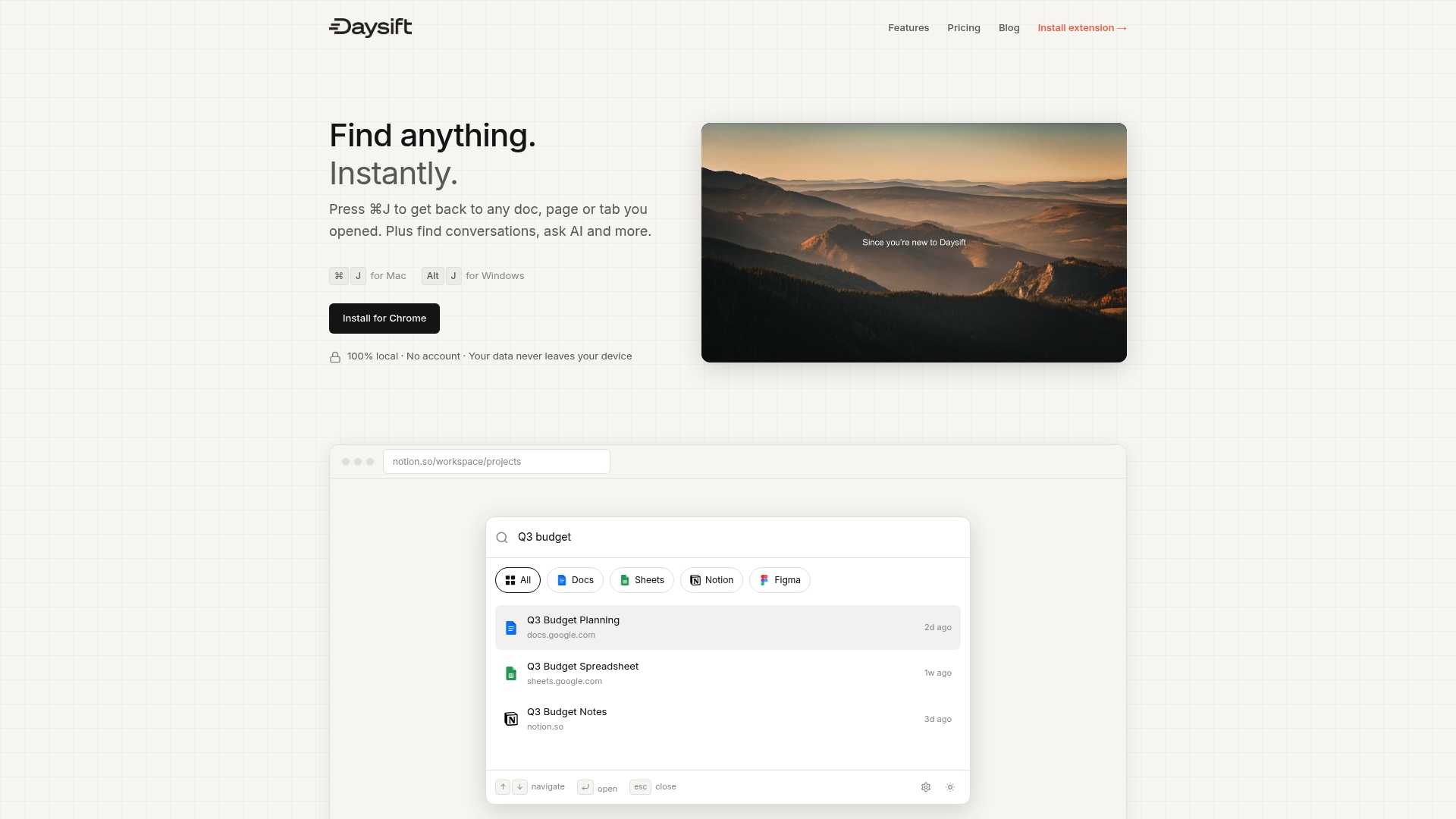
Daysift is a Chrome extension that quietly indexes every work-relevant page you visit and makes it instantly searchable with one keyboard shortcut. Press ⌘J on Mac or Alt+J on Windows, type a few words you remember about the page, and you are there in seconds. No folders. No tags. No system to maintain. It works alongside your tab groups, not instead of them, so your organization habits get a search layer on top. Whether you are a researcher with 200 sources, a freelancer juggling clients, or a developer buried in documentation, getting started with Daysift takes under two minutes and immediately changes how you navigate your browser.
Frequently asked questions
What are the best browsers for tab organization?
Chrome, Firefox, Edge, and Safari all offer strong native tab grouping and labeling tools to help organize tabs efficiently. Chrome and Edge currently offer the most mature implementations with full color-coding and sync.
Does grouping tabs help with computer speed or is it just for focus?
Grouping tabs mainly reduces visual clutter and helps focus, but managing fewer active tabs also decreases RAM usage. Firefox uses 3.0GB at 50 tabs versus Chrome’s 4.2GB, and collapsing groups can reduce active memory consumption.
How many tabs is too many for productivity?
Experts suggest 3 to 7 tabs for deep focus, but with careful grouping, over 9 tabs is manageable without losing efficiency. The structure matters more than the raw number.
What is tab triage and how does it reduce errors?
Tab triage means sorting open tabs into Active, Pending, Reference, and Transient categories to keep only essential tabs visible. This method cuts context-switch errors by 39% by reducing the mental overhead of unresolved open tasks.