
TL;DR:
- Ignoring keyboard shortcuts causes significant time loss, up to 64 hours annually.
- Replacing mouse actions with shortcuts improves flow and reduces cognitive load during work.
- Gradually learning 1-3 shortcuts weekly ensures better mastery and habit formation.
Most professionals already know the majority of keyboard shortcuts. The problem is they rarely use them. Users know 71% of shortcuts but rely on them so infrequently that the productivity gap becomes enormous over time. Small inefficiencies stack up fast. Reaching for the mouse instead of pressing two keys might feel trivial in the moment, but multiply that across a full workday and you are quietly bleeding hours every month. This guide breaks down the real numbers behind shortcut productivity, explains the brain science that makes habits stick, and gives you a practical system for building shortcut mastery without burning out.
Table of Contents
- Why shortcuts matter: Real numbers and hidden costs
- Shortcut science: How they rewire workflow and memory
- Browser shortcuts every knowledge worker should master
- Avoiding overload: Building shortcut mastery without mistakes
- What most articles miss: The real shortcut ROI is in daily micro-decisions
- Accelerate productivity with Daysift
- Frequently asked questions
Key Takeaways
| Point | Details |
|---|---|
| Shortcuts save hours | Using browser shortcuts can save you up to 64 hours a year by reducing repetitive actions. |
| Adopt gradually for mastery | Learning 1–3 shortcuts weekly helps avoid overload and increases long-term retention. |
| High-ROI shortcuts matter | Focus on shortcuts that replace multiple mouse steps for the highest productivity boost. |
| Make it a habit | Repetition creates procedural memory, turning shortcuts into effortless skills. |
Why shortcuts matter: Real numbers and hidden costs
Let’s put a real number on the problem. Every time you move your hand from the keyboard to the mouse, you lose between 2 and 7 seconds. That sounds minor. But if you perform that switch 50 times per hour across an 8-hour workday, you are losing roughly 1 hour every single week to nothing but hand movement.
The math gets worse when you zoom out. Top shortcuts save 3.2 to 7.1 seconds per operation, and annual losses from keyboard-mouse switches add up to 64 hours per year. That is more than a full work week lost to friction that is entirely preventable.

Here is a breakdown of what the highest-impact shortcuts actually save you:
| Shortcut | Action | Time saved vs. mouse |
|---|---|---|
| Ctrl+Shift+T | Restore closed tab | 3.2 seconds |
| Ctrl+K | Open search bar | 2.1 seconds |
| Ctrl+L | Jump to address bar | 2.4 seconds |
| Alt+Tab | Switch between windows | 1.8 seconds |
| Ctrl+W | Close current tab | 1.5 seconds |
These savings feel invisible day to day. That is exactly why most people ignore them. The digital workplace productivity conversation often focuses on big-ticket tools like project management software or AI assistants, while the compounding value of keyboard shortcuts saving time gets overlooked entirely.
“The biggest productivity gains are not from working harder. They are from eliminating the tiny frictions you have stopped noticing.”
Here are the five shortcuts that consistently deliver the highest return on investment for knowledge workers:
- Ctrl+Shift+T restores accidentally closed tabs without hunting through history
- Ctrl+K opens the browser search bar without touching the mouse
- Ctrl+L jumps your cursor directly to the address bar
- Ctrl+Tab cycles through open tabs without clicking
- Ctrl+F finds text on any page in under a second
The irony is that even self-described power users leave significant time on the table. Knowing a shortcut exists and actually using it are two very different behaviors. Finding tabs quickly is a perfect example: most people know Ctrl+Tab exists, but still click through tabs manually out of habit.
Shortcut science: How they rewire workflow and memory
Understanding why shortcuts work at a brain level makes it much easier to actually adopt them. When you first learn a shortcut, your prefrontal cortex handles the decision: recall the keys, press them in order, verify the result. It takes real mental effort. But after 30 to 50 repetitions, shortcuts shift to procedural memory, the same system that handles riding a bike or touch-typing. At that point, the cognitive cost drops to nearly zero.

This matters because cognitive load is not just about feeling tired. Every small decision you make during a workday draws from a limited mental budget. Mouse navigation forces your brain to stay in a slow, deliberate mode. Shortcuts let you stay in flow, where deep work actually happens.
Here is how the two approaches compare at a mechanical and mental level:
| Factor | Mouse navigation | Keyboard shortcut |
|---|---|---|
| Physical movement | Hand leaves keyboard | Fingers stay in place |
| Time per action | 3 to 7 seconds | Under 1 second |
| Cognitive mode | Deliberate, visual | Automatic, procedural |
| Flow state impact | Interrupts focus | Preserves focus |
| RSI risk over time | Higher | Lower |
There is a well-documented phenomenon called satisficing, where expert users underutilize shortcuts despite knowing most of them. They stick with mouse-based methods because those methods feel “good enough.” The performance is acceptable, so the brain never gets the signal to change. Breaking this pattern requires deliberate practice, not just awareness.
Interestingly, social discovery of shortcuts through peers, colleagues, or watching someone else work is one of the most effective ways people actually adopt new shortcuts. Seeing someone else use Ctrl+Shift+T in a meeting and watching a tab reappear instantly is more motivating than reading a list.
You can find more strategies like this across browser productivity tips that cover both shortcuts and broader workflow improvements.
Pro Tip: Add only 1 to 3 new shortcuts per week. More than that and your brain cannot consolidate the patterns fast enough. Slow adoption beats fast overload every time.
Browser shortcuts every knowledge worker should master
With the science in place, here are the shortcuts that deliver real results for remote professionals and knowledge workers specifically. These are not beginner tips. These are the ones that replace the most mouse actions and show up hundreds of times per week in a typical workday.
Browser shortcuts like Ctrl+K are critical for knowledge workers because they eliminate the most common source of hand-to-mouse switches: navigating to a new page. Ctrl+K saves 2.1 seconds per use. Ctrl+Shift+T saves 3.2 seconds. Across 20 uses per day, that is over a minute saved daily from just two shortcuts.
Here is how to actually master each one:
- Ctrl+K (open search): Use it every time you want to go somewhere new. Replace the habit of clicking the address bar entirely. Do this for one week straight.
- Ctrl+Shift+T (restore tab): The next time you accidentally close a tab, resist the urge to click history. Press this instead. One use is usually enough to make it stick.
- Ctrl+L (address bar focus): Pair this with Ctrl+K. Use Ctrl+L when you know the URL, Ctrl+K when you want to search. Build the distinction into muscle memory.
- Alt+Tab (switch windows): Replace clicking on the taskbar entirely. Practice holding Alt and tapping Tab to cycle through open apps during your next meeting.
- Ctrl+F (find on page): Stop scrolling to find information. Press Ctrl+F and type the word you need. It works on every page, every time.
Common pitfalls to watch for:
- Trying to learn too many shortcuts at once and reverting to mouse habits under pressure
- Practicing shortcuts only occasionally instead of replacing the old behavior completely
- Ignoring shortcuts for tasks you do infrequently, even when those tasks are time-consuming
Pro Tip: Prioritize shortcuts that replace three or more mouse actions. A single shortcut that eliminates a click, a scroll, and a second click gives you three times the return.
For a deeper look at how keyboard shortcuts save time across different workflows, and for tips on finding tabs quickly without losing your place, the browser productivity tips archive covers both in detail. Automation for efficiency is another layer worth exploring once shortcuts are solid.
Avoiding overload: Building shortcut mastery without mistakes
Here is where most shortcut guides go wrong: they hand you a list of 30 shortcuts and call it a day. In practice, trying to absorb that many at once backfires badly. Error rates spike by 29% when users try to learn more than 18 shortcuts simultaneously. More shortcuts, more confusion, more time wasted correcting mistakes.
The research-backed approach is straightforward. Learn 1 to 3 shortcuts per week using spaced repetition, which means practicing the same shortcut across multiple sessions spread over days, not cramming it all at once. This is how procedural memory actually forms.
Signs you are hitting shortcut overload:
- You press the wrong shortcut and have to undo the action
- You forget which shortcut does what under time pressure
- You find yourself reverting to mouse navigation for tasks you already learned shortcuts for
- You feel more stressed using shortcuts than before you started
The fix is not to give up. It is to slow down. Drop back to one new shortcut per week and keep using the ones you already know until they feel completely automatic.
Here is a practical dos and don’ts table for building shortcut mastery:
| Do | Don’t |
|---|---|
| Add 1 to 3 shortcuts per week | Try to learn 10+ at once |
| Replace old habits completely | Use shortcuts only sometimes |
| Practice under low-pressure conditions | Introduce new shortcuts during crunch time |
| Track which shortcuts you actually use | Memorize shortcuts you rarely need |
| Use real-time shortcut hints in tools | Rely only on memory from a list |
Pro Tip: Many apps and browser extensions display shortcut hints as you work. Turning these on during your first week with a new shortcut dramatically speeds up retention without requiring extra effort.
For a broader look at how keyboard shortcuts save time across different tools and contexts, the principles above apply whether you are in a browser, a doc editor, or a design tool.
What most articles miss: The real shortcut ROI is in daily micro-decisions
Here is the part that most productivity content skips entirely. The value of shortcuts is not in any single time save. It is in the cumulative effect of hundreds of micro-decisions made differently every day. When Ctrl+K becomes automatic, you do not just save 2.1 seconds. You stay in flow. You do not break your train of thought to reach for the mouse. That invisible continuity is where the real productivity gain lives.
Most professionals give up on shortcuts during the initial learning curve, when performance actually gets worse before it gets better. Shortcuts shift to proficient skill only after you push through that dip. The people who stick with it for two to three weeks are the ones who eventually stop noticing they are using shortcuts at all, because the behavior has become unconscious.
The highest ROI shortcuts are not the most impressive ones. They are the ones you use 50 or 100 times per day. A shortcut used twice a week is worth almost nothing. A shortcut used every few minutes is worth thousands of hours over a career. That is the frame most browser productivity tips miss: frequency matters more than novelty.
Accelerate productivity with Daysift
If you are serious about cutting friction in your browser workflow, shortcuts are only part of the picture. The other part is being able to find anything you have ever opened, instantly, without organizing anything.
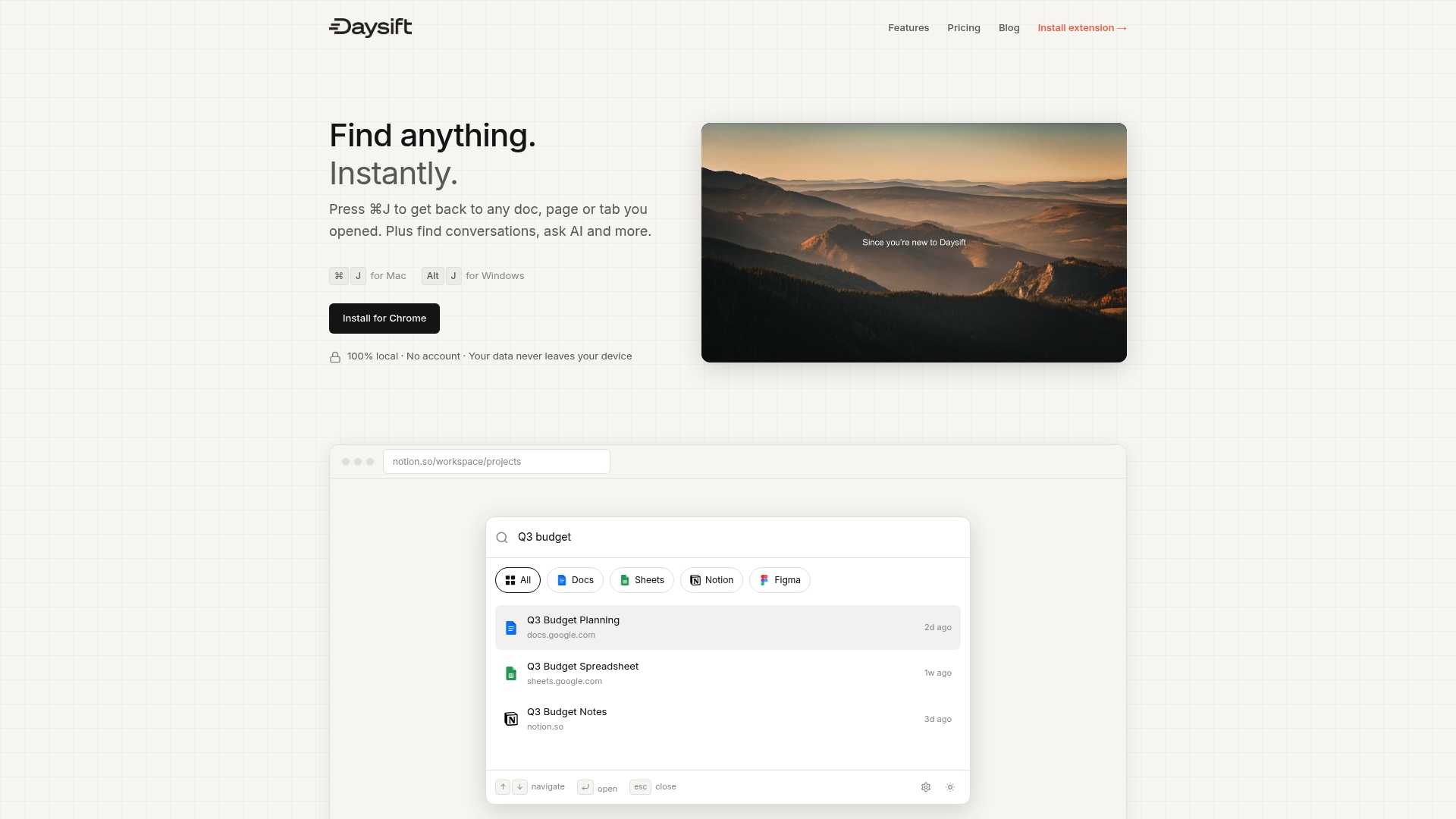
Daysift is a Chrome extension that gives you a command palette for your browser. Press one shortcut, type a few words, and get back to the page you need in seconds. It indexes every work-relevant page you visit locally on your machine, so your search results stay focused and private. No cloud sync, no account required. Whether you are chasing a doc from last week or a tool you tried a month ago, you can get started with Daysift and stop losing time to tab hunting today.
Frequently asked questions
How much time can shortcuts realistically save me each year?
Efficient shortcut use saves up to 64 hours annually for knowledge workers, which is more than a full work week recovered from small daily frictions.
What are browser shortcuts every remote professional should learn?
Start with Ctrl+K, Ctrl+Shift+T, Ctrl+L, and Alt+Tab, which cover the most frequent browser actions and replace the most mouse clicks per day.
How do I avoid shortcut overload and errors?
Adopt shortcuts gradually at 1 to 3 per week and avoid learning more than 18 at once, since error rates spike by 29% beyond that threshold.
Why do most professionals underutilize shortcuts?
Many users know shortcuts exist but stick to mouse methods because they feel acceptable, a behavior researchers call satisficing, where good enough beats optimal.
What’s the best way to make shortcuts a habit?
Repeat each shortcut 30 to 50 times across multiple sessions, since shortcuts become procedural memory only after enough spaced repetition to move the behavior out of conscious thought.