
TL;DR:
- Browser tab overload causes cognitive fatigue, slower switching, and increased RAM usage.
- Keyboard shortcuts and minimal workflows significantly improve focus and save time.
- AI-powered browsers and automation tools are set to make tab management and workspace organization more efficient.
Knowledge workers average 15 to 37 open tabs at any given moment, and every single switch between them costs roughly 2.4 to 2.8 seconds of pure latency. That sounds small until you do the math across a full workday. The real damage, though, is not the seconds lost. It is the mental gear-shifting that happens each time you jump from one context to another. This guide cuts through the noise and gives you keyboard-first strategies, minimalist workflows, and smart tools that actually fix the problem, not just mask it.
Table of Contents
- Why browser tab overload kills focus
- Keyboard-first navigation: The fastest way to manage tabs
- Zero-tab and minimalist workflows: How top pros stay focused
- Tools and extensions for clutter-free productivity
- Beyond tabs: AI browsers and context-aware automation
- Our perspective: Why ‘just closing tabs’ misses the real problem
- Upgrade your workflow with Daysift
- Frequently asked questions
Key Takeaways
| Point | Details |
|---|---|
| Tab overload hurts focus | Switching tabs too often drains your mental energy and slows work down. |
| Keyboard navigation is faster | Learning simple shortcuts saves time and reduces tab stress compared to mouse use. |
| Zero-tab workflows boost deep work | Using pinned apps and phase-based grouping keeps you on task with fewer distractions. |
| Extensions automate tab clean-up | Tools like Tab Wrangler and TabHunter cut switching time and memory drain automatically. |
| AI will transform browser habits | Next-gen AI browsers help professionals automate focus and organize their digital workspace instantly. |
Why browser tab overload kills focus
Most people treat tab overload as a personal failing. It is not. It is a structural problem with how browsers are designed and how information work actually flows. Tabs are cheap to open and expensive to manage, so they pile up fast.
The time cost alone is significant. Each context switch carries a 15 to 25 minute focus recovery cost, meaning every time you jump between unrelated tabs, you are not just losing the 2.5 seconds of switching latency. You are losing the next chunk of deep work time it takes to get back into a focused state. Multiply that by dozens of switches per day and the productivity drain becomes staggering.

The hardware cost is just as real. Chrome uses around 220MB of RAM per tab, meaning 50 open tabs can consume 4.2GB of memory. That slows your entire machine, not just your browser.
Here is what tab overload actually costs you:
- Cognitive fatigue: Your brain tracks every open tab as an unresolved task, creating a persistent background load.
- Slower switching: As tab count grows, finding the right one takes longer and introduces more errors.
- Anxiety loops: Fear of losing important information drives you to keep tabs open indefinitely.
- RAM drain: Excess tabs throttle your machine and slow every other application you use.
“The anxiety of losing information is often more damaging than the information loss itself. Professionals hoard tabs not because they are disorganized, but because they do not trust their ability to find things again.”
Understanding tab hoarding causes is the first step toward fixing them. The solution is not willpower. It is building systems that make closing tabs feel safe.
After understanding the tab overload problem, let’s see what efficient alternatives look like.
Keyboard-first navigation: The fastest way to manage tabs
If mouse-driven chaos is the problem, going keyboard-first unlocks surprising speed. Here is exactly how.
Switching to keyboard navigation for tab management is one of the highest-leverage changes you can make. It removes the motor delay of reaching for a mouse, reduces the visual scanning needed to find a tab, and keeps your hands in a flow state. The cognitive friction drops noticeably within a few days of consistent practice.
Here are the core shortcuts every Chrome user should have in muscle memory:
- Ctrl+1 through Ctrl+9: Jump directly to tabs by position. Tab 1, tab 5, tab 9. Instant.
- Ctrl+Tab: Cycle forward through open tabs without lifting your hands.
- Ctrl+Shift+Tab: Cycle backward. Underused and incredibly useful.
- Ctrl+Shift+T: Reopen the last closed tab. A lifesaver when you close something by accident.
- Ctrl+W: Close the current tab without touching the mouse.
- Ctrl+L: Jump to the address bar instantly for navigation.
Keyboard-first navigation in Chrome using these shortcuts saves up to 8 minutes daily compared to mouse-based tab management. That is nearly an hour per week recovered from pure mechanical inefficiency.
The key to making shortcuts stick is habit stacking. Attach each shortcut to a trigger you already have. Every time you finish reading a tab, close it with Ctrl+W instead of leaving it open. Every time you need a tab you just closed, reach for Ctrl+Shift+T before opening a new search. Small repetitions build the muscle memory fast.
Pro Tip: Use Chrome’s built-in tab search by pressing Ctrl+Shift+A. A search box appears over your open tabs, letting you type a few words and jump directly to the right one. It works like a mini command palette and requires zero extensions.
For a deeper look at how browser keyboard shortcuts compound over time, the productivity gains go well beyond tab switching. Every navigation action you remove from the mouse is friction you eliminate permanently.
With speed handled, restructuring your browser for focus multiplies the productivity gains.
Zero-tab and minimalist workflows: How top pros stay focused
A zero-tab workflow does not mean you literally have zero tabs open. It means you treat tabs as temporary, task-specific tools rather than a permanent archive. You open what you need for the current work phase, close it when done, and trust your system to retrieve anything you need later.

The most effective implementation uses three structural tools together: pinned Progressive Web Apps (PWAs) for tools you use constantly, standalone browser windows for distinct projects, and virtual desktops to separate work contexts entirely. This keeps each environment clean and purpose-built.
Here is how the main approaches compare:
| Approach | Tab count | Focus quality | RAM usage | Recovery time |
|---|---|---|---|---|
| Classic hoarding | 30 to 50+ | Low | Very high | 15 to 25 min |
| Tab grouping | 15 to 25 | Medium | Medium | 8 to 12 min |
| Zero-tab workflow | 3 to 8 | High | Low | Under 2 min |
Zero-tab workflows with PWAs, window tiling, and virtual desktops boost deep-work time by 25 to 40%. That is not a marginal improvement. It is a structural shift in how much uninterrupted thinking time you get each day.
The practical benefits stack up quickly:
- Reduced recovery cost: Fewer context switches means faster return to deep work.
- Better deep work: A clean browser environment signals to your brain that it is time to focus.
- Less RAM drain: Fewer open tabs means a faster machine across the board.
- Lower anxiety: Knowing your system can retrieve anything makes closing tabs feel safe.
For professionals who need to find any tab fast without hoarding, combining zero-tab structure with a reliable search tool removes the last remaining reason to keep tabs open indefinitely.
With the right structure in place, these extensions automate the rest and banish clutter for good.
Tools and extensions for clutter-free productivity
Even with great habits, automation makes the system resilient. Two extensions stand out for professionals who want real results without adding complexity.
Tab Wrangler automatically closes tabs that have not been active for a set period, typically 20 to 30 minutes. It saves them to a recoverable list so nothing is truly lost. This removes the anxiety of closing tabs manually because the extension handles it for you. The result: tab switch latency drops to 1.15 seconds and RAM usage falls by 38%.
TabHunter takes a different angle. Instead of managing which tabs stay open, it makes switching between them dramatically faster. The numbers are striking: TabHunter reduces tab switch time by 41%, context reengagement time by 62.5%, and misclicks by 81%. For anyone juggling 20 or more tabs regularly, that is a transformational change in daily friction.
Here is a side-by-side look at what these tools deliver:
| Extension | Switch speed gain | RAM reduction | Misclick reduction |
|---|---|---|---|
| TabHunter | 41% faster | Moderate | 81% fewer |
| Tab Wrangler | Latency to 1.15s | 38% lower | Not measured |
| Neither (baseline) | 2.4 to 2.8s/switch | Full load | Baseline |
Setting up both takes under five minutes. Install Tab Wrangler, set your idle timer, and let it run. Install TabHunter and use its search interface to navigate tabs by keyword instead of scanning visually. The combination handles both the quantity problem and the navigation problem simultaneously.
Pro Tip: Combine Tab Wrangler’s auto-close with phase-based grouping. Group tabs by current project, let Wrangler close idle ones automatically, and use TabHunter to retrieve anything you need from the saved list. You get the benefits of zero-tab structure without the discipline overhead.
For anyone who wants to find any tab fast across both open and recently closed sessions, these two tools together cover most of the ground.
Looking ahead, the browser is set to become an even smarter teammate. Here is what is next.
Beyond tabs: AI browsers and context-aware automation
The next evolution in browser productivity is not another extension. It is the browser itself becoming context-aware. AI-native browsers like Dia from Atlassian and Comet are being built with automation modules that understand what you are working on and surface relevant information without you having to search for it.
AI browsers like Dia and Comet offer context-aware automation that reduces tab and workspace clutter by anticipating what you need next. Instead of you managing 30 tabs, the browser tracks your context and brings forward what is relevant.
What this looks like in practice:
- Smart workspace switching: The browser groups and surfaces tabs based on your current task, not your last click.
- Automated summarization: Long pages get condensed automatically so you can decide in seconds whether to read deeper.
- Proactive retrieval: The browser suggests pages you visited recently that are relevant to what you are doing now.
- Reduced manual hygiene: Automation handles the cleanup that used to require deliberate effort.
“The goal is not a smarter tab manager. It is a browser that understands your work well enough that tab management becomes irrelevant.”
Even without an AI browser, daily hygiene routines keep any system sharp. Spending two to five minutes at the end of each work session closing stale tabs, archiving saved links, and reviewing pinned items prevents the slow decay that turns a clean setup into chaos within weeks. Pairing this with AI workflow automation strategies can extend these gains into other parts of your stack.
Our perspective: Why ‘just closing tabs’ misses the real problem
Here is the uncomfortable truth: telling someone to close their tabs is like telling an anxious person to just relax. Technically correct. Practically useless.
Tab hoarding is a rational response to an irrational system. When you do not trust that you can find something again, keeping it open is the logical move. The anxiety driving tab hoarding is not a character flaw. It is a signal that your retrieval system is broken.
The professionals who actually solve this problem do not do it through discipline. They do it by building trust in their ability to find things again. Once you know that closing a tab does not mean losing it, the hoarding impulse disappears on its own.
This is why phase-based grouping and smart automation work where willpower fails. They solve the underlying anxiety, not just the symptom. And it is why tools that make retrieval instant and reliable, like what we built at Daysift, change behavior in ways that tab managers never could. The goal is not fewer tabs. It is a system you trust enough to let go.
Upgrade your workflow with Daysift
Everything covered in this guide points toward one core need: instant, reliable access to anything you have worked with, without the overhead of organizing it. That is exactly what Daysift is built for.
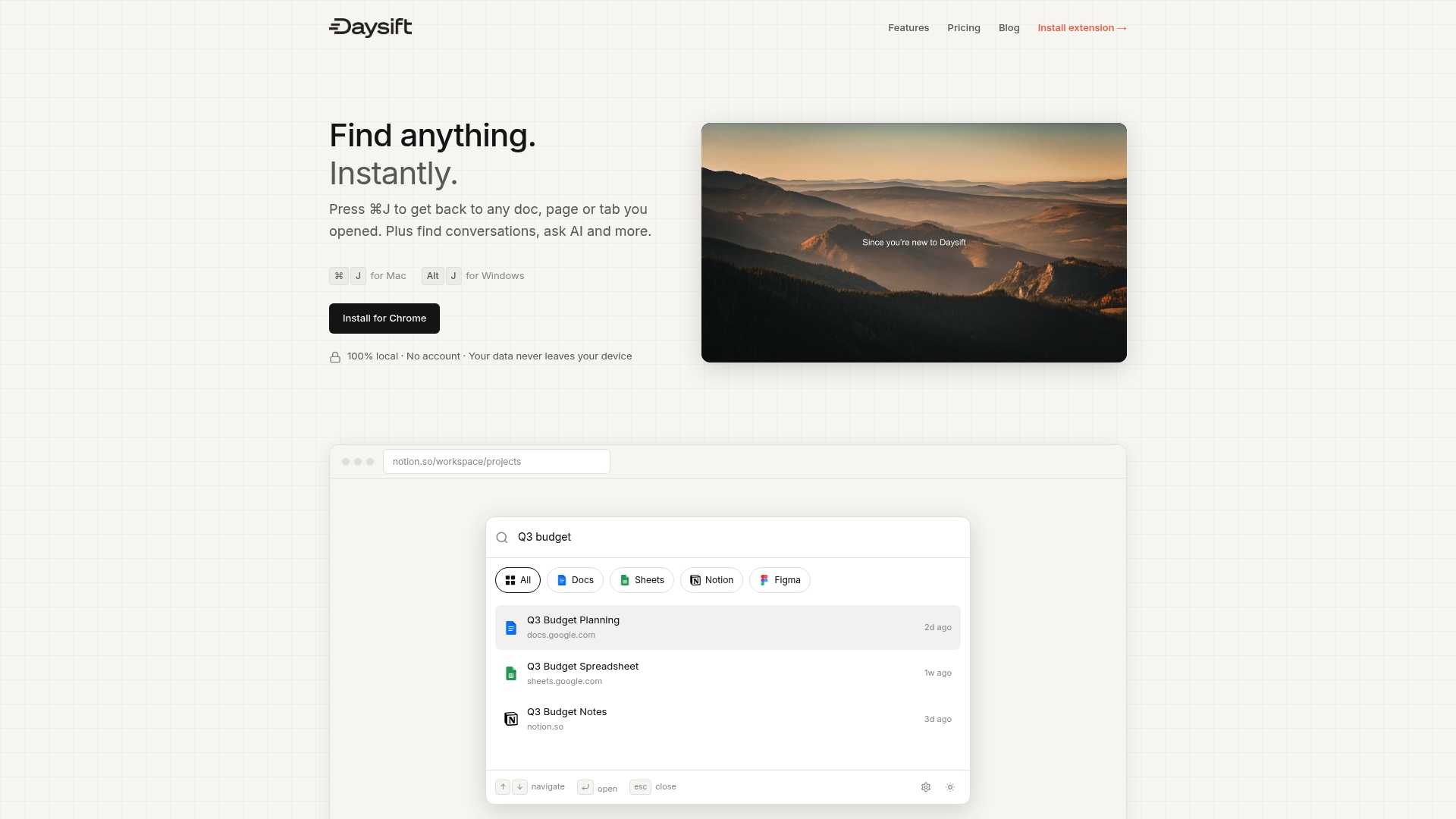
The Daysift workflow platform acts as a command palette for your entire browser history. Press ⌘J or Alt+J, type a few words, and find any page you have visited, open or closed, without digging through tabs or bookmarks. It indexes work-relevant pages automatically, keeps everything local on your machine, and requires zero organization. If you are ready to stop hoarding tabs and start trusting your retrieval system, get started with Daysift and feel the difference in the first five minutes.
Frequently asked questions
How many tabs is too many for productivity?
Productivity usually suffers beyond 10 to 20 open tabs, as tab overload reduces efficiency and increases the time and mental energy needed to find what you need.
Do browser extensions really speed up tab management?
Yes. Extensions like TabHunter and Tab Wrangler cut switching latency and RAM by 41% and 38% respectively, making a measurable difference in daily workflow speed.
What is a zero-tab workflow?
It is a method of using pinned PWAs and tiling to limit tab clutter, keeping only task-relevant tabs open and trusting a retrieval system to surface anything else you need.
Can keyboard shortcuts really make a difference?
Keyboard navigation saves up to 8 minutes per day compared to mouse-based tab management, which compounds to nearly an hour per week of recovered productive time.
Are AI browsers or automation tools worth trying in 2026?
Yes. AI browsers automate context and workspace management, reducing the manual overhead of tab hygiene and freeing more time for focused, deep work.