
TL;DR:
- Chrome extensions can significantly boost productivity by automating tasks and streamlining workflows.
- They pose risks like performance overhead and security vulnerabilities if not managed carefully.
- Effective extension management involves vetting, permission review, and regular audits to maximize benefits and minimize dangers.
Chrome extensions sit quietly in your browser toolbar, yet most professionals either overload on them or barely scratch their potential. Tab-switching drops by 41-53% when the right extensions are in place, which is a staggering number when you consider how much of your day involves jumping between docs, tools, and reference pages. Still, confusion runs deep: Are they safe? Do they slow things down? What actually separates a useful extension from a liability? This guide answers all of it, covering how Chrome extensions work under the hood, what they genuinely do for productivity, where the real risks hide, and how to manage them like a pro.
Table of Contents
- What are Chrome extensions and how do they work?
- Key features and productivity benefits for teams
- Risks, limitations, and what most people miss
- Best practices for deploying and managing Chrome extensions
- A smarter approach to Chrome extensions: Lessons from experience
- How Daysift helps you make the most of Chrome extensions
- Frequently asked questions
Key Takeaways
| Point | Details |
|---|---|
| Chrome extension basics | Chrome extensions are small add-ons that bring new features and workflow tools to your browser. |
| Productivity gains | The right extensions can reduce wasted time, automate web tasks, and boost team efficiency. |
| Balance benefits and risks | Using too many or poorly reviewed extensions increases security and performance risks. |
| Best practices matter | Always review permissions, update regularly, and audit your extensions list for safety and utility. |
What are Chrome extensions and how do they work?
To fully grasp why Chrome extensions matter for productivity, let’s start with the basics.
Chrome extensions are small software programs built with the same web technologies you already know: HTML, CSS, and JavaScript. They plug directly into Google Chrome and modify or extend what the browser can do, from blocking ads to summarizing pages to automating repetitive clicks.
Every extension is built around a handful of core components. Extensions consist of these key parts:
- manifest.json: The blueprint. It declares the extension’s name, version, permissions, and which files do what.
- Content scripts: JavaScript files that read and write directly to the web pages you visit. They can extract text, inject buttons, or modify page behavior in real time.
- Service workers: Background scripts that handle tasks like API calls, data processing, or event listening without needing a visible UI.
- Popup UIs: The small windows that appear when you click an extension icon. Built with standard HTML and CSS.
All of this runs inside a sandboxed environment, meaning extensions operate in isolation from each other and from the core browser. That sandboxing is a deliberate security layer.
“Extensions run in a separate process from the browser itself, limiting the damage any single extension can cause if something goes wrong.”
The biggest structural shift in recent years is Manifest V3 (MV3), now the required standard for all Chrome extensions. MV3 replaces persistent background pages with non-persistent service workers, meaning background scripts spin up only when needed and then shut down. This reduces memory usage and limits the window for malicious activity. MV3 also enforces a stricter Content Security Policy and introduces more granular site access controls, so extensions must now request permission for specific sites rather than grabbing broad access by default.
For developers, MV3 requires smarter state management since service workers don’t persist data between sessions. For users, it means extensions are generally leaner and more transparent about what they’re touching.
Key features and productivity benefits for teams
Now that you understand what Chrome extensions are, let’s see what they do differently for modern professionals and teams.
The productivity case for Chrome extensions is concrete, not theoretical. Navigation speeds up by 2.3x when keyboard-driven extensions replace mouse-heavy workflows. For remote teams juggling docs, dashboards, and client portals across dozens of tabs, that multiplier adds up fast.

Here’s a breakdown of the main extension categories and what they actually deliver:
| Extension type | Primary function | Best for |
|---|---|---|
| Utility | Tab management, keyboard shortcuts, search | Individual power users |
| Collaboration | Shared annotations, comments, task assignment | Remote teams |
| Content-focused | Clipping, summarization, note capture | Researchers, writers |
| Security | Password management, tracker blocking | All professionals |
The most impactful use cases for knowledge workers tend to cluster around four areas:
- Automating repetitive tasks: Content clipping, form filling, and password autofill eliminate dozens of micro-interruptions per day.
- AI-powered summarization: Content scripts extract and summarize web content efficiently, while service workers handle API calls to AI models in the background, so you get a summary without leaving the page.
- Keyboard-first navigation: Extensions that replace mouse clicks with keyboard shortcuts cut context-switching time dramatically.
- Centralized search: Instead of hunting through 30 open tabs, a well-built extension indexes what you’ve visited and surfaces it instantly.
Statistic: Teams using keyboard-driven browser extensions report cutting tab-switching time by up to 53%, translating to roughly 20 to 30 minutes saved per workday.
For team leads, the collaboration angle matters too. Extensions can push annotations, flag content for review, or trigger workflows in tools like Slack or Notion without anyone leaving the browser. That kind of lightweight orchestration is where Chrome extension productivity data consistently shows the biggest returns.
Pro Tip: Before installing any extension for your team, test it solo for one week and measure whether it actually reduces friction. Perceived productivity and real productivity often diverge.
Risks, limitations, and what most people miss
While the upsides are clear, it’s crucial to understand the risks and limitations that most users overlook.
The biggest blind spot for most professionals is performance overhead. Extensions cause memory and CPU degradation, slower load times, and increased energy consumption, especially when multiple extensions are active simultaneously. An extension you installed six months ago and never use is still consuming resources in the background.

Security is the sharper concern. Some extensions have been caught exfiltrating browsing data, injecting ads, or silently transmitting form inputs. The Chrome extension threat landscape includes malicious actors who acquire legitimate extensions and push malware through updates, meaning an extension that was safe last month might not be today.
Here’s a quick reference for the main risk categories:
| Risk type | What it means | How to mitigate |
|---|---|---|
| Data exfiltration | Extension reads and transmits your data | Review permissions before install |
| Performance drain | Memory/CPU overhead slows browsing | Audit and remove unused extensions |
| Malicious updates | Safe extension gets acquired and weaponized | Monitor extension update logs |
| Overly broad permissions | Access to all sites when only one is needed | Prefer per-site permission grants |
Key risks to keep on your radar:
- Extensions requesting access to “all websites” when their function only requires one
- No visible developer or company behind the extension
- Permissions that don’t match the stated purpose (a grammar tool asking for clipboard access)
- Extensions not updated in over a year
Manifest V3 tightens site access controls and reduces the attack surface through stricter CSP enforcement, but it doesn’t eliminate risk entirely. It shifts responsibility toward users to grant access thoughtfully.
“Security improvements in MV3 are meaningful, but they’re not a substitute for user vigilance and organizational policy.”
For teams, compliance is an additional layer. Extensions that access sensitive client data or internal tools may violate data handling agreements. Review your privacy policy and Chrome extension practices before deploying anything across a team.
Pro Tip: Open Chrome’s Task Manager (Shift+Esc) to see exactly how much memory each extension is consuming right now. You’ll likely be surprised by at least one.
Best practices for deploying and managing Chrome extensions
With a clear view of both the advantages and dangers, let’s turn to practical steps for safe and efficient extension management.
The goal is a lean, audited extension stack where every installed tool earns its place. Here’s how to get there:
- Vet before you install: Check the Chrome Web Store for developer identity, user reviews, and last update date. Open-source extensions are easier to audit and generally more trustworthy.
- Read permissions carefully: Prefer extensions with minimal permissions and avoid anything requesting broad site access when the use case is narrow.
- Use per-site controls: Chrome’s dynamic permission model now allows extensions to request access only when needed via "addHostAccessRequest`, and you can configure per-site controls directly from the extension menu.
- Run a monthly audit: Open chrome://extensions and disable anything you haven’t used in 30 days. If you don’t miss it after another week, remove it.
- Test performance impact: Install one extension at a time and use Chrome’s Task Manager to benchmark memory before and after.
- For IT teams: Establish a short approved list, require code review for any internally built extensions, and enforce privacy compliance checks before rollout.
“Treat your extension stack the way you treat your SaaS subscriptions: review it quarterly, cut what you don’t use, and document what you keep.”
For anything touching sensitive data, check that the extension’s Daysift privacy practices or equivalent documentation clearly states that data stays local. Extensions that process data on-device rather than sending it to a server are almost always the safer choice.
Pro Tip: Chrome’s extension management page lets you set extensions to “Click to run” rather than always active. This alone can cut background resource usage significantly without uninstalling anything.
A smarter approach to Chrome extensions: Lessons from experience
All these details underscore a key point not often discussed: most teams treat Chrome extensions like free apps on a phone. Install, forget, repeat. The result is a bloated browser with 15 extensions, half of which nobody remembers installing, and a vague sense that Chrome is slower than it used to be.
Real productivity from extensions doesn’t come from quantity. It comes from deliberate selection, minimal permissions, and the discipline to remove tools that no longer serve a clear purpose. The teams that get the most value from extensions are the ones that treat them as part of their actual tech stack, with the same scrutiny they’d apply to any SaaS tool.
MV3’s ephemeral service workers are a good example of where ignoring the technical details creates real problems. Because service workers don’t persist, any extension relying on stored state needs to handle that explicitly. Teams building internal extensions that skip this step risk losing data silently. That’s not a hypothetical. It happens.
The deeper lesson is that browser extensions are infrastructure now, not accessories. For in-depth Chrome extension insights and how they fit into a modern productivity stack, the architecture decisions matter as much as the feature list.
How Daysift helps you make the most of Chrome extensions
If you’re looking for a smarter way to master web content with Chrome extensions, Daysift was built exactly for this context. It’s a Manifest V3 Chrome extension that quietly indexes every work-relevant page you visit, then lets you find anything instantly with one keyboard shortcut. No cloud sync, no account required, no data leaving your machine.
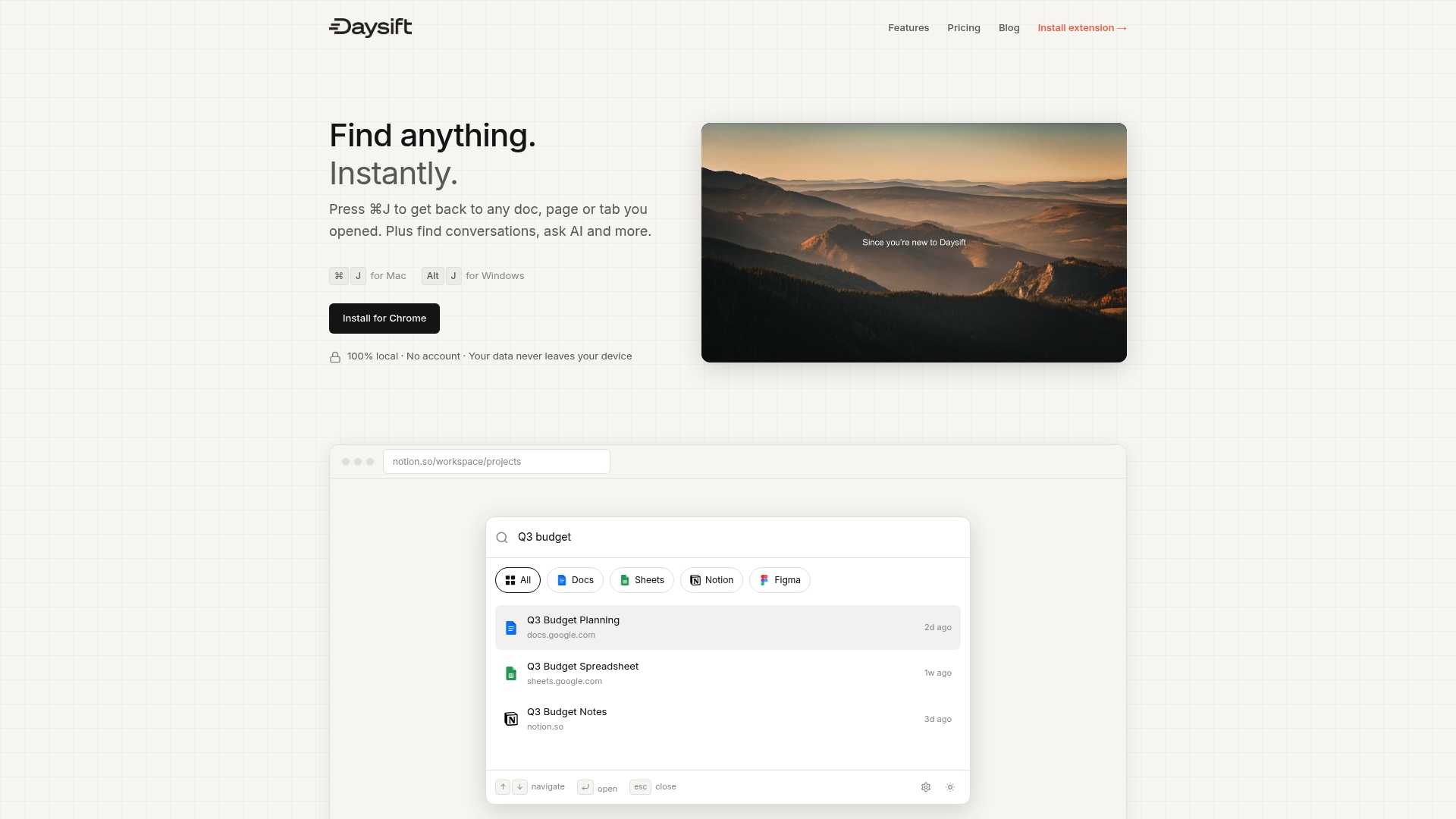
Daysift skips the noise automatically, ignoring social media and shopping sites so your search results stay focused on what actually matters for work. AI summaries, URL-attached notes, pinned pages, and fuzzy search across your full browsing history are all built in. It’s the kind of extension that earns its place in a lean, audited stack. Get started instantly and see how fast you can find what you were looking for.
Frequently asked questions
Are Chrome extensions safe to use?
Most are safe when installed from the Chrome Web Store with careful permission review, but some pose privacy risks including data exfiltration and malicious behavior after ownership changes.
How do Chrome extensions impact browser performance?
Memory overhead per extension can be significant, causing slower page loads and higher CPU usage, particularly when many extensions run simultaneously in the background.
Can I use Chrome extensions in Incognito or guest mode?
Most extensions are disabled by default in Incognito and guest mode for privacy protection; Incognito mode restricts extension activity unless you manually enable each one from the extensions settings page.
What makes Manifest V3 important for Chrome extensions?
Manifest V3 is now the standard, requiring non-persistent service workers and stricter permission controls that meaningfully reduce the security and privacy attack surface for all Chrome extensions.