
TL;DR:
- Keyboard shortcuts significantly reduce search and navigation time in Chrome for increased productivity.
- Custom search engines enable quick site-specific searches directly from the Omnibox.
- Combining shortcuts and advanced Google operators streamlines workflows and enhances search precision.
Every minute you spend hunting for a tab, retyping a search, or clicking through menus is a minute you’re not doing actual work. It adds up faster than you’d think. Keyboard navigation can reduce Google search task time significantly, and that’s just one shortcut. Chrome is packed with built-in tools that most knowledge workers never touch. This article breaks down the most useful search shortcuts, custom search engines, Google operators, and Omnibox tricks so you can stop hunting and start finding.
Table of Contents
- Mastering keyboard shortcuts for Chrome search and navigation
- Custom search engines: Searching specific sites with keywords
- Advanced Google search operators for precision
- Omnibox tricks: Calculations, conversions, and built-in @ shortcuts
- Why the real shortcut is workflow integration
- Instant search, integrated: Try Daysift for next-level shortcut power
- Frequently asked questions
Key Takeaways
| Point | Details |
|---|---|
| Keyboard shortcuts compound | Using Chrome’s keyboard shortcuts can save seconds per search and hours per week in high-volume workflows. |
| Custom searches streamline | Setting up site-specific search engines lets you retrieve info from internal sites instantly with simple keywords. |
| Operators boost precision | Google search operators provide targeted results for quick and accurate information retrieval within Chrome. |
| Omnibox: more than search | Chrome’s address bar handles calculations, conversions, and quick access to tabs, bookmarks, and history, cutting workflow time. |
| Workflow wins over memory | Integrating these shortcuts into daily routines delivers lasting productivity gains that mere shortcut memorization cannot. |
Mastering keyboard shortcuts for Chrome search and navigation
Now that we’ve set the stage for search efficiency, let’s get into the practical shortcuts every knowledge worker should have memorized.
The single most valuable habit you can build is reaching for the keyboard instead of the mouse. Saving time with keyboard shortcuts compounds across your entire workday. A few seconds here, a few seconds there, and by Friday you’ve recovered a meaningful chunk of focused time.
Here are the shortcuts that deliver the most impact:
- Ctrl+L (Windows/Linux) or Cmd+L (Mac): Focuses the Omnibox instantly. This single shortcut saves 1.3 seconds per search compared to reaching for the mouse. Multiply that by 50 searches a day and you’re looking at over a minute saved daily.
- Ctrl+K or Ctrl+E: These focus the Omnibox from anywhere on the page, even when you’re deep in a document or form. Esc clears the input without triggering a page reload.
- Ctrl+F: Opens the in-page search bar. Indispensable for scanning long docs, reports, or wiki pages.
- Ctrl+1 through Ctrl+9: Jumps directly to a specific tab by position. If you keep your most-used tools pinned to the left, this becomes a fast-switch shortcut.
- Ctrl+T and Ctrl+W: Open and close tabs without touching the mouse. Pair these with tab management tips and your workflow gets noticeably cleaner.
- Ctrl+Shift+T: Reopens the last closed tab. A lifesaver when you close something by accident.
The compounding effect is real. A study with 127 participants found that keyboard navigation reduced task time with statistical significance (p<0.001). That’s not a marginal improvement. It’s a measurable shift in how fast you work.
Pro Tip: Native Chrome shortcuts use significantly less memory than extension-based alternatives. They run at the browser level, which means no DOM injection, no background scripts, and no added latency. If you’re choosing between a shortcut extension and a built-in shortcut, the built-in wins every time.
Start with just two shortcuts this week: Ctrl+L and Ctrl+F. Use them until they’re automatic. Then layer in the rest.
Custom search engines: Searching specific sites with keywords
With core shortcuts in hand, the next boost comes from customizing Chrome to search your favorite sites directly from the Omnibox.

Custom site search engines let you assign a short keyword to any searchable website. Type that keyword plus your query, and Chrome sends the search straight to that site. No navigating, no waiting for a homepage to load.
Here’s how to set one up:
- Open Chrome Settings and go to Search engine > Manage search engines.
- Click Add next to “Other search engines.”
- Enter a name (e.g., “Confluence”), a keyword (e.g., "conf
), and the search URL with%swhere the query goes, likehttps://company.atlassian.net/wiki/search/%s` for searching Confluence wiki. - Click Save.
- Now type
confin the Omnibox, press Tab, type your query, and hit Enter.
The %s placeholder is critical. It tells Chrome exactly where to insert your search term. Miss it, and the search fails entirely.
Note: If your search URL doesn’t include
%s, Chrome has nowhere to insert your query. The shortcut will appear to work but will always load the same static page. Always verify with a test search before relying on it.
Pro Tip: Always test your custom search engine with a sample query right after setup. It takes five seconds and saves a lot of confusion later.
Here’s a quick comparison of how this stacks up against the default approach:
| Method | Steps to search | Time estimate |
|---|---|---|
| Default (navigate then search) | Open tab, type URL, wait, search | 10-15 seconds |
| Custom search engine keyword | Type keyword + Tab + query + Enter | 3-5 seconds |
Useful keywords to set up: drive for Google Drive, conf for Confluence, gh for GitHub, fig for Figma, notion for Notion. You can explore more workflow ideas on the Daysift blog. Once you build a small library of these, navigating your tool stack feels completely different.
Advanced Google search operators for precision
For those looking to go beyond basic shortcuts, Google’s specialized search operators unlock even more precision and speed.
Most people type a few words and scroll through results. Power users write surgical queries that return exactly what they need on the first page. Google supports over 40 search operators that filter, narrow, and target results in ways a plain search can’t.
Here are the operators that solve real workflow problems:
- site:domain.com finds all indexed pages from a specific site. Use it to search internal wikis or competitor content.
- filetype:pdf or filetype:xlsx returns only files of that type. Perfect for finding reports or spreadsheets.
- intitle:“keyword” matches pages where the keyword appears in the title, not just the body.
- “exact phrase” forces Google to match the exact string. Use this when you remember a specific sentence from a document.
- OR between terms returns results containing either term. Useful when you’re not sure which word was used.
- (minus sign) before a word excludes it from results. For example,
python tutorial -beginnerfilters out entry-level content.
Here’s a practical reference table:
| Operator | Example query | What it returns |
|---|---|---|
| site: | site:notion.so pricing |
Notion pages about pricing |
| filetype: | filetype:pdf annual report 2025 |
PDF annual reports |
| intitle: | intitle:"onboarding checklist" |
Pages with that exact title phrase |
| OR | Slack OR Teams productivity |
Results for either tool |
| Minus | CRM software -Salesforce |
CRM results excluding Salesforce |
Pro Tip: If you notice search results loading slowly, try disabling Google’s predictive search feature in Chrome settings. This can shave around 310ms off each results page load, which adds up when you’re running dozens of searches a day.
Operators work best when combined. A query like site:docs.google.com intitle:"Q3 budget" filetype:xlsx is far more targeted than anything you’d get from a plain search. For strategies on finding tabs faster, pairing operators with Chrome’s built-in tools creates a genuinely fast research workflow.
Omnibox tricks: Calculations, conversions, and built-in @ shortcuts
Finally, let’s unlock Omnibox tricks that turn the address bar into a multi-tool for instant actions and smart searches.
Most people treat the Omnibox as a place to type URLs or Google searches. It’s actually a lightweight calculator, unit converter, and navigation hub rolled into one. And it works without any extensions.
Type 125 mph to km/h directly in the Omnibox and Chrome gives you the answer before you even hit Enter. The same works for currency, temperature, and basic math. According to task timing research, Omnibox-based calculations reduce task completion time by 42% compared to opening a separate calculator or search page.
Here are the most useful Omnibox use cases:
- Math:
(450 * 12) / 52returns the result instantly. - Unit conversions:
500 grams to ounces,30 celsius to fahrenheit. - Timers: Type
set timer 25 minutesand Google starts one right in the results. - @tabs: Typing
@tabsin the Omnibox searches your currently open tabs by name. - @bookmarks:
@bookmarkssearches your saved bookmarks without opening the bookmarks manager. - @history:
@historysearches your browsing history directly from the address bar.
Those @ shortcuts save roughly 30 minutes per week by cutting out the clicks between you and what you’re looking for. That’s not a rounding error. Over a year, it’s more than 26 hours.
Pro Tip: Combine Omnibox focus (Ctrl+L) with a custom keyword for the most fluid workflow possible. Press Ctrl+L, type your keyword, press Tab, type your query, hit Enter. The whole sequence takes under three seconds and bypasses slow portals and VPN-gated intranets entirely.
For anyone dealing with tab hoarding insights, the @tabs shortcut alone is worth building into your daily routine. It’s the fastest way to find an open tab without scrolling through 40 of them.
Why the real shortcut is workflow integration
Having reviewed individual shortcuts, let’s examine why true speed comes from integrating them into routine workflows rather than memorizing a list.
Here’s the uncomfortable truth: most people who read articles like this one learn three new shortcuts, use them for two days, and then revert to their old habits. Not because the shortcuts aren’t useful. Because they never got wired into a routine.
Power users don’t succeed by memorizing more shortcuts. They succeed by chaining them together until the sequence becomes automatic. Ctrl+L to focus, keyword to target, query to search, Enter to go. That chain, repeated hundreds of times, becomes faster than conscious thought.
Compounding works in productivity the same way it works in finance. One shortcut saves you a second. Ten shortcuts chained together save you a minute. A minute saved fifty times a day is nearly an hour a week.
The research backs this up. Combining Omnibox focus with keyword search creates a fluid workflow that bypasses slow portals and reduces friction at every step. But only if you actually do it repeatedly until it’s a reflex.
The practical advice: pick one workflow you repeat daily, like opening your project management tool or searching your company wiki. Map a shortcut chain to it. Use it exclusively for two weeks. After that, it costs you nothing cognitively and saves you something real. Then add the next one. For a deeper look at what an integrated search workflow looks like in practice, the pattern holds across every tool stack.
Instant search, integrated: Try Daysift for next-level shortcut power
If you want to put these search shortcuts on autopilot and supercharge your productivity, here’s how Daysift can help.
Chrome’s built-in shortcuts are powerful, but they only cover what’s currently open or indexed by Google. Daysift fills the gap. It quietly indexes every work-relevant page you visit and makes it searchable with one keystroke, ⌘J on Mac or Alt+J on Windows.
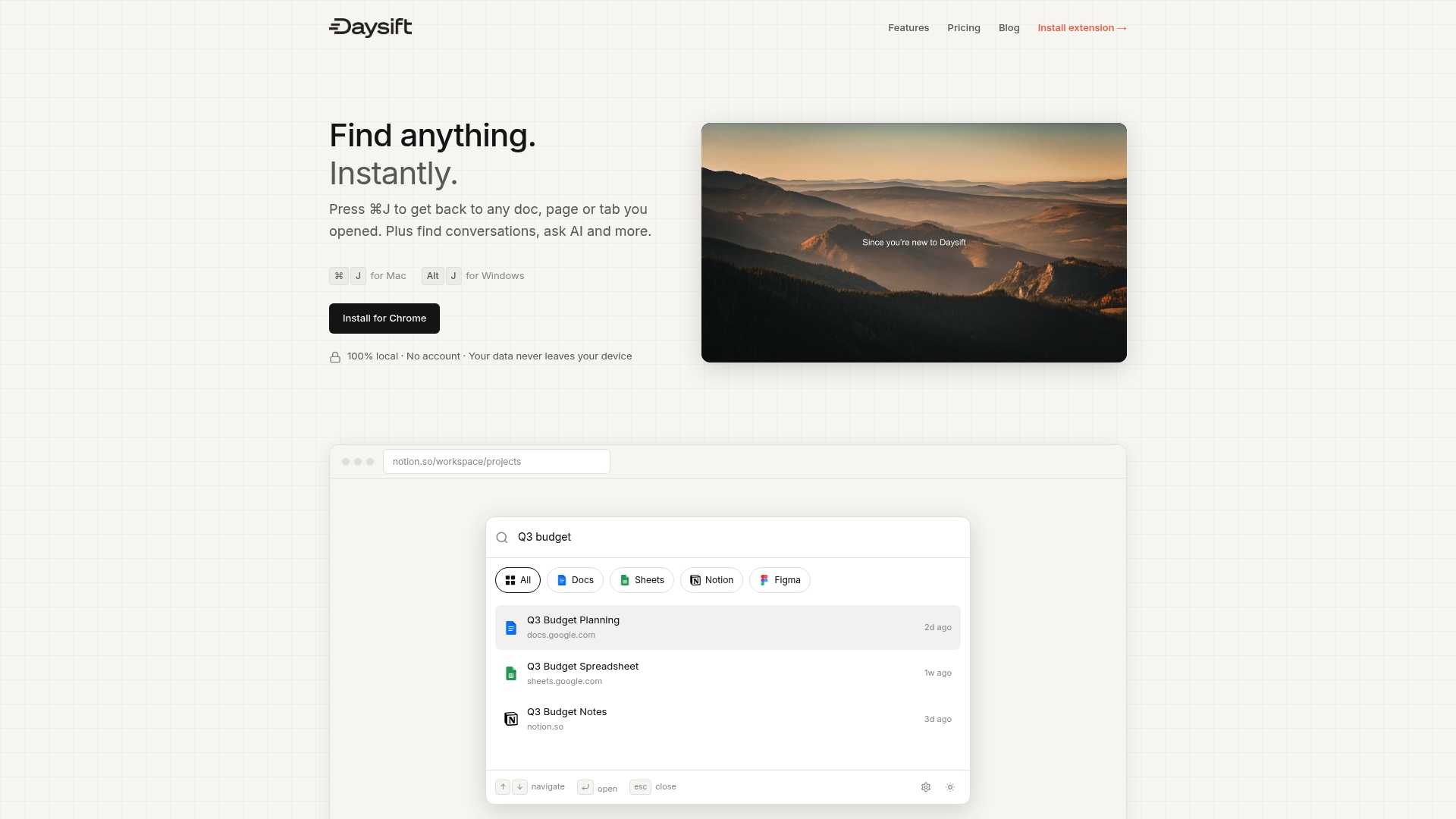
Type a few words from a page you visited last week, and Daysift finds it instantly. No folders, no tagging, no organization required. You can find anything instantly across your entire browsing history, with AI-powered search that understands intent, not just keywords. The free tier covers 30 days of history and 30 AI credits per month. Ready to go further? Get started for free, or activate Daysift Pro for unlimited history at $1.99 per month.
Frequently asked questions
What are the fastest ways to search in Chrome without extensions?
Use Ctrl+L (or Cmd+L) on Mac to focus the Omnibox, type your query, and press Enter. This approach saves 1.3 seconds per search compared to using the mouse.
How can I search a specific site directly from Chrome’s address bar?
Set up a custom search engine in Chrome using a short keyword and a URL with a %s placeholder, then type that keyword plus your query to search the site instantly from the Omnibox.
Do built-in Chrome shortcuts outperform extension-based alternatives?
Yes. Native shortcuts use 14-22MB less memory than most extensions and avoid DOM injection risks, making them more stable and faster in practice.
What is the @ shortcut in Chrome, and how does it help?
Typing @tabs, @bookmarks, or @history in the Omnibox lets you search open tabs, saved bookmarks, or browsing history directly, saving roughly 30 minutes per week by cutting unnecessary clicks.