
You open Chrome for one quick task. Twenty tabs later, you’re drowning in half-read articles, scattered thoughts, and no clear system to capture what matters. Knowledge workers and freelancers face this daily: browser chaos kills productivity. This guide walks you through a practical process to take notes efficiently in Chrome while managing tab overload, so you can focus on work instead of hunting for lost information.
Table of Contents
- Key takeaways
- Understanding your needs and preparing your Chrome environment
- Step-by-step process to capture notes quickly and organize tabs
- Advanced techniques: clipping, AI summarization, and multitasking features
- Common mistakes and troubleshooting tips for note-taking in Chrome
- Discover Daysift: streamline your note and tab management today
- FAQ
Key Takeaways
| Point | Details |
|---|---|
| Tab management boosts productivity | Use a tab manager to suspend inactive tabs and create project workspaces to keep related tabs organized. |
| New tab notes capture | Install a new tab note extension to replace the default new tab page, enabling immediate capture with auto save and offline support. |
| Workspaces per project | Organize related tabs into separate workspaces for each project and keep suspendable tabs accessible for later use. |
| Split View multitasking | Use Chrome Split View to view two tabs side by side without extra windows. |
| Three day testing | Test each extension for at least three days to assess fit before deciding. |
Understanding your needs and preparing your Chrome environment
Before installing extensions, assess your current situation. Count how many tabs you typically keep open during a work session. If you’re juggling 30+ tabs daily, you need a tab manager that suspends inactive tabs to free memory. If you handle 10-15 tabs but struggle to capture fleeting ideas, prioritize quick note-taking tools.
Consider your privacy stance. Local-only storage keeps data on your machine, but you lose cross-device sync. Cloud-based tools offer convenience but require trusting third parties with your notes. Review privacy policies before syncing sensitive work notes online.
Define your primary workflow. Are you doing quick daily captures, deep research with multiple sources, or heavy synthesis requiring AI assistance? For knowledge workers and freelancers, MakeUseOf tested note-taking extensions and found that starting with a tab manager plus quick new-tab notes handles daily use, adding a clipper for research, and using AI for heavy synthesis works best.
Familiarize yourself with Chrome’s native features before adding extensions. The built-in Tab Organizer automatically groups related tabs. Split View lets you view two tabs side by side without opening new windows. These features reduce the need for third-party tools in some cases.
Prepare to test tools systematically. Install no more than three extensions at once to avoid browser slowdowns. Use each for at least three days before deciding. The tab hoarding issue isn’t about willpower, it’s about lacking the right system.

Pro Tip: Create a simple checklist of your top three pain points (tab chaos, slow note capture, research organization) and test each tool against those specific needs rather than chasing features you won’t use.
Step-by-step process to capture notes quickly and organize tabs
Start by installing a new-tab note extension. These tools replace Chrome’s default new tab page with a note-taking interface, making capture instant. MakeUseOf tested extensions and found that New Tab Notes and Quick Note Tab offer frictionless capture with auto-save, local storage, and offline support, with Quick Note Tab delivering the fastest time-to-first-character.
-
Install Quick Note Tab or New Tab Notes from the Chrome Web Store. Open a new tab to verify the note interface appears immediately.
-
Set up a tab manager like Workona to group related tabs into workspaces. Create separate workspaces for different projects or clients. Suspended tabs stay accessible but don’t consume memory.
-
Enable auto-save in your note extension settings. This prevents data loss if Chrome crashes or updates unexpectedly. Most extensions save locally by default, but verify this in settings.
-
Create a capture routine. When an idea strikes, press Ctrl+T (Windows) or Cmd+T (Mac) to open a new tab. Type immediately. The note saves automatically. Close the tab when done. Your thought is captured in under five seconds.
-
Learn time-saving keyboard shortcuts for tab navigation. Ctrl+Tab cycles through open tabs. Ctrl+Shift+T reopens closed tabs. Ctrl+1 through Ctrl+8 jumps to specific tab positions.
| Extension | Auto-save | Offline | Storage | Best For |
|---|---|---|---|---|
| Quick Note Tab | Yes | Yes | Local | Speed and simplicity |
| New Tab Notes | Yes | Yes | Local | Clean interface |
| Nimbus Note | Yes | Partial | Cloud | Cross-device sync |
| Notezilla | Yes | No | Cloud | Windows integration |
Pro Tip: Set your tab manager to auto-suspend tabs after 30 minutes of inactivity. This keeps your browser responsive without manually closing tabs you might need later.
Advanced techniques: clipping, AI summarization, and multitasking features
Web clippers elevate note-taking from quick captures to structured research. These extensions let you highlight text, annotate pages, and save full articles without switching apps. Web clippers like Web Highlights and OneNote Web Clipper enable persistent highlighting and tagging for research without tab overload.
Install a clipper that matches your existing workflow. Web Highlights keeps annotations visible on the original page when you revisit. OneNote Web Clipper integrates with Microsoft’s ecosystem if you already use OneNote for other work. Both tools let you select specific text or capture entire pages.
For heavy research requiring synthesis across multiple sources, AI extensions automate the grunt work. Gistr and NotebookLM-like extensions automate tab summarization and note synthesis, reducing manual workload. These tools scan open tabs, extract key points, and generate summaries you can edit and save.
Chrome’s Split View feature works alongside extensions for true multitasking. Right-click any tab and select “Add tab to new group.” Drag the group to the side of your screen. Chrome displays two tabs simultaneously, perfect for taking notes while reading source material. No need to switch windows or use a second monitor.

Combine native features with extensions for hybrid workflows. Use Split View to display a research article on the left and your new-tab note interface on the right. Add a clipper to highlight key passages in the article. The highlights sync to your note automatically if you’ve configured the clipper correctly.
| Tool Type | Example | Key Feature | Trade-off |
|---|---|---|---|
| Web Clipper | Web Highlights | Persistent page annotations | Requires revisiting original pages |
| Web Clipper | OneNote Clipper | Microsoft ecosystem integration | Cloud storage required |
| AI Summarizer | Gistr | Multi-tab synthesis | Uses AI credits or subscription |
| Native Feature | Split View | No installation needed | Limited to two tabs only |
Test clippers with a real research project. Open five related articles, highlight key points in each, then review how easily you can access those highlights later. The best clipper is the one you’ll actually use consistently. For finding tabs efficiently after clipping, consider tools that index your browsing history.
Common mistakes and troubleshooting tips for note-taking in Chrome
Extension overload is the biggest trap. Each extension consumes memory and processing power. Installing ten note-taking tools doesn’t make you ten times more productive. It makes Chrome slower and your workflow more confusing. Stick to three extensions maximum: one tab manager, one note-taker, and optionally one clipper or AI tool.
Data loss happens when you assume auto-save means invincible. Local storage extensions save to your device, but they can’t protect against hard drive failure or accidental Chrome data clearing. Export your notes weekly to a backup location. Most extensions offer export to text, markdown, or JSON formats.
Keep workflows simple and scalable. A system that requires five steps to capture one note will fail under deadline pressure. Your note-taking process should work when you’re stressed, not just when you have time to be methodical. If a tool feels clunky after three days, drop it.
Privacy trade-offs matter more than marketing claims suggest. Cloud sync is convenient, but your notes travel through company servers. Local-only tools protect privacy but limit accessibility. Read privacy policies before syncing work notes containing client information or proprietary data.
Experts recommend testing 3-5 tools for several days to avoid bloat and find the best fit. Don’t commit to annual subscriptions until you’ve used a tool in real work scenarios for at least a week.
Tab suspension reduces memory load but can disrupt workflows if configured too aggressively. If your tab manager suspends tabs after five minutes, you’ll spend time reloading pages you’re actively using. Start with a 30-minute suspension timer and adjust based on your actual usage patterns.
Conflicts between extensions cause mysterious bugs. If notes stop saving or tabs behave strangely, disable extensions one at a time to isolate the problem. Check Chrome productivity features documentation to verify compatibility.
Pro Tip: Before installing any extension, check its last update date and user review trends. An extension abandoned by its developer will break eventually, taking your notes with it. Look for tools updated within the past three months.
For more troubleshooting guidance and workflow optimization strategies, explore the Daysift blog articles covering browser productivity and information management.
Discover Daysift: streamline your note and tab management today
You’ve learned the process for efficient note-taking in Chrome. Now consider a tool that eliminates the friction between capturing notes and finding them later. Daysift gives you instant access to anything you’ve opened in Chrome through one keyboard shortcut and one search box.
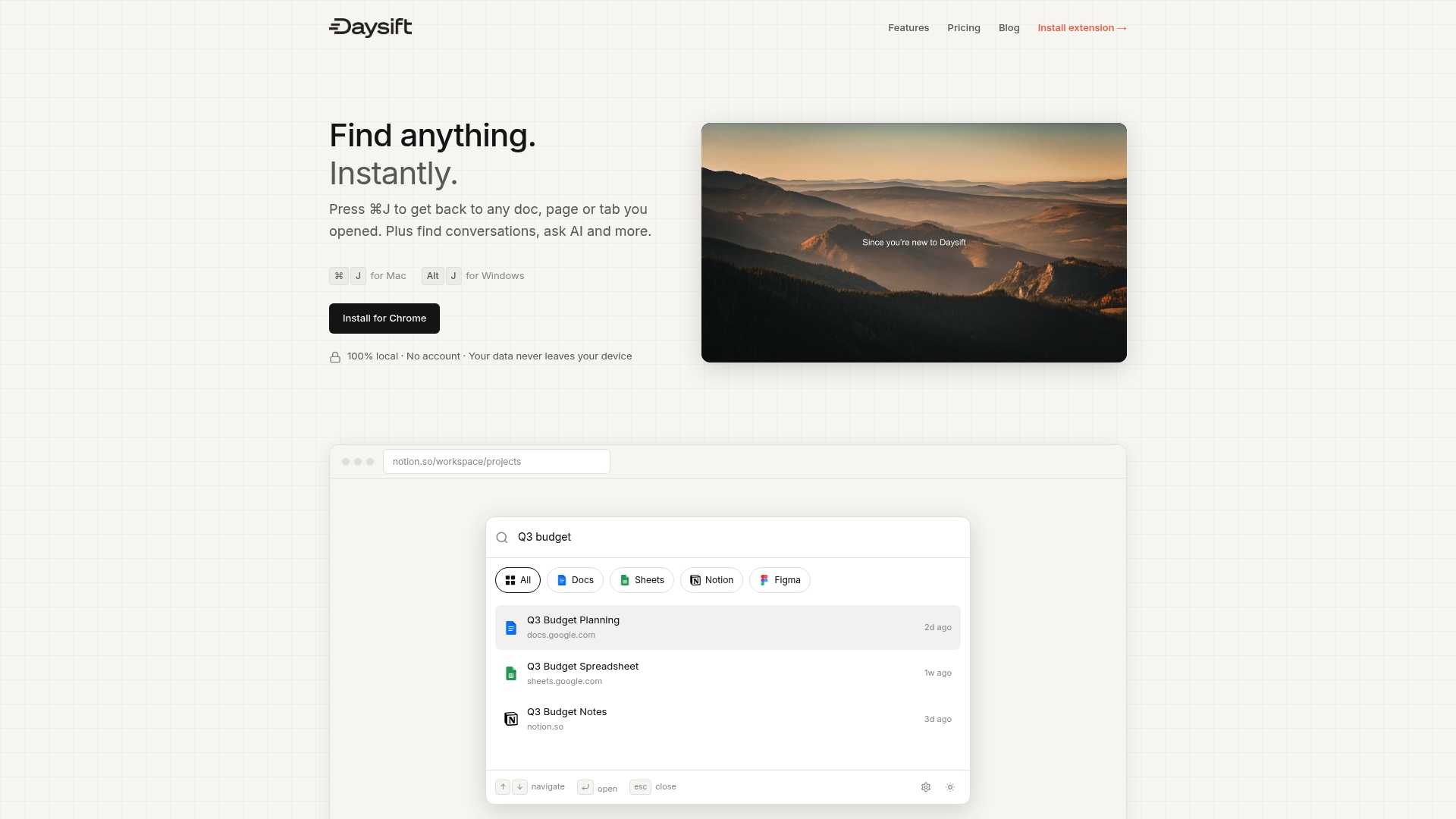
Press ⌘J (Mac) or Alt+J (Windows) and search your entire browsing history, notes, and tabs without organizing anything. Daysift indexes work-relevant pages locally on your machine, so your data never leaves your device. Floating notes attach to URLs, making them searchable alongside your browsing history. Find that article you read last week or the note you took yesterday in seconds, not minutes.
Your privacy stays protected because everything lives in your browser’s local storage. No cloud sync required unless you choose to use AI features. The free tier includes 30-day history and 30 AI credits monthly. Getting started with Daysift takes under two minutes.
Pro Tip: Daysift’s fuzzy search handles typos and partial memory, so you can find pages even when you only remember a few words from the title or content.
FAQ
How do I quickly take notes without interrupting my browsing?
Use new-tab note extensions that replace Chrome’s default new tab page with a note interface. Press Ctrl+T or Cmd+T, type your note, and close the tab. Auto-save captures everything instantly without switching apps or breaking focus.
Which tab manager works best for heavy tab users?
Workona and Octab offer robust grouping and suspension features for users managing 30+ tabs daily. Both let you organize tabs into workspaces and suspend inactive tabs to save memory. Test each for three days to see which interface matches your workflow better.
Can AI tools really reduce note-taking workload?
Yes, but only for specific use cases. AI extensions automate summarization across multiple tabs and track sources automatically, saving hours on research-heavy projects. For quick daily notes, AI adds unnecessary complexity. Use AI when synthesizing information from five or more sources.
How do I protect my privacy when taking notes in Chrome?
Choose extensions that store data locally rather than syncing to cloud servers. Read the Daysift privacy policy and similar documents from other tools before installing. Local storage protects privacy but limits cross-device access, so decide which matters more for your workflow.