
Inefficient browser search and tab overload frustrate professionals daily, wasting precious time hunting for open pages and relevant information. Improving your browser search capabilities can save hours each week and dramatically boost your focus. This article reveals expert-backed strategies to refine your search techniques, manage tabs efficiently, and select the right tools to transform your browsing workflow into a productivity engine.
Table of Contents
- Key takeaways
- How to evaluate and select effective browser search improvements
- Advanced search techniques to boost your browser search precision
- Maximizing productivity with tab search and management tools
- Comparing browser search improvements: features, performance, and usability
- How to choose the best ways to improve your browser search workflow
- Optimize your browser search with DaySift
- FAQ
Key Takeaways
| Point | Details |
|---|---|
| Native features first | Prioritize Chrome built in tools such as tab search and built in filters before installing extensions. |
| Test extensions carefully | Test any new extension for a week while monitoring Chrome’s Task Manager (Shift Esc) to catch performance issues early. |
| Master advanced search operators | Boolean operators, exact phrase matching, site and filetype filters dramatically improve search precision. |
| Manage tabs proactively | Organize, suspend, and quickly locate tabs to reduce cognitive load and RAM usage. |
How to evaluate and select effective browser search improvements
Choosing the right approach to improve your browser search requires clear criteria. You need to balance precision, speed, and performance impact to find strategies that actually enhance your workflow without creating new problems.
Prioritize Chrome’s native features before installing extensions. Extensions can degrade browser performance even when inactive, so testing and limiting them is essential. Native tools like tab search and built-in filters deliver functionality without the overhead.
Evaluate search precision by testing advanced operators and filters. Can you quickly narrow results to specific domains, file types, or time periods? Precision matters more than speed if you’re constantly sifting through irrelevant results. The best search improvements help you find exactly what you need in fewer attempts.
Consider how tab management affects both mental load and system resources. Too many open tabs create cognitive overload and consume RAM unnecessarily. Effective solutions help you organize, suspend, or quickly locate tabs without adding complexity to your workflow.
Balance functionality benefits against browser speed and energy use. A feature that saves you five seconds per search but adds ten seconds to page load times creates a net loss. Always measure the real-world impact on your browsing experience before committing to a new tool or technique. Visit the Daysift blog for more insights on optimizing your browser workflow.
Pro Tip: Test any new extension for a week while monitoring your browser’s CPU and memory usage in Chrome’s Task Manager (Shift+Esc) to catch performance issues early.
With key criteria set, let’s explore powerful advanced search techniques that boost Chrome search precision.
Advanced search techniques to boost your browser search precision
Mastering advanced search operators transforms Google from a blunt instrument into a precision tool. These techniques help you bypass clutter and find exactly what you need.
Boolean operators let you combine keywords strategically. Use AND to require multiple terms, OR to search alternatives, and the minus sign to exclude irrelevant results. For example, searching “productivity tools -social media” removes social platforms from your results entirely.
Exact phrase matching with quotation marks ensures Google returns only pages containing your precise wording. Search “improve browser search” to find pages with that exact phrase, eliminating variations that dilute your results.
The site: operator restricts searches to specific domains. Try site:edu for academic sources or site:github.com for code repositories. This advanced operator improves search accuracy significantly when you know where relevant information lives.
Search specific file types with filetype: to target PDFs, Word docs, or spreadsheets. Query “quarterly report filetype:pdf” to skip web pages entirely and jump straight to downloadable documents.
Bypass AI summaries by adding udm=14 to URLs for classic web results. This parameter removes Google’s AI overviews and returns the original search experience, useful when you need comprehensive results rather than synthesized answers.
Apply time and source filters to refine results further:
- Click Tools below the search bar to access date range filters
- Select Past hour, Past 24 hours, or Custom range for recent information
- Choose the Forums tab to prioritize human discussions over corporate content
- Combine filters with operators for maximum precision
According to recent analysis, filters speed research by up to 40% by eliminating outdated or irrelevant sources immediately. Check the Daysift blog for more productivity strategies, and review privacy policy details when using search tools that handle your data.
“The difference between a good search and a great search is knowing which operators to combine. Precision beats speed every time.”
Having sharpened your search queries, let’s examine how managing your browser tabs complements search improvements for better productivity.
Maximizing productivity with tab search and management tools
Effective tab management works hand in hand with improved search techniques to create a seamless browsing experience. The right tools help you navigate dozens of open tabs without losing focus or system performance.
Chrome’s built-in Tab Search (Ctrl+Shift+A on Windows, Cmd+Shift+A on Mac) enables quick tab finding and switching without installing anything. Type keywords from any open tab’s title or URL, and Chrome instantly filters your tabs. This native feature handles basic tab navigation efficiently for most users.

Tab management extensions offer advanced capabilities when native tools fall short. Tabasco and Workona provide features for grouping, searching, and suspending tabs across multiple windows. These tools excel when you juggle complex projects requiring dozens of reference pages.
Be aware that extensions may slow your browser and increase energy consumption. Prioritize native tab search to avoid extension-related performance issues whenever possible. Only add extensions when their benefits clearly outweigh the performance cost.
Keep active tabs between 8 and 11 to reduce cognitive load and system strain. Research shows that auto-closing inactive tabs saves 38% RAM and reduces mental errors significantly. Configure your browser or extension to automatically suspend tabs after a set period of inactivity.
Pro Tip: Create separate browser windows for different projects or contexts, then use Tab Search within each window to maintain focus and reduce visual clutter.
| Feature | Native Tab Search | Tab Manager Extensions |
|---|---|---|
| Speed | Instant | Slight delay |
| Features | Basic search | Grouping, suspension, advanced search |
| Performance impact | None | Moderate |
| Learning curve | Minimal | Varies |
Explore how to find any tab in seconds and understand why tab hoarding isn’t your fault for deeper insights into tab management psychology.
With both search query mastery and effective tab management in hand, let’s compare these strategies to help you decide what fits your workflow best.
Comparing browser search improvements: features, performance, and usability
Understanding the trade-offs between different search and tab management approaches helps you build a workflow that matches your specific needs.
Advanced search operators deliver superior relevancy compared to URL parameter hacks. Operators like site:, intitle:, and filetype: give you granular control over results, while parameters like udm=14 simply toggle interface features. Operators scale better as your search needs become more sophisticated.
Native tab search prioritizes speed and reliability, while extensions offer advanced features at a performance cost. Chrome’s built-in search launches instantly and never breaks with browser updates. Extensions provide grouping, auto-suspension, and cross-window search but add complexity and potential failure points.
Extension performance degradation occurs universally due to code complexity and privacy practices, affecting page load times and energy consumption regardless of extension quality. This reality makes the native-first approach sensible for most users.
Custom keyword searches reduce search time significantly by letting you create shortcuts for frequent queries. Set up “gh” to search GitHub directly or “docs” to search Google Docs, eliminating multiple clicks per search.
| Approach | Precision | Speed | Performance Impact | Complexity |
|---|---|---|---|---|
| Advanced operators | High | Fast | None | Medium |
| URL parameters | Medium | Fast | None | Low |
| Native tab search | Medium | Instant | None | Low |
| Tab extensions | High | Medium | Moderate | Medium to High |
| Custom keywords | High | Instant | None | Low |
Optimal tab count management and auto-close features improve RAM usage substantially while reducing the mental burden of tracking dozens of open pages. Combining these strategies creates a browsing environment that stays fast and focused. Learn more about keyboard shortcuts for browsing to further streamline your workflow.
Now that you see the pros and cons side by side, let’s conclude with actionable recommendations to match your specific needs.
How to choose the best ways to improve your browser search workflow
Selecting the right combination of techniques and tools depends on your work style, technical comfort level, and specific productivity bottlenecks.
-
Start by mastering advanced search operators for better precision. Spend a week practicing site:, filetype:, and exact phrase searches until they become automatic. This foundation costs nothing and works everywhere.
-
Use Chrome’s native tab search to avoid performance issues. Press Ctrl+Shift+A (or Cmd+Shift+A) whenever you need to locate an open tab. This habit eliminates the need for most tab management extensions.
-
Add extensions only if they offer essential productivity gains. If you regularly work with 20+ tabs across multiple projects, a well-rated tab manager like Workona justifies the performance trade-off.
-
Set up custom keyword searches for frequent queries to save time. Custom keyword search engines reduce time by approximately 3.1 seconds per search, which compounds significantly over hundreds of daily searches.
-
Limit open tabs to 8 through 11 and consider auto-close features. Configure automatic tab suspension after 30 minutes of inactivity to keep your browser responsive without manual intervention.
-
Choose well-rated tab managers when you need advanced features. Read recent reviews, check update frequency, and test performance impact before committing to any extension long term.
Pro Tip: Document your custom search keywords and advanced operator combinations in a note for quick reference until they become muscle memory.
Visit getting started with DaySift to explore tools designed specifically for knowledge workers who need instant access to their browsing history. For broader context on how custom software solutions boost efficiency, see how other professionals optimize their digital workflows.
With these tailored recommendations, you’re ready to boost your browsing search and tab efficiency. Before we wrap up, here’s a quick overview of helpful browser search FAQs.
Optimize your browser search with DaySift
If you’re serious about transforming how you search and navigate your browser, DaySift offers a purpose-built solution for knowledge workers who need instant access to everything they’ve opened.
DaySift indexes every work-relevant page you visit, making your entire browsing history searchable with a single keyboard shortcut. Press ⌘J or Alt+J, type what you’re looking for, and find it instantly without organizing tabs or bookmarks. The tool understands intent, handles typos with fuzzy matching, and keeps all your data local on your machine.
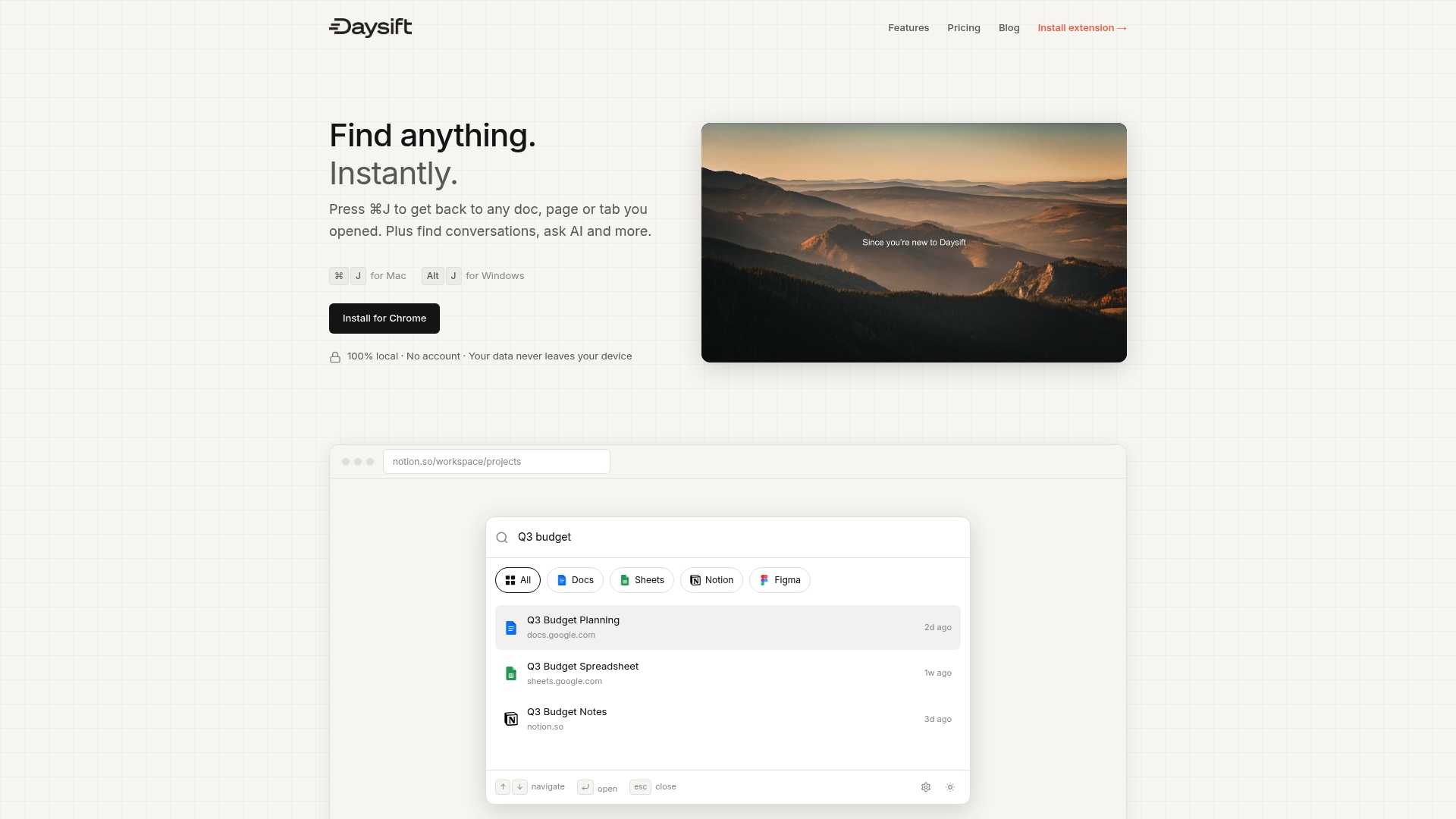
Unlike tab managers that store snapshots, DaySift searches what’s already in your browser, eliminating the risk of lost tabs from crashes or updates. It automatically filters out shopping sites and social media, keeping results focused on docs, tools, and reference material. With features like AI summaries, floating notes, and domain filtering, DaySift becomes the search layer your browser was missing. Explore getting started with DaySift to see how it fits your workflow.
Now, let’s answer some common questions to help you further refine your browser search skills.
FAQ
What is the best way to find a specific tab in Chrome quickly?
Use Ctrl+Shift+A (Windows) or Cmd+Shift+A (Mac) to open Chrome’s tab search interface and type keywords from the page title or URL. This built-in feature is fast and requires no extensions. Results filter instantly as you type, letting you switch to any open tab in seconds. Learn more about how to find any tab in seconds using advanced techniques.
Do Chrome extensions affect browser speed and energy use?
Yes, extension use universally degrades performance, increasing page load time and energy costs regardless of quality. Extensions add code complexity and privacy overhead that impacts your browser even when inactive. Disable or remove unnecessary extensions to optimize performance. Monitor CPU and memory usage in Chrome’s Task Manager (Shift+Esc) to identify problematic extensions. Visit the Daysift blog for more performance optimization tips.
What are some advanced Google search operators to try?
Use site: to limit searches to specific domains like site:edu for academic sources. Try intitle:“keyword” to find words in page titles, or search filetype:pdf to target documents. Operators like these refine searches effectively for professionals seeking precise results. Combine operators with exact phrase matching using quotes for maximum precision. The Daysift blog offers additional search strategies for knowledge workers.