
TL;DR:
- Automating rule-based, repetitive search tasks can save up to 30 hours annually.
- No-code platforms like Zapier and AI tools like Perplexity streamline research workflows effectively.
- Proper tab management and disciplined review habits are essential for maintaining efficient search routines.
You open Chrome with one task in mind, and forty minutes later you’re buried in 30 tabs, retyping the same query you ran yesterday, and wondering where that report went. Sound familiar? Automation can reclaim up to 140 hours per year for knowledge workers, yet most people still rely on manual searching and hope-for-the-best tab habits. This guide walks you through a practical framework for auditing your search tasks, choosing the right tools, and building a workflow that actually sticks. Whether you’re a researcher, developer, or analyst, the strategies here are specific, actionable, and built for people who work in browsers all day.
Table of Contents
- Define your automation goals and audit search tasks
- Best tools for search automation: No-code and agentic AI approaches
- How to streamline tab management in search workflows
- Comparison: Which search automation strategy fits your workflow?
- Our perspective: Beyond automation—what makes workflow truly efficient
- Supercharge your search with Daysift
- Frequently asked questions
Key Takeaways
| Point | Details |
|---|---|
| Audit before automating | Identify and track repetitive search tasks to maximize time savings through automation. |
| Choose the right tools | No-code apps and AI agents simplify automation, while tab managers streamline research workflows. |
| Integrate automation and tab management | Combine search automation with clean tab management for optimal productivity gains. |
| Match strategy to task complexity | Select hybrid approaches for complex research, while routine tasks can be fully automated. |
| Review and refine regularly | Continually test, monitor, and update your automations for best results. |
Define your automation goals and audit search tasks
Most people automate the wrong things first. They set up a complex Zapier workflow for a task they do once a month, while spending 20 minutes every day manually pulling the same reference documents. The result is a fancy automation collecting dust and a workflow that’s still slow.
The smarter move is to run a quick audit before you touch any tool. For one week, track every search task you do more than twice. You don’t need fancy software. A simple spreadsheet with four columns works perfectly: task name, time spent, how often it repeats, and whether it requires judgment.
Here’s a simple audit framework to follow:
- List every recurring search task you perform in a typical week, from looking up competitor pricing to finding internal documentation.
- Log the time spent on each task, including the time you spend reformatting or verifying results.
- Mark tasks as rule-based or judgment-heavy. A rule-based task follows a consistent pattern. A judgment-heavy task requires you to interpret, weigh options, or apply context.
- Rank by time times frequency. The highest scores are your best automation targets.
Tracking and prioritizing repetitive tasks uncovers up to 30 hours of potential annual savings. That’s nearly a full work week returned to you each year, just from knowing where your time actually goes.
“The goal isn’t to automate everything. It’s to automate the tasks that drain focus without adding value.”
Prioritize rule-based, low-judgment searches for your first automations. Reference lookups, document summarization, competitor monitoring, and keyword tracking all fit this profile. They’re predictable, repeatable, and easy to verify. For workflow automation tips that go deeper into building these systems, a good starting library helps.
Pro Tip: Start with one automation per week. Pick the task that costs you the most time and requires the least thinking. Get that working and verified before moving to the next.
Best tools for search automation: No-code and agentic AI approaches
Once you know which tasks to target, you need the right tools. The landscape breaks into two broad camps: no-code automation platforms and agentic AI systems. Each has a distinct strength.

No-code platforms like Zapier connect apps and trigger actions based on rules you define. No programming required. Zapier Agents can connect 8,000+ apps for automated web searches and content research, making it one of the most accessible entry points for search automation.
Agentic AI systems like Claude Code operate more autonomously. They can plan, execute multi-step research tasks, and adapt based on what they find. They’re more powerful but require more setup and oversight.
Here’s a breakdown of the top tools worth considering:
- Zapier Agents — Best for connecting your existing apps and triggering search workflows automatically. No code needed.
- Perplexity AI — Built for research. Its recurring tasks automate deep research and custom knowledge base curation with minimal manual input.
- Claude Code — Ideal for developers who need agentic workflows that can search, synthesize, and act on information programmatically.
- Raycast — A keyboard-driven launcher for Mac that integrates search shortcuts, scripts, and AI commands into a single interface.
- GoSearch — An enterprise search tool that unifies results across Slack, Google Drive, Notion, and other tools your team already uses.
Perplexity workflows can cut research time by 60%, making it one of the highest-leverage tools available for knowledge workers who do heavy reading and synthesis. Pair it with its Pro Search and Focus modes to narrow results by source type, like academic papers or news, and you’ll get sharper answers faster.
If you want to explore where advanced AI search engines are heading, the field is evolving quickly beyond simple keyword matching into true intent-based retrieval.
For quick wins inside your browser, knowing your tab finding shortcuts pairs well with any of these tools by eliminating the time you spend hunting for already-open pages.
Pro Tip: In Perplexity, use the Focus mode set to “Academic” for research-heavy tasks and “Web” for broader discovery. This alone filters out low-quality results before you even read them.
How to streamline tab management in search workflows
Automation generates information fast. The problem is that most researchers open those results as tabs, and before long they’re right back to the same chaos they started with. Cognitive overload from too many open tabs is real. Each visible tab competes for your attention, even when you’re not looking at it directly.
Tab management tools solve this by giving your browser structure without requiring you to manually organize everything. Here’s how the leading extensions compare:
| Tool | Core feature | Best use case | Memory savings |
|---|---|---|---|
| OneTab | Collapses all tabs into a list | Clearing clutter fast | Up to 95% RAM reduction |
| Toby | Project-based tab collections | Agency or multi-client work | Moderate |
| Dex | Relationship and contact linking | Networking-focused research | Low |
| ATO (Auto Tab Organizer) | AI-based tab grouping | Automated categorization | Moderate |
Extensions like OneTab and Toby organize open tabs into lists or project collections, reducing browser memory drain significantly. If you’re running a research sprint with 40 sources open, OneTab lets you collapse them all in one click and restore them later as a group.
Practical ways to integrate tab management with your search automation:
- Group tabs by project as soon as you open them, not after you’ve lost track.
- Use memory-saving collapse features before switching tasks to keep your machine running fast.
- Bundle research sessions so each automation run lands in its own named collection.
- Leverage AI recommendations in tools like ATO to automatically sort tabs by topic or domain.
The deeper gain from good tab organization technologies isn’t just speed. It’s the mental relief of knowing exactly where everything is without maintaining a separate system.
Comparison: Which search automation strategy fits your workflow?
Different workflows need different approaches. Here’s a direct comparison to help you match strategy to situation:
| Strategy | Best for | Setup effort | Judgment required | Cost |
|---|---|---|---|---|
| No-code automation (Zapier) | Routine, rule-based tasks | Low | Low | Free to mid-tier |
| Agentic AI (Claude Code) | Multi-step, complex research | High | Medium | Mid to high |
| Tab management tools | Rapid task switching, clutter | Very low | Very low | Mostly free |
| Hybrid (automation + human review) | High-stakes analysis | Medium | High | Varies |
Hybrid approaches combining automation with human oversight yield the best results for complex search tasks. That finding holds up consistently across research environments and enterprise deployments alike. Automation handles the volume; you handle the judgment calls.
Choosing the right strategy by scenario:
- Routine research tasks (daily news monitoring, price tracking, citation lookups): Start with no-code automation. Set it up once, verify weekly.
- Multi-source analysis (competitive landscape reports, literature reviews): Use agentic AI with a defined review checkpoint before you act on any output.
- Rapid task switching (jumping between client work, drafts, and reference material): Tab management tools give you the fastest payoff with the least setup.
- High-stakes decisions (legal research, medical information, financial analysis): Always use a hybrid model. Automate the retrieval, but review every result before using it.
“Automation is most valuable when it handles what is predictable so you can focus on what isn’t.”
For real-world automation case studies that show these strategies in action across different industries, the evidence consistently points to one lesson: start narrow, prove the value, then expand. Teams that try to automate everything at once usually end up with systems nobody trusts. It’s also worth noting that automation can dramatically improve response times across workflows, which compounds over a full quarter.
Our perspective: Beyond automation—what makes workflow truly efficient
Here’s something the tool roundups rarely say: automation doesn’t make you efficient on its own. We’ve seen knowledge workers build impressive automation stacks that actually slow them down because the outputs pile up unreviewed or the tools multiply complexity instead of cutting it.
The real unlock is pairing smart automation with disciplined habits. That means scheduled review cycles for your automation outputs, not just letting them accumulate. It means choosing two or three tools and going deep on them rather than adding every new thing that launches. And it means being honest about whether an automation is saving you time or just making you feel productive.
Automation is least effective when tasks require nuanced judgment, and that boundary matters more than most people admit. The best workflows we’ve encountered are built on a short list of reliable automations, a clean browser environment, and a clear habit of reviewing what the tools surface. For advanced productivity strategies that take this philosophy further, the principles stay consistent: less noise, more signal, regular review.
Don’t automate for automation’s sake. Automate for measurable, meaningful gains.
Supercharge your search with Daysift
You’ve built a smarter picture of which tasks to automate and which tools to use. Now imagine being able to search everything you’ve already opened in Chrome without any organization required. That’s exactly what Daysift search automation delivers.
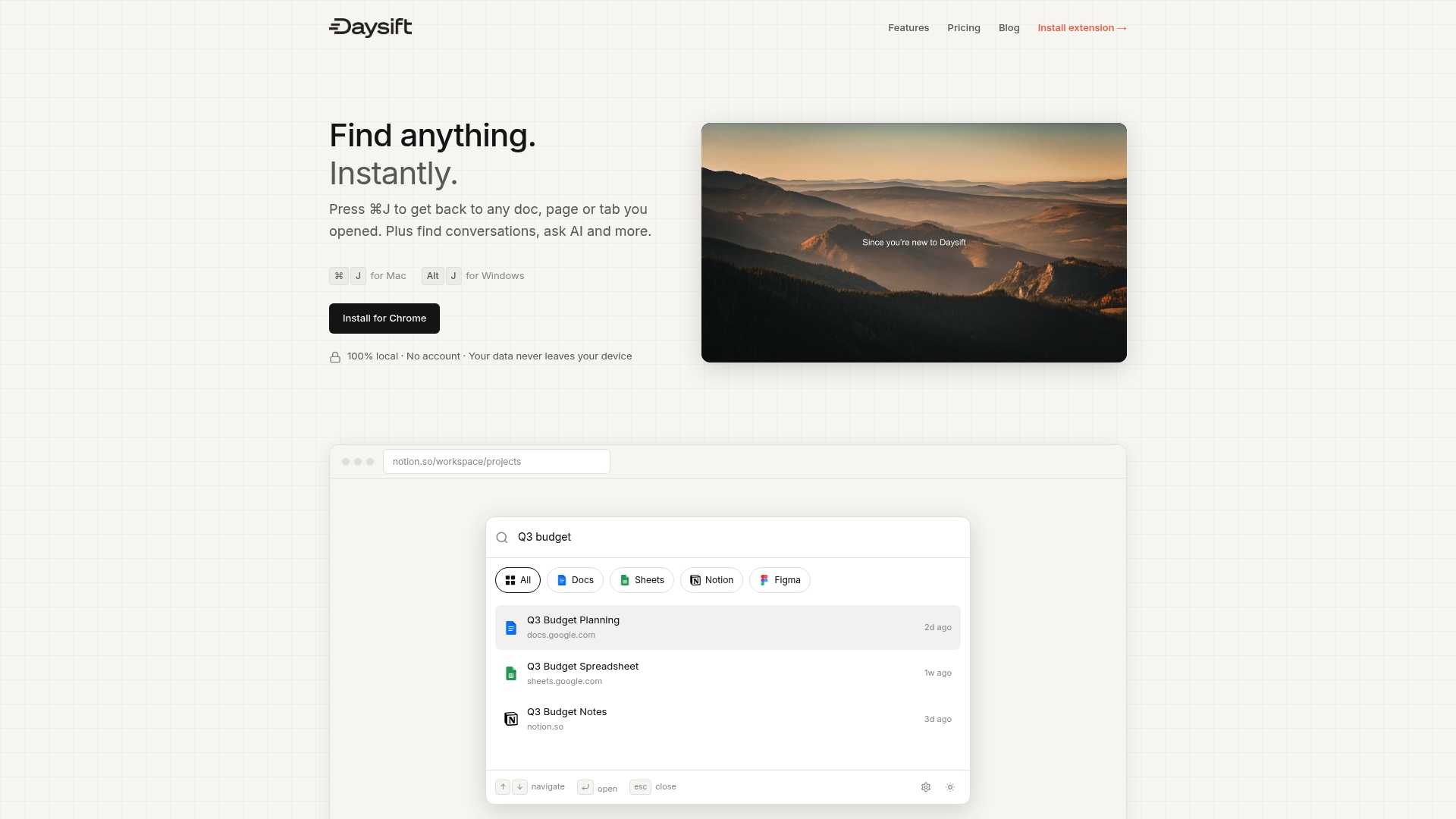
Daysift sits in your browser as a command palette. Press ⌘J, type a few words, and it finds the doc, article, or tool you need from your full browsing history, instantly. It indexes only work-relevant pages, keeps everything local on your machine, and pairs AI summarization with fuzzy search so you spend zero time hunting. Researchers, analysts, and developers use it daily to eliminate the “I know I had that open” problem for good. Get started with Daysift and see how fast your browser becomes a searchable knowledge base.
Frequently asked questions
What is search automation and how does it save time?
Search automation uses tools and workflows to handle repetitive research and discovery tasks without manual input, freeing up focus for higher-value work. Automation can reclaim up to 140 hours per year for knowledge workers who apply it strategically.
Which tools offer simple search automation for beginners?
No-code tools are the easiest starting point: Zapier Agents automate workflows across 8,000+ apps without coding, while Perplexity AI automates deep research and custom database creation through recurring tasks and search operators.
How does tab management relate to search automation?
Tab managers like OneTab and Toby complement automation by capturing and organizing the results your workflows surface, reducing the clutter that slows you down. Tools like OneTab and Toby cut browser memory drain and group research into reusable project collections.
Are there search tasks that should not be automated?
Yes. Tasks that require critical thinking, contextual judgment, or nuanced interpretation should stay human-led. Automations fail on judgment-heavy searches, so start with low-stakes, rule-based tasks to build confidence before expanding.
What common errors should I avoid with search automation?
The biggest mistakes are automating rare tasks that don’t save meaningful time and skipping the review step on agentic AI outputs. Hybrid evaluation combining automation with human review consistently yields the best results, especially for complex or high-stakes research.