
TL;DR:
- Managing browser tabs with structured organization improves efficiency and boosts deep work time.
- Native features like tab groups and search shortcuts support faster retrieval and better spatial memory.
- Effective retrieval systems reduce the need to keep tabs open, addressing the root cause of overload.
You open Chrome to research one thing. Twenty minutes later you have 47 tabs open, your laptop fan is screaming, and you cannot remember which tab had the article you actually need. Sound familiar? Tab overload is not a personal failing. It is a structural problem in how modern knowledge work happens, and it quietly bleeds hours from your week. This guide walks you through exactly what causes the slowdown, what tools you need, how to build a workflow that actually holds up under pressure, and how to measure whether it is working.
Table of Contents
- What slows down your browser search workflow?
- Set up for success: Tools and prerequisites
- How to build and use an efficient browser search workflow
- Troubleshooting common mistakes and measuring success
- Why conventional tab management advice misses the mark
- Take your browser search workflow further
- Frequently asked questions
Key Takeaways
| Point | Details |
|---|---|
| Tab overload drains productivity | Too many open tabs slow your system and make focus recovery much harder. |
| Native groups beat most extensions | Tab group features built into browsers let you switch and recall information much faster. |
| Closing tabs isn’t always better | Structured tab persistence outperforms aggressively closing tabs for research and deep work. |
| Track metrics for real results | Speed, error rates, and workflow smoothness are your best improvement benchmarks. |
What slows down your browser search workflow?
Before solving it, let’s see why so many tabs zap your efficiency.
The numbers are worse than most people realize. Running 50 tabs increases CPU usage by 128 to 155%, and tab switch latency climbs to 310 to 410 milliseconds per switch. That fraction of a second adds up fast across a full workday. Nielsen Norman Group studies also link unmanaged tabs to measurably higher error rates, meaning you are not just slower, you are making more mistakes.
Here is what is actually happening under the hood:
- Tab rendering: Every open tab holds DOM nodes, JavaScript timers, and cached assets in memory, even when you are not looking at it.
- Context switching cost: Each time you jump between tabs, your brain needs time to reload the mental context of that page. Research consistently puts the recovery time at 15 to 25 minutes for deep work.
- Recall difficulty: You remember that you saw something, but not where. So you scan through tabs visually, which is slow and error-prone.
- Tab hoarding psychology: You keep tabs open because closing them feels like losing information. This is a form of loss aversion, not laziness. The tab persistence arguments are real and rooted in how memory works.
| Metric | 10 tabs | 50 tabs |
|---|---|---|
| CPU increase | Baseline | 128 to 155% |
| Switch latency | ~80ms | 310 to 410ms |
| Error rate | Low | Noticeably higher |
| Memory usage | Manageable | Often exceeds 4GB |
The deeper issue is that “just close your tabs” ignores why they are open in the first place. You are using open tabs as a to-do list, a reading queue, and a reference library all at once. No wonder the system breaks. A proper system resource analysis shows that the problem is not the number of tabs per se. It is the absence of a retrieval system that makes closing tabs feel risky.
Set up for success: Tools and prerequisites
Understanding the problems, let’s gather what you’ll need for a streamlined workflow.
You do not need expensive software. You need the right combination of native browser features and lightweight tools that do not add their own overhead.
Hardware baseline: At minimum, 8GB of RAM for moderate tab use. If you routinely run 30 or more tabs alongside other apps, 16GB is the practical floor. An SSD also matters more than people expect because browsers read and write cache constantly.

Browser choice: Firefox uses 22 to 38% less RAM than Chrome for heavy users. That is a real difference if your machine is already strained. Chrome wins on extension ecosystem and integration with Google Workspace tools. The right choice depends on your actual workflow.
| Feature | Chrome | Firefox |
|---|---|---|
| RAM efficiency | Lower | 22 to 38% better |
| Extension ecosystem | Excellent | Good |
| Tab groups (native) | Yes | Limited |
| Search shortcuts | Yes | Yes |
| Dev tools | Industry standard | Strong |
Native features worth using:
- Tab groups: Color-coded groupings built into Chrome. No extension needed. Collapsible, so they stay out of the way.
- Address bar search shortcuts: Type a keyword followed by a space to search a specific site directly. Set these up in your browser settings.
- Bookmarks with folders: Old-fashioned but still the fastest way to persist reference material you know you will need repeatedly.
- Session restore: Both Chrome and Firefox remember your last session by default. Make sure this is enabled.
Pro Tip: Learn the keyboard shortcuts for browsers that matter most: Ctrl+Shift+T to reopen a closed tab, Ctrl+1 through Ctrl+8 to jump to specific tab positions, and Ctrl+L to jump straight to the address bar. These three alone save minutes every day.
For a broader look at what a streamlined tool overview looks like in practice, the goal is always fewer moving parts, not more. Every tool you add is another thing to maintain.

How to build and use an efficient browser search workflow
After gathering your tools, you’re ready to build a workflow you’ll actually use.
The key insight here comes from spatial memory research. Native tab groups outperform vertical tabs and third-party extensions, with switch times of 1.2 seconds versus 2.8 seconds and 73% recall accuracy. Why? Because your brain builds a mental map of where things are. Consistent grouping reinforces that map. Over-organizing destroys it.
Here is the step-by-step approach:
- Group by project, not by topic. Create one tab group per active project, not per subject area. “Client A” is a better group name than “Research” because it matches how you actually switch contexts.
- Limit each group to 5 to 7 tabs. Beyond that, you lose the spatial memory benefit. If a group grows past 7, it is a signal to archive some tabs to bookmarks or notes.
- Use the address bar as your primary search tool. Before opening a new tab, type what you are looking for in the address bar. Your browser history often has it.
- Build a fast tab search guide habit. Use Ctrl+Shift+A in Chrome to open the tab search box. It searches open tabs by title instantly.
- Pin your anchor tabs. Your email, project management tool, and calendar should be pinned. They take up minimal space and are always one click away.
Pro Tip: Do not try to maintain a perfect system. The goal is good enough to find things fast, not beautiful organization. A slightly messy system you actually use beats a perfect system you abandon by Wednesday.
“The Zero-Tab Workflow uses persistent app windows and virtual desktops to eliminate tab clutter entirely, estimating 25 to 40% deep-work improvement by reducing the 15 to 25 minute context switch recovery time.”
The Zero-Tab approach is worth knowing even if you do not go all-in. The core idea is that apps live in dedicated virtual desktops, and browser tabs are only for active research. When the research is done, the tabs close. This works well for people who can compartmentalize work into clear phases.
Troubleshooting common mistakes and measuring success
No workflow is perfect immediately, so let’s address the most common bumps and how to measure your improvement.
The most counterintuitive finding in tab research is that closing all tabs increases re-search rates by 3.2 times. Structured persistence beats serial reduction every time. This is why the advice to “just close everything and start fresh” backfires. You end up Googling the same things repeatedly, which is slower and more frustrating than having a slightly cluttered tab bar.
Common mistakes and fixes:
- Too many extensions: Each extension adds overhead. Audit yours quarterly. If you have not used it in 30 days, disable it.
- No naming convention for tab groups: Unnamed groups are useless. Name every group the moment you create it.
- Using bookmarks as a graveyard: Bookmarks you never revisit are clutter in a different form. A monthly 10-minute bookmark review prevents this.
- Ignoring browser warnings: When Chrome warns you that a tab is using significant memory, that is a signal to act, not dismiss.
How to measure your improvement:
| Metric | How to measure | Target |
|---|---|---|
| Time to find a specific tab | Stopwatch, 5 random tests | Under 10 seconds |
| Context switch recovery | Self-reported, daily log | Under 5 minutes |
| Re-search rate | Count duplicate searches per day | Fewer than 3 |
| Deep work blocks per day | Time tracking app | 2 or more |
Track these weekly for one month. You will see patterns. Most people find that the biggest gain comes not from having fewer tabs but from having a reliable way to find the right tab fast. The structured tab persistence insight is that the problem was never the tabs themselves.
Why conventional tab management advice misses the mark
Beyond the step-by-step, it is worth challenging core advice you have likely heard.
Every productivity article eventually tells you to close your tabs and start clean. It sounds right. It feels disciplined. It does not work. Structured persistence outperforms serial reduction, and closing tabs indiscriminately raises re-search rates significantly.
The real problem is not that people have too many tabs. It is that they have no fast retrieval system, so every tab feels irreplaceable. When closing a tab means potentially losing access to something you spent 20 minutes finding, of course you keep it open. The anxiety is rational.
The solution is not discipline. It is infrastructure. When you know you can find anything you have ever opened in under 10 seconds, closing tabs stops feeling risky. The real causes of tab overload are structural, not behavioral. Fix the retrieval system, and the tab count takes care of itself. Spatial memory and persistent organization are not productivity hacks. They are how your brain actually works. Build your workflow around that reality instead of fighting it.
Take your browser search workflow further
Ready to apply what you have learned and automate even more?
The workflow principles in this guide get you a long way. But there is a ceiling to what native browser tools can do, especially when you need to find something you had open three days ago, or search by meaning rather than exact keywords.
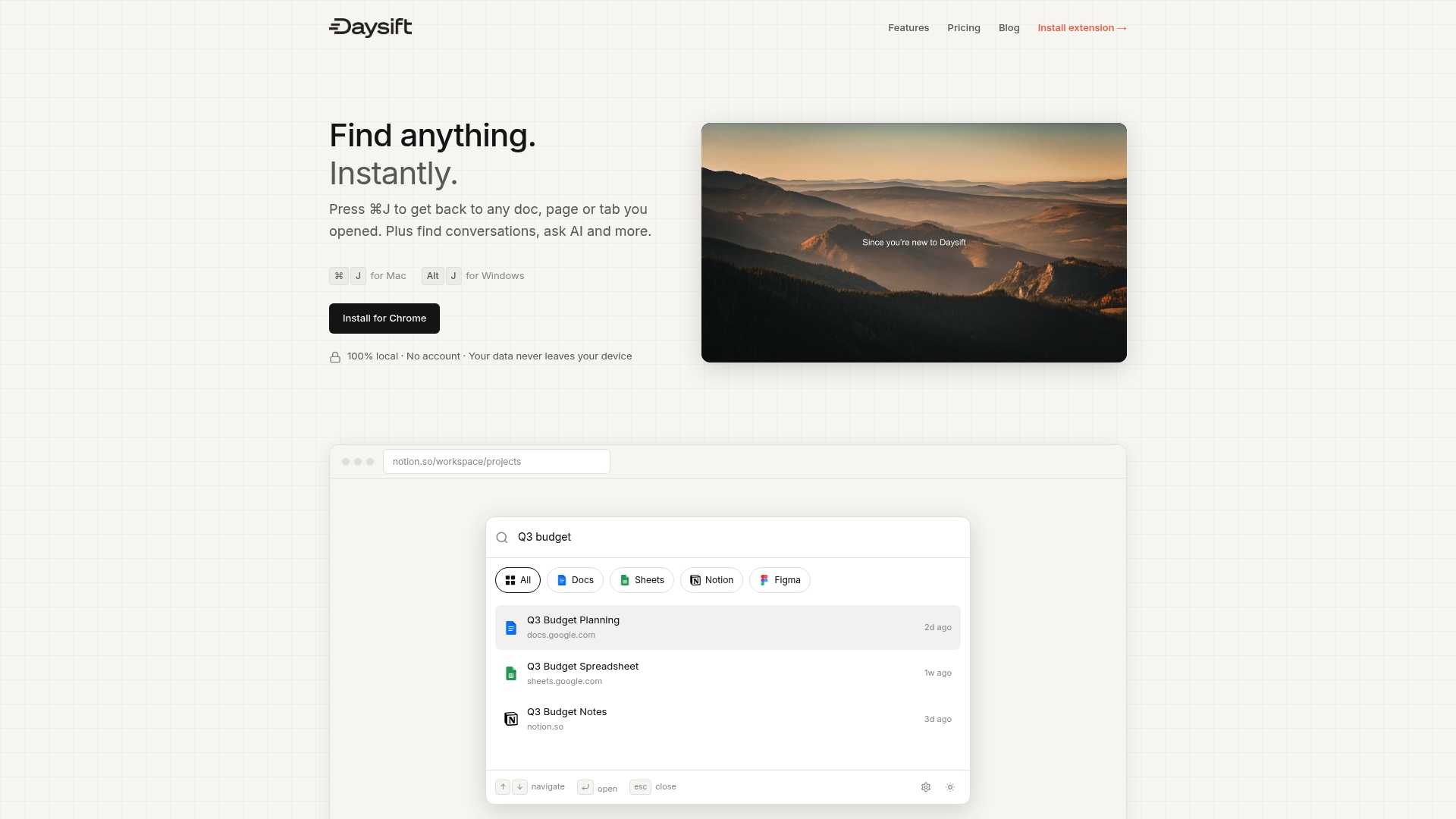
Daysift is a Chrome extension that acts as a command palette for everything you have ever opened in your browser. Press one keyboard shortcut, type a few words, and it surfaces the right page instantly, even if it is from last week and you cannot remember the title. It indexes your browsing locally, skips junk sites automatically, and never requires you to organize anything. If the workflow in this guide resonates with you, get started with Daysift and see how much faster retrieval can actually get.
Frequently asked questions
What’s the fastest way to find a specific browser tab?
Use your browser’s built-in tab search (Ctrl+Shift+A in Chrome) or a specialized extension to locate open tabs instantly without scrolling. Native tab search consistently outpaces manual visual review, especially when you have more than 15 tabs open.
Are tab groups really better than vertical tabs for research work?
Native tab groups outperform vertical tabs and third-party extensions in both switch speed and recall accuracy, because they leverage your brain’s spatial memory rather than requiring you to read a list.
Does closing all tabs actually make me more productive?
No. Closing all tabs increases re-search rates by 3.2 times, meaning you spend more time finding the same information again rather than moving forward on actual work.
How do I know if my workflow is getting better?
Track how quickly you can locate a specific tab and how often you find yourself re-searching for content you have already found. Reduced search time and fewer duplicate searches week over week are the clearest signals that your system is working.