
TL;DR:
- Using Chrome’s native tools like Memory Saver and tab groups improves browser performance and reduces mental clutter.
- Limiting extensions to ten and conducting quarterly audits prevent RAM overload and enhance speed.
- Keyboard shortcuts and address bar commands streamline searches and tab management, saving significant time daily.
Browser overload is a real productivity killer. The average knowledge worker juggles dozens of tabs, a stack of extensions, and a browser that slows to a crawl by midday. That friction adds up fast: lost focus, wasted searches, and the nagging feeling that something important is buried somewhere in your browser. The good news is that saving 100-300 MB per tab is possible with Chrome’s built-in tools, no extra software required. This guide walks through the most effective, research-backed browser strategies for 2026, from native memory controls to keyboard shortcuts that compound into hours saved every month.
Table of Contents
- Start with native memory and tab management
- Optimize extension use for workflow, not clutter
- Use address bar commands and keyboard shortcuts
- Power features: native flags, session workflows, and audits
- Why less is more: a productivity editor’s take
- Try smarter search and tab management today
- Frequently asked questions
Key Takeaways
| Point | Details |
|---|---|
| Tame tab overload | Use native tab tools and daily audits to cut RAM use and boost focus. |
| Minimize extension bloat | Stick to essential extensions and remove extras to keep your browser fast. |
| Master quick commands | Set up address bar keywords and keyboard shortcuts to save hours each month. |
| Adopt power-user tweaks | Try session workflows and Chrome flags for deeper productivity control. |
Start with native memory and tab management
The fastest wins in browser productivity don’t come from downloading something new. They come from using what Chrome already gives you. Most people ignore these tools entirely, and that’s a costly mistake.
Here’s how to put Chrome’s native tools to work:
- Enable Memory Saver. Go to Chrome Settings, then Performance, and turn on Memory Saver. This feature automatically suspends inactive tabs, freeing up 100 to 300 MB per tab without any extension needed. If you regularly run 20 or more tabs, this alone can stop the dreaded browser slowdown.
- Create tab groups. Right-click any tab and select “Add to new group.” Name it by project or context: Research, Client A, Writing. Native tab groups reduce visual clutter and throttle background activity, which means less RAM churn and a calmer workspace.
- Use the built-in tab search. Press Ctrl+Shift+A (Windows) or Cmd+Shift+A (Mac) to search all open tabs instantly. This is one of the most underused features in Chrome and a major fix for finding tabs quickly without scrolling through a sea of favicons.
- Do a daily tab audit. At the end of each work session, close anything you won’t need tomorrow. Bookmark what matters. This two-minute habit prevents tab hoarding from silently draining your focus and RAM.
Stat: Keeping more than 10 active tabs at once measurably increases cognitive load, even if you never switch to most of them. Your brain registers each open tab as an unfinished task.
Pro Tip: Combine your daily tab audit with group cleanup. Close finished groups, rename active ones, and you’ll start each morning with a browser that feels like a clean desk. It takes under two minutes and pays off all day.
The cognitive angle here is underrated. It’s not just about RAM. Every open tab is a micro-distraction, a small mental weight that pulls attention away from what you’re actually working on. Fewer tabs means sharper focus, not just a faster machine.
Optimize extension use for workflow, not clutter
Extensions are powerful, but most people treat them like free candy: grab everything that looks useful, never remove anything. That approach quietly destroys browser performance.
The most productive setups in 2026 use a tight, intentional stack. Here’s what a lean, high-impact extension list looks like:
- uBlock Origin for ad and tracker blocking. Speeds up every page load.
- Todoist for capturing tasks without leaving your current tab.
- Workona for workspace management if you juggle multiple projects.
- Momentum for a focused new tab page that replaces distraction with intention.
- Forest for time-boxing focus sessions directly in the browser.
These five cover task capture, distraction blocking, workspace separation, and focus timing. That’s the core of a productive browser workflow. Top extensions like these save 45 to 90 minutes per day, but the same research is clear: limit your total extension count to 10 maximum. Beyond that threshold, you’re looking at 2 GB or more of RAM drag and noticeable CPU slowdowns.
“The best browser setup isn’t the one with the most features. It’s the one where every installed tool earns its place by removing friction from a specific, recurring task.”
The fix is a quarterly extension audit. Open Chrome’s extension manager (chrome://extensions), and ask one question about each item: did I use this in the last 30 days? If not, remove it. You can always reinstall later. What you can’t get back is the CPU cycles and RAM those idle extensions consume every single session.
For deeper research on what’s worth keeping, browser extension reviews can help you cut through the noise. And if you want to connect your browser tools to broader automation, workflow automation solutions are worth exploring as a next step.
Pro Tip: Remove one extension today, just one you haven’t used this week. Then measure your browser’s speed and memory usage tomorrow. The difference is often surprising enough to motivate a full audit.
Use address bar commands and keyboard shortcuts
Once your tab count and extension stack are lean, the next layer of speed comes from how you interact with the browser itself. The address bar is far more powerful than most people realize.
Address bar keyword shortcuts let you run site-specific searches without navigating to a homepage first. Here’s how to set one up: go to Chrome Settings, then Search Engine, then Manage Search Engines. Add a shortcut like “wiki” for Wikipedia or “gh” for GitHub. Now type “wiki productivity” in the address bar and you’re searching Wikipedia directly. Address bar keywords save 2.8 seconds per task, which sounds small until you realize you repeat similar searches dozens of times a day.

| Address bar command | What it does | Time saved per use |
|---|---|---|
| "wiki [term]` | Searches Wikipedia directly | ~2.8 seconds |
gh [repo] |
Opens GitHub search | ~2.8 seconds |
gmail [query] |
Searches your Gmail inbox | ~3 seconds |
chrome://history |
Opens full browser history | ~4 seconds |
chrome://extensions |
Opens extension manager | ~4 seconds |
Beyond the address bar, time-saving shortcuts are the single highest-leverage habit a knowledge worker can build. Here are the ones worth learning first:
- Ctrl+T / Cmd+T to open a new tab instantly.
- Ctrl+W / Cmd+W to close the current tab.
- Ctrl+Shift+T / Cmd+Shift+T to reopen the last closed tab.
- Ctrl+L / Cmd+L to jump directly to the address bar.
- Ctrl+Shift+A / Cmd+Shift+A for tab search techniques across all open tabs.
For the fastest possible search across everything you’ve visited, using Daysift for search adds a command palette layer on top of Chrome, so you can find any page you’ve ever opened with a single keystroke.
Stat: At 2.8 seconds saved per task, running just 20 address bar searches per day saves nearly 17 minutes every week. That’s over 14 hours per year from one habit.
Power features: native flags, session workflows, and audits
For those ready to go beyond the basics, Chrome offers advanced controls that most users never touch. These aren’t for everyone, but if you’re serious about browser performance, they’re worth knowing.
Chrome flags are experimental settings accessible at chrome://flags. One worth knowing is calculate-pressure-by-level, which gives Chrome more granular control over how it allocates memory under load. This flag and quarterly extension audits help control resource use in ways standard settings can’t. Enable it cautiously and monitor performance for a few days before committing.
| Setting | Standard Chrome | With flag enabled |
|---|---|---|
| Memory allocation | Broad, process-level | Granular, pressure-based |
| Tab suspension trigger | Time-based | Load-based |
| Resource control | Automatic | User-influenced |
| Best for | General users | Power users and developers |
Session-based workflows are the behavioral counterpart to these technical tweaks. Instead of keeping every project open all the time, you work in defined sessions: open what you need for a task, close it when done, and move to the next context. This approach reduces both RAM and cognitive load in a way that no flag or extension can replicate.
A weekly browser health audit keeps everything running smoothly. Here’s a simple checklist:
- Clear cached data older than one week (Settings > Privacy > Clear browsing data).
- Review and remove unused extensions.
- Archive or delete old bookmarks.
- Check Chrome’s Task Manager (Shift+Esc) for any tab or extension using excessive memory.
- Confirm Memory Saver and any active flags are still configured correctly.
Pro Tip: Set a recurring 10-minute calendar block every Friday for your browser audit. Pair it with closing out the week’s tab groups. You’ll start Monday with a fast, clean setup instead of inheriting last week’s chaos.
For more on experimental features and privacy implications when using Chrome flags, it’s worth reviewing what data each experimental setting touches before enabling it.
Why less is more: a productivity editor’s take
Here’s the uncomfortable truth that most browser productivity guides won’t tell you: the problem is almost never a missing feature. It’s overabundance. Too many tabs, too many extensions, too many systems running in parallel.
The advice to “use more tools” is everywhere. Add this extension, enable that flag, install this workspace manager. But the knowledge workers who actually get more done tend to use fewer things, not more. They have a tight tab discipline, a short extension list, and a session-based rhythm that matches how they actually think.
Tab hoarding isn’t a character flaw. It’s a design problem. Browsers make it too easy to open and too hard to find. The solution isn’t more organization, it’s better retrieval. When you can find anything instantly, you stop needing to keep everything open.
The real productivity gain in 2026 isn’t from adding complexity. It’s from removing it. Audit ruthlessly. Close confidently. Search instead of hoard. That’s the shift that actually compounds.
Try smarter search and tab management today
All the strategies in this guide point toward the same outcome: less friction between you and the information you need. Native tools, lean extensions, and keyboard shortcuts get you most of the way there.
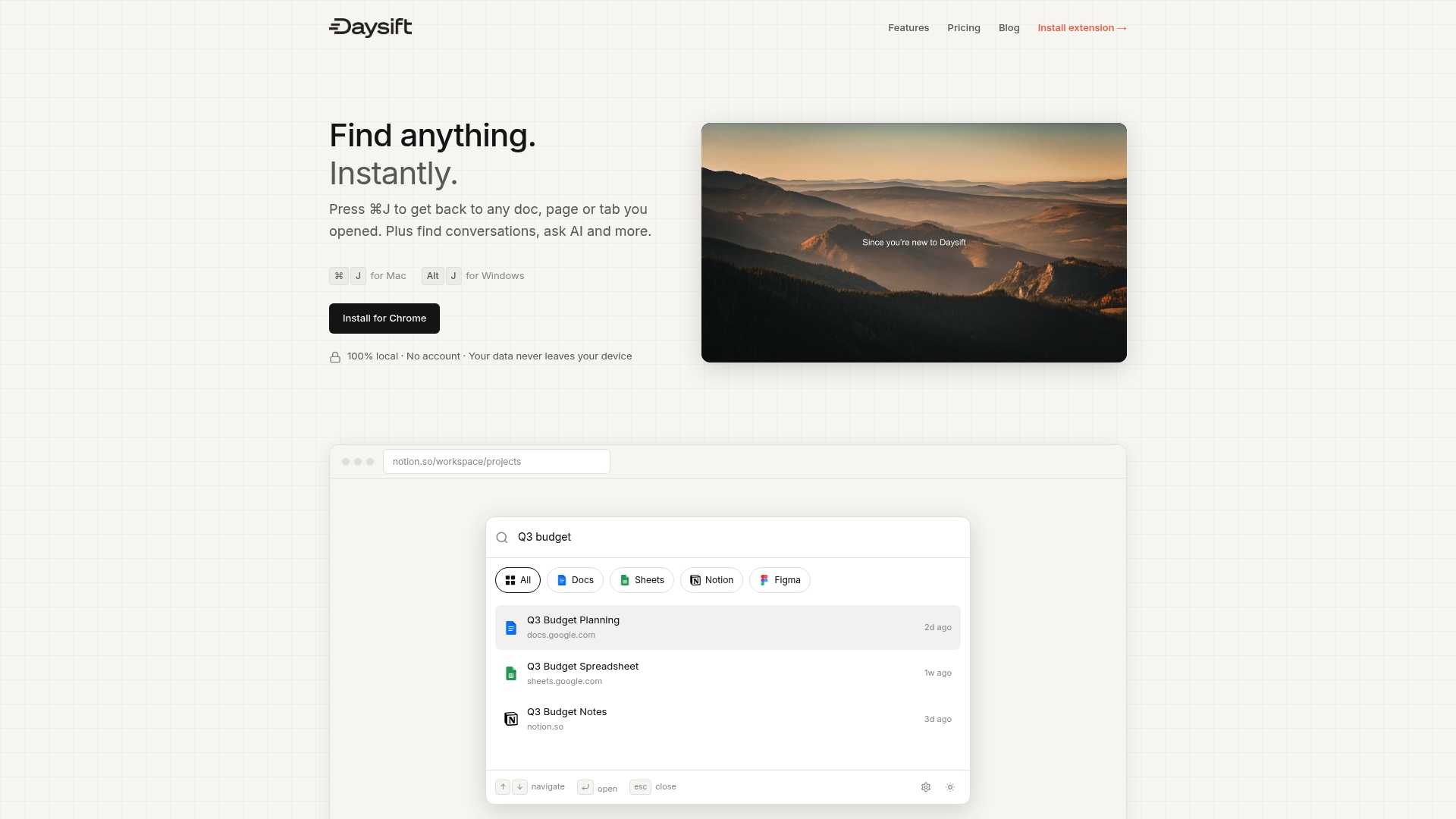
Daysift search takes it further. It quietly indexes every work-relevant page you visit and makes it searchable with one keystroke, no organization required. Type a few words, find any page you’ve opened, even from weeks ago. It’s the search layer your browser is missing. If you’re ready to stop hunting and start finding, get started with Daysift and see how fast your workflow can move when retrieval is instant.
Frequently asked questions
How many browser extensions should I use for best performance?
Limit your browser to 10 extensions or fewer to avoid RAM and CPU slowdowns. Going beyond that threshold adds 800 MB or more of RAM drag and measurable CPU overhead.
What’s the fastest way to find a tab in Chrome?
Press Ctrl+Shift+A (Windows) or Cmd+Shift+A (Mac) to search open tabs instantly by title or URL. Pairing this with daily tab audits keeps your tab count manageable in the first place.
How do address bar keywords save time?
Custom keywords let you run site searches and open system pages without navigating away from what you’re doing, saving 2.8 seconds per task. At 20 searches a day, that adds up to over 14 hours saved per year.
Should I use Chrome flags or stick to standard settings?
Standard settings work well for most users. Advanced users can explore flags like calculate-pressure-by-level for more granular memory control, but monitor performance carefully after enabling any experimental setting.