
TL;DR:
- Having more than five open tabs increases cognitive load and mental fatigue. Organizing tabs into groups reduces errors and improves focus. Regular decluttering and intentional management enhance productivity and mental clarity.
Every open tab beyond five quietly drains your working memory. That’s not a hunch. Working memory load climbs 14 to 19% with each additional tab past that threshold. Most knowledge workers carry 15, 20, sometimes 40 tabs at once, convinced they’re staying on top of things. They’re not. They’re burning mental fuel just keeping track of what’s open. This article breaks down exactly why tab overload hurts your performance, what the research actually says about system load versus cognitive load, and what you can do right now to get your focus back.
Table of Contents
- The hidden cognitive cost of too many tabs
- Tab clutter vs. system performance: The real bottleneck
- Structured tabs: Is there such a thing as too many?
- Decluttering tabs: Practical strategies for clarity and speed
- Why most tab decluttering advice misses the real cost
- Find what matters—instantly declutter your workflow
- Frequently asked questions
Key Takeaways
| Point | Details |
|---|---|
| Mental overload | Too many tabs open leads to higher cognitive fatigue and slower focus. |
| Error reduction | Better tab organization sharply decreases mistakes and distraction. |
| System vs. mind | Modern browsers ease computer strain, but brain overload persists. |
| Practical strategies | Weekly declutters, grouping, and shortcuts boost clarity and speed. |
The hidden cognitive cost of too many tabs
Your brain isn’t a computer with infinite RAM. It runs on working memory, a limited mental workspace where you hold and process active information. Open tabs compete for that space even when you’re not looking at them. You know they’re there. You feel the pull to check them. That low-level awareness adds up fast.
The numbers are stark. Each tab beyond five increases working memory load by 14 to 19%, and every time you switch between tabs, your brain needs roughly 2.7 seconds to fully refocus on the new context. That sounds trivial. It isn’t. If you switch tabs 50 times in a workday, you’ve lost over two minutes just in attentional reset time, not counting the errors and confusion that come with context switching.

There’s also a fatigue dimension that most people ignore. Unstructured tab hoarding correlates with 41% higher mental fatigue compared to organized browsing habits. That’s the difference between finishing a workday feeling tired and finishing it feeling wrecked.
Here’s a quick look at what the research shows:
| Tab behavior | Cognitive impact |
|---|---|
| 1 to 5 tabs open | Baseline working memory load |
| 6 to 10 tabs open | 14 to 57% higher memory demand |
| Frequent tab switching | 2.7-second refocus delay per switch |
| Unstructured tab hoarding | 41% higher mental fatigue |
“The cost of tab overload isn’t measured in gigabytes. It’s measured in the decisions you make worse, the details you miss, and the energy you don’t have left at 4pm.”
The practical consequences show up in real work. You lose your place mid-task. You re-read the same paragraph three times. You open a new tab to search for something you already had open. Understanding why tab hoarding happens in the first place is the first step toward changing it. The short version: it’s not laziness. It’s anxiety about losing information. But the cure makes the problem worse.
Key cognitive effects of tab overload:
- Increased error rates on detail-oriented tasks
- Slower decision-making under information pressure
- Difficulty resuming tasks after interruptions
- Reduced ability to prioritize what actually matters
Tab clutter vs. system performance: The real bottleneck
Here’s where most conversations about tabs go wrong. People assume the main problem is their computer slowing down. They notice Chrome eating memory, fans spinning up, and they think, “I need to close some tabs so my machine runs faster.” That’s true, but it’s the smaller half of the story.

Closing unused tabs does reduce RAM pressure by 30 to 65% and background CPU usage by up to 22%. Those are real gains. But here’s the twist: modern browsers compress inactive tabs, so if you’re running recent hardware, your system may handle 30 open tabs without breaking a sweat. The machine is fine. You are not.
The cognitive load doesn’t compress. Your brain still knows those tabs are there. It still registers the unfinished tasks they represent. This is what productivity researchers call “open loops,” mental commitments that haven’t been resolved. Each unresolved loop consumes a small but real slice of your attention, even when you’re focused on something else entirely.
Comparison: system load vs. cognitive load from open tabs
| Factor | System impact | Cognitive impact |
|---|---|---|
| 5 inactive tabs | Minimal RAM use | Low mental load |
| 20 inactive tabs | Moderate RAM use | High mental load |
| 40 mixed tabs | High RAM use | Severe mental fatigue |
| Grouped, labeled tabs | Same RAM use | Significantly lower load |
Pro Tip: Think of your browser like a physical desk. A clean desk doesn’t make your computer faster. But it makes you faster, because you spend less time searching and less mental energy managing visual noise.
The fix isn’t just technical. It’s behavioral. Digital decluttering methods that work for files and email apply directly to tabs. The goal is reducing open loops, not just freeing up RAM. When you close a tab intentionally, you’re telling your brain: “This is handled. Move on.” That signal matters more than the freed memory.
Practical benefits of regular tab decluttering:
- Faster navigation to what you actually need
- Cleaner mental state for deep work sessions
- Easier recovery after interruptions
- Less decision fatigue when choosing where to focus
The key insight: if you’re on modern hardware and your machine feels slow, the bottleneck is almost certainly your attention, not your processor. Focus your energy on finding a tab quickly rather than managing dozens of them.
Structured tabs: Is there such a thing as too many?
Here’s where the picture gets more nuanced. The research doesn’t say “close everything.” It says chaos is the enemy, not quantity. There’s a meaningful difference between 15 tabs open with no system and 15 tabs organized into labeled groups by project.
Tab counts of 7 to 11 are actually manageable when tabs are structured and grouped. The cognitive load drops because your brain doesn’t have to track individual tabs. It tracks categories. That’s a much lighter lift.
The error rate data makes this concrete. A 2023 study of 1,287 knowledge workers found a strong inverse relationship between tab organization and error rate, with a correlation of r = −0.68. In plain terms: the more organized your tabs, the fewer mistakes you make. That’s not a small effect. An r of 0.68 is a strong signal in behavioral research.
“Organization doesn’t mean minimalism. It means every tab has a reason to be open and a place where you’d expect to find it.”
So what does structured tab management actually look like in practice? Here’s a simple framework:
- Group by project or context. Use Chrome’s built-in tab groups to cluster tabs by what they belong to. Client A, Client B, Research, Admin. Color code them.
- Set a tab limit per group. If a group grows past five or six tabs, that’s a signal to archive or close something.
- Use a “parking lot” group. Tabs you might need later but aren’t using now go here. Review and clear it weekly.
- Name your groups. Unnamed groups are just colored blobs. A name makes the category real and searchable.
- Close tabs when tasks complete. Finished with that report? Close those tabs. The task is done. Let your brain know.
The habit of reducing tab hoarding isn’t about being a minimalist. It’s about making sure every open tab is earning its place. When tabs have purpose and structure, mental fatigue drops and your ability to focus on the actual work improves significantly.
Decluttering tabs: Practical strategies for clarity and speed
Theory is useful. Steps are better. Here’s what actually works, backed by research and real workflow experience.
The cognitive costs of tab overload consistently outweigh system costs on modern hardware, which means the payoff from organizing your browser is almost entirely mental. You’re not fixing your machine. You’re fixing your ability to think clearly.
- Do a tab audit right now. Open your browser. Count your tabs. Close anything you haven’t touched in 48 hours. If you’re afraid to close it, bookmark it first, then close it.
- Group what’s left. Use Chrome’s tab groups. Drag related tabs together. Name the group. This takes three minutes and immediately reduces visual noise.
- Build a simple bookmark system. Create three folders: “Active,” “Reference,” and “Read Later.” Tabs that don’t need to be open right now go into one of these. Close the tab.
- Schedule a weekly declutter. Weekly digital declutters reset your mental state the same way cleaning your desk does. Block 10 minutes every Friday. Review open tabs, clear the parking lot group, and archive anything finished.
- Learn the keyboard shortcuts. Ctrl+W closes the current tab. Ctrl+Shift+T reopens the last closed one. These two alone can change how you work.
Pro Tip: Tab management shortcuts can save five to ten minutes every workday. That’s over 40 hours a year recovered from pure navigation friction.
A few more quick wins:
- Use your browser’s built-in tab search (Ctrl+Shift+A in Chrome) to find open tabs by keyword instead of scanning visually
- Pin tabs you open every single day so they stay small and out of the way
- Turn off “restore previous session” if it’s causing you to reopen tabs you’ve already processed
The goal of all of this isn’t a perfectly empty browser. It’s a browser where every open tab is intentional, every group is clear, and you can find what you need in under five seconds.
Why most tab decluttering advice misses the real cost
Most articles about browser tabs focus on RAM usage and device speed. They tell you to close tabs so Chrome stops eating your memory. That advice isn’t wrong, but it’s aimed at the wrong problem.
For knowledge workers in 2026, hardware is rarely the bottleneck. You’re probably running a machine with 16 or 32GB of RAM. Your browser can handle 40 tabs without crashing. The cognitive costs clearly outweigh system costs on modern hardware. But cognitive overload accumulates quietly. You don’t notice it happening. You just notice that it’s 3pm and you feel exhausted and scattered, and you can’t figure out why.
The tab hoarding mindset is rooted in information anxiety, not bad habits. People keep tabs open because closing them feels like losing something. But the real loss is the focus you sacrifice by keeping them open. Rewiring that habit, building the reflex to close tabs intentionally and trust that you can find things again, pays off more than any hardware upgrade ever will. A faster machine doesn’t make you think more clearly. A cleaner browser does.
Find what matters—instantly declutter your workflow
If closing tabs feels risky because you’re afraid you won’t find things again, that’s exactly the problem Daysift was built to solve. Daysift indexes every work-relevant page you visit in Chrome, locally on your machine, so you can close tabs freely and retrieve anything in seconds with one keyboard shortcut.
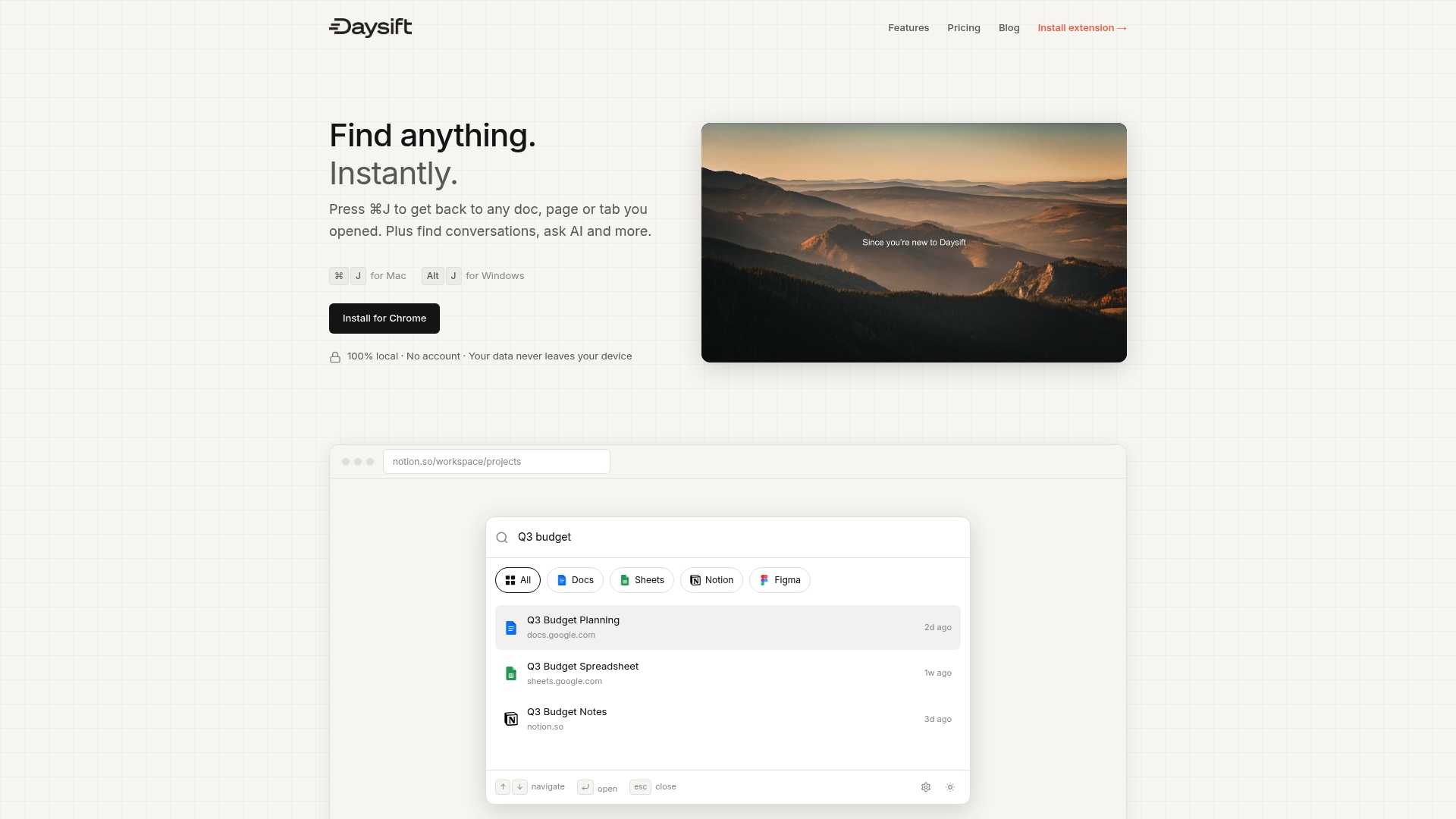
Press ⌘J (Mac) or Alt+J (Windows), type a few words you remember, and the page appears instantly. No folders, no bookmarks, no organization required. Fuzzy search handles partial memory and typos. You can finally close those 30 tabs without the anxiety of losing them. Start with Daysift free and see how fast your browser, and your thinking, can get.
Frequently asked questions
How many tabs are too many for productivity?
Working memory load increases significantly after five open tabs, but structured grouping can make 7 to 11 tabs manageable without a major cognitive penalty.
Does having many tabs open slow down my computer?
Modern browsers compress inactive tabs, so system slowdowns are less common on newer hardware, but the cognitive load from tracking many open tabs remains high regardless.
What are the fastest ways to declutter tabs?
Close anything untouched in 48 hours, group remaining tabs by project, and use built-in browser tools or extensions to organize and navigate efficiently. Cognitive costs drop immediately when tabs have clear structure.
Can decluttering tabs reduce mistakes at work?
Yes. A large study found a strong inverse relationship between organization and errors, with a correlation of r = −0.68, meaning better-organized tabs directly link to fewer mistakes.
Recommended
- Why Tab Hoarding Isn’t Your Fault - Daysift Blog
- Blog - Daysift
- How to Find Any Tab in Seconds - Daysift Blog
- 7 Keyboard Shortcuts That Actually Save Time - Daysift Blog
- Cozee Bay - Organize Kitchen Drawers: 25% Faster Access & 80% Less Waste
- Работни методи за по-добър фокус: Постигнете оптимална концентрация – Neurofuel™️