
TL;DR:
- Browser history is an underused productivity tool that can significantly reduce search time and cognitive load. Using enhanced history search with filters enables instant recall, better context recovery, and automatic coverage without manual organization. Chrome’s native history search, combined with tools like Daysift, offers fast, private, and efficient access to past web pages, saving time and mental effort for knowledge workers.
You open a new tab, type into Google, and realize you’ve done this exact search before. The article you need is somewhere in your past. You saw it last Tuesday, maybe Wednesday. You remember it was useful. But the URL? Gone. The tab? Closed. This is not a memory failure. It’s a workflow problem. Enhanced browser history search cuts retrieval time from 28 seconds to 11 seconds per query and reduces cognitive load by 41%. Your browser history is not a junk drawer. It’s one of the most underused productivity tools sitting right in front of you.
Table of Contents
- Why searching your history matters
- How browsers make searching history easy
- History search vs. bookmarks and manual organization
- Advanced tips for maximizing browser history search
- A deeper productivity insight most guides miss
- Supercharge your search: Next steps
- Frequently asked questions
Key Takeaways
| Point | Details |
|---|---|
| Faster information recall | Searching your browser history lets you instantly find lost pages and resources with minimal effort. |
| Boosts productivity | Efficient history search can save over 11 hours per year for knowledge workers. |
| Better than bookmarks | Searching history outperforms bookmarks for rapid access and requires no manual organization. |
| Advanced search options | Modern browsers support filters by site, keyword, and date, and experts can use additional tools for deeper searches. |
Why searching your history matters
Human memory was never designed for URLs. Even the most organized knowledge workers struggle to recall exact web addresses, page titles, or the specific path they took to find a resource. That’s not a personal shortcoming. It’s just how working memory operates. We remember context and meaning, not strings of characters.
This is exactly why your browser history is so valuable. It functions as a low-friction external memory, capturing every page you visit without requiring you to do anything. No tagging, no saving, no organizing. You browse, and the record builds itself.
The productivity math here is real. Empirical benchmarks show that using browser history search saves 17 seconds per task, which adds up to 11.7 hours per year for a typical knowledge worker. That might sound modest until you realize those seconds compound across dozens of daily lookups. Refinding a pricing page, relocating a competitor’s blog post, pulling up a tool you evaluated last month. Each one costs time when you have no system.
“History search is not just a rescue tool, but a launchpad for smarter work.”
Here is what you actually gain when you treat history search as a first-class tool:
- Instant recall without reconstructing your original search path
- Reduced decision fatigue because you stop wondering where something is
- Zero maintenance overhead compared to bookmarks or folders
- Better context recovery since history preserves when and how often you visited a page
- Faster research cycles because you can build on previous sessions rather than starting cold
The best part is that history search enhances productivity without adding a new habit or system to maintain. You already browse. The record already exists. You just need to use it.

How browsers make searching history easy
Most people press Ctrl+H, glance at a long chronological list, and give up. But Chrome’s history interface is more capable than that first impression suggests.
Here is a practical sequence for getting the most out of it:
- Open Chrome history by pressing Ctrl+H on Windows or Cmd+Y on Mac, or type "chrome://history` directly into the address bar.
- Use the search bar at the top to enter keywords from the page title or content you remember.
- Filter by date using the calendar options to narrow results to a specific week or month.
- Filter by site if you know the domain (for example, type
site:notion.soto find only Notion pages). - Combine filters for precision. Searching “docs” and limiting to August 2025 will surface exactly what you need.
Chrome’s chrome://history supports keyword, date range, and site filters natively, making it more powerful than most users realize. Firefox and Edge offer similar functionality, though with slightly different interfaces.
| Feature | Chrome | Firefox | Edge |
|---|---|---|---|
| Keyword search | Yes | Yes | Yes |
| Date range filter | Yes | Limited | Yes |
| Site filter | Yes | No | Yes |
| AI-assisted search | Via extensions | No | Partial |
| Synced across devices | Yes | Yes | Yes |
For finding tabs instantly across sessions, Chrome’s sync feature also means your history follows you between your laptop and desktop, as long as you’re signed into the same Google account.
Pro Tip: Combine a keyword with a date filter every time you know roughly when you visited a page. Searching “pricing” filtered to last month will return far fewer results than searching “pricing” alone, making it dramatically faster to spot what you need. Learning a few keyboard shortcuts for these filters will cut your lookup time in half.
History search vs. bookmarks and manual organization
Bookmarks feel like the responsible choice. You save a page, give it a name, drop it into a folder. Future you will know exactly where it is. Except future you never checks the folder. Or the folder has 200 items. Or you can’t remember whether you filed it under “Research,” “Tools,” or “Misc.”
This is not a discipline problem. It’s a design problem. Manual organization creates friction at the moment of saving and at the moment of retrieval. You pay twice.
History search flips this entirely. There is no filing step. You just visit the page, and it’s indexed. When you need it, you search. The enhanced browser history search with filters approach produces 41% lower cognitive load compared to scanning bookmark folders, which means less mental effort spent on retrieval and more left over for actual work.

| Method | Avg. retrieval time | Cognitive demand | Maintenance required |
|---|---|---|---|
| History search | 11 seconds | Low | None |
| Bookmark folders | 28+ seconds | High | Regular upkeep |
| Manual notes | Variable | Medium | Ongoing |
| Memory alone | Often fails | Very high | N/A |
Here is where history search clearly wins for high-velocity knowledge work:
- No upfront cost. You don’t have to decide whether something is worth saving.
- Better coverage. Every page you visit is captured, not just the ones you remembered to bookmark.
- Scales automatically. The more you browse, the richer your searchable archive becomes.
- Forgiving of imprecision. You don’t need to remember the exact title, just a few words.
Bookmarks still have a place for pages you return to daily, like dashboards or tools you use constantly. But for everything else, saving time and aiding memory recall through history search is the smarter default. Stop filing. Start searching.
Advanced tips for maximizing browser history search
Once you’re comfortable with the basics, a few advanced moves can make history search feel almost telepathic.
- Use natural language queries. Instead of guessing the exact page title, try typing what you remember about the content. “That article about remote onboarding” often surfaces the right result faster than trying to reconstruct keywords.
- Search mobile history from desktop. If Chrome sync is enabled, your phone’s browsing history appears in your desktop history search. This is useful for pages you discovered while commuting.
- Combine domain filters with partial titles. Searching
githubalongside a project name narrows thousands of results to a handful instantly. - Export your history for deeper analysis. Power users can access Chrome’s underlying SQLite database directly. Experts can query SQLite fields like
visit_countandlast_visit_timeto find pages you’ve visited most often or most recently, which is useful for identifying your actual workflow patterns. - Set up site-specific keyword shortcuts. In Chrome settings, you can assign custom search shortcuts to specific domains, so typing “gh” in the address bar searches GitHub directly.
Pro Tip: Before clearing your history, export it or note any pages you might need later. Accidental deletion is the most common and most avoidable history search pitfall. Privacy is the other concern. If you share a device or use a work machine, searching browser history with shortcuts in a private window keeps sensitive sessions out of the shared record.
One more thing worth knowing: Chrome’s default history retention is 90 days. If you need longer recall, you’ll need either a third-party tool or the SQLite export approach. Planning around this limit prevents the frustration of searching for something from four months ago and coming up empty.
A deeper productivity insight most guides miss
Here is the uncomfortable truth about elaborate organization systems: they often create more friction than they solve. Every time you stop to bookmark a page, tag a note, or file a resource into the “right” folder, you interrupt your thinking. You exit the flow state you were in and enter a micro-management mode. Over a full workday, those interruptions add up.
The case for messy but searchable is stronger than most productivity advice admits. A browser history you can search instantly is more useful than a perfectly organized bookmark library you never consult. The goal is not a clean system. The goal is fast recall with minimum mental overhead.
Instant history search supports curiosity too. When you know you can find anything you’ve seen before, you browse more freely. You follow interesting threads without worrying about losing them. That kind of low-stakes exploration is where a lot of good thinking happens.
The real productivity payoff is not the 17 seconds saved per task. It’s the reclaimed mental energy across hundreds of decisions you no longer have to make. Where did I save that? Did I bookmark it? What folder? Those micro-decisions drain focus. Eliminating them restores it. Many knowledge workers undervalue this because the cost is invisible. It shows up as vague tiredness, not as a line item in a time audit.
Supercharge your search: Next steps
Built-in browser history search is a solid starting point, but it has real limits: 90-day retention, no AI understanding of intent, no way to search by meaning rather than keywords, and no privacy layer beyond incognito mode.
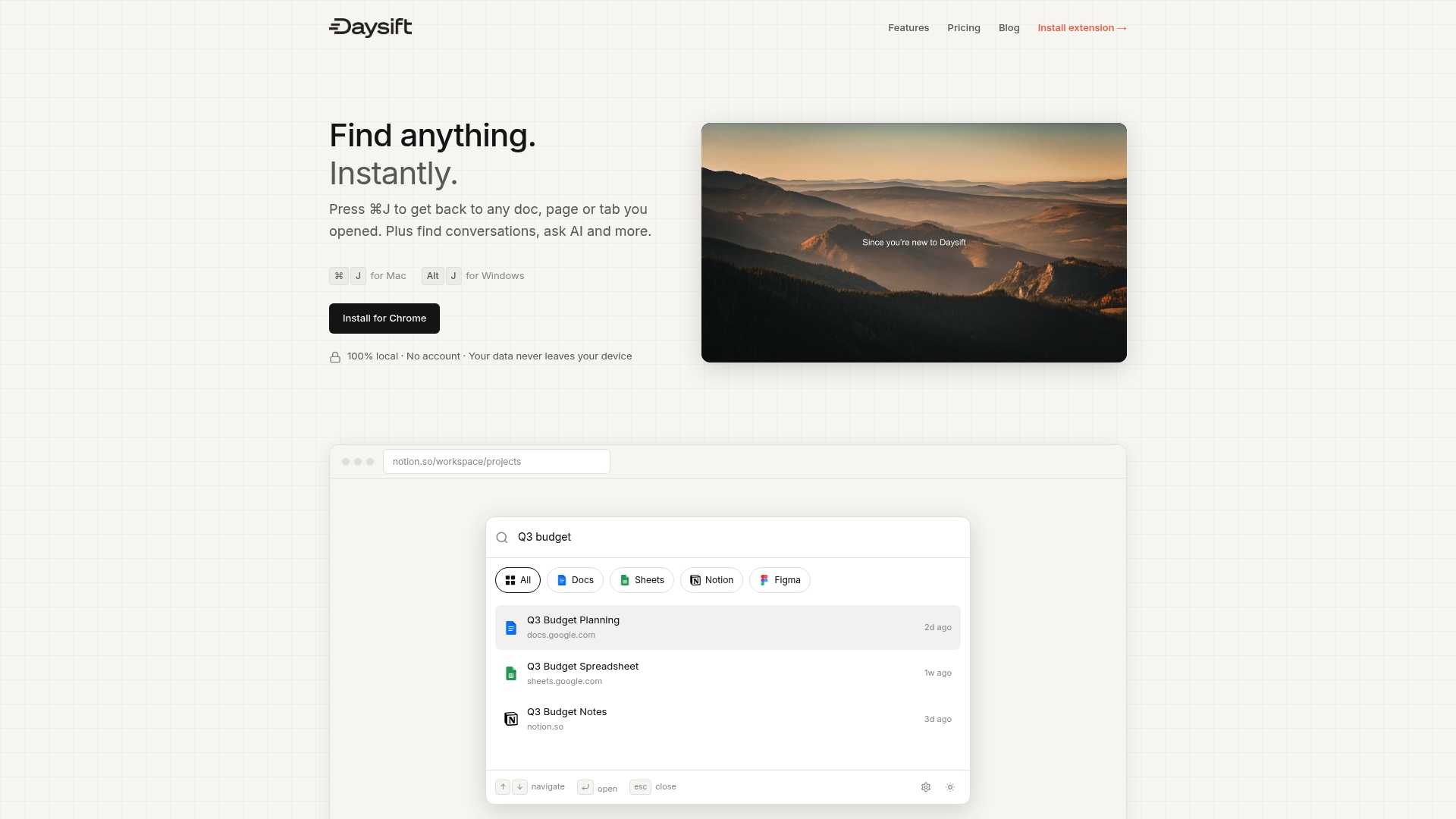
Daysift is built for exactly this gap. It’s a Chrome extension that quietly indexes every work-relevant page you visit, locally on your machine, and makes it all searchable through a single keyboard shortcut. Press ⌘J or Alt+J, type what you remember, and results appear instantly. No organization required. No cloud sync. Your data stays on your device. You can find anything instantly with Daysift using keywords, natural language, or AI-powered intent search. If you’re ready to stop losing time to refinding, get started now and see what instant recall actually feels like.
Frequently asked questions
How do I quickly search my Chrome history?
Press Ctrl+H to open history, then use the search bar with keywords, dates, or site filters for instant results. Chrome’s chrome://history supports all three filter types natively.
Why should I search my history instead of using bookmarks?
History search is faster and requires zero organization, making it better for quick recall than scanning bookmark folders. Enhanced browser history search produces 41% lower cognitive load than bookmark folder scanning.
Can browser history search help with productivity?
Yes. Empirical benchmarks show history search saves 17 seconds per task, adding up to over 11 hours saved per year for a typical knowledge worker.
What privacy risks come with searching browser history?
Accidentally exposing sensitive history on shared devices or syncing it across accounts is the main risk. Use private browsing for sensitive sessions or a tool like Daysift that stores everything locally with no cloud sync.